> For the complete documentation index, see [llms.txt](https://docs.bluerock.io/llms.txt). Markdown versions of documentation pages are available by appending `.md` to page URLs; this page is available as [Markdown](https://docs.bluerock.io/bluerock-documentation-2.7.0-beta/bluedev-container/bluerock-connector-for-claude-and-codex-ide/bluerock-connector-windows.md).

# BlueRock Connector - Windows

The BlueRock Connector application for Windows establishes a secure bridge between local AI IDEs ([Claude Code](https://claude.com/product/claude-code) or [Codex](https://openai.com/codex/)) and the remote BlueRock sandbox. The application natively handles SSO and SSH key authentication, local port forwarding, and container lifecycle management to enable a fully remote coding workspace.

## Setup and Configuration Workflow

Follow the complete deployment path below, or jump directly to the required phase:

1. [Prerequisites](#prerequisites)
   1. [Software and Client Applications](#software-and-client-applications)
   2. [System Requirements](#system-requirements)
   3. [Network and Security](#network-and-security)
2. [Installation](#installation)
3. [Authentication and Enrollment](#authentication-and-enrollment)
4. [Evironment Lifecycle Management](#environment-lifecycle-management)
   1. [Create Sandbox](#create-sandbox)
   2. [Stop Sandbox](#stop-sandbox)
   3. [Destroy Environment](#destroy-environment)
5. [Connecting AI Tools and Workspace Integration](#connecting-ai-tools-and-workspace-integration)
   1. [Connecting to Claude Code IDE](#connecting-to-claude-code-ide)
   2. [Connecting to Codex](#connecting-to-codex)
   3. [Verifying Session Execution and Script Output](#verifying-session-execution-and-script-output)
   4. [Browsing Remote Sandbox Files via Systems File Explorer](#browsing-remote-sandbox-files-via-system-file-explorer)
6. [BlueRock Connector Command-Line Interface Features](#bluerock-connector-command-line-interface-features)
   1. [Remote Shares](#remote-shares)
   2. [Port Forwarding](#port-forwarding)
7. [OTEL Events](#otel-events)
8. [Maintenance and Troubleshooting](#maintenance-and-troubleshooting)
   1. [Exporting Connector Logs](#exporting-connector-logs)
   2. [Resetting Connector Configuration](#resetting-connector-configuration)

## Prerequisites

### Software and Client Applications

* **IDEs**:
  * [Claude Code IDE](https://claude.com/product/claude-code)&#x20;
  * [Codex](https://openai.com/codex/)
* **BlueRock Connector App**: \
  Contact [BlueRock support](https://www.bluerock.io/contact) to obtain `BlueRock_Connector_win64.exe`.
* **OpenSSH Client**: \
  The client must be installed and added to the system PATH (e.g., `C:\Windows\System32\OpenSSH\`).

{% hint style="info" icon="notes" %}
**Note:**&#x20;

The OpenSSH Client is an optional Windows feature and is frequently removed from hardened corporate images.
{% endhint %}

### System Requirements

**Operating System**:&#x20;

Windows 11 (24H2 or later) is required for file transfers between the local machine and the BlueRock environment.

{% hint style="success" icon="lightbulb-exclamation-on" %}
**Important:**&#x20;

Install the application strictly in the user's context. Do not install the application machine-wide or via "Run as administrator," because the Connector stores identity locally in the user profile.
{% endhint %}

### Network and Security

* **Virtual Private Network (VPN):** \
  If the BlueRock instance resides on a private network, active VPN connectivity is required to reach the instance.
* **Endpoint Protection:** \
  On desktop clients running firewalls or security software, allow port `2259` for inbound connections. The BlueRock Connector application runs a listener service on port 2259 and the loopback interface. The traffic is internal and never leaves the device.

## Installation

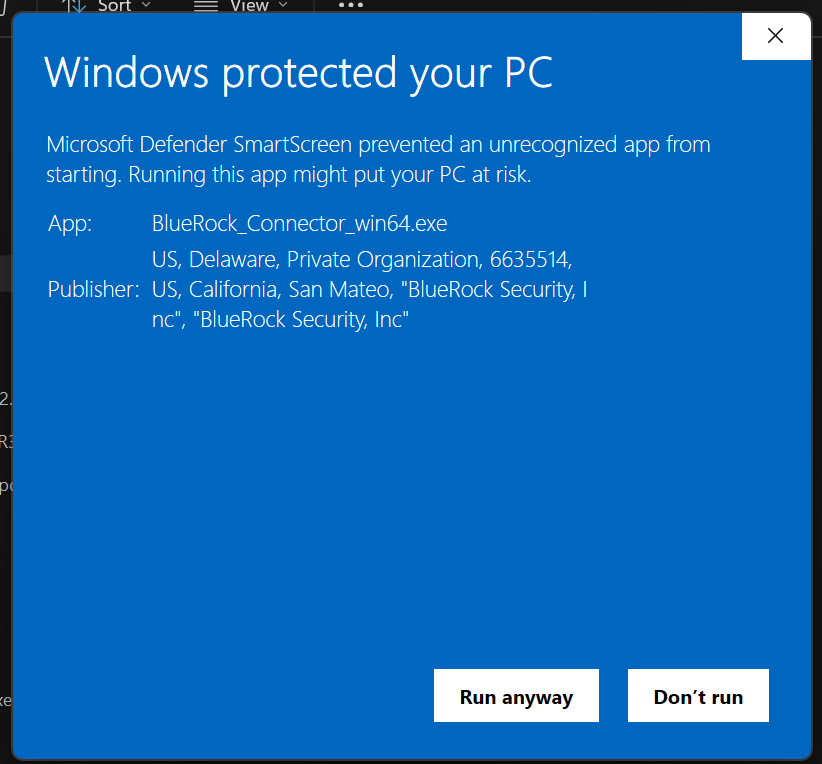
Locate the `BlueRock_Connector_win64.exe` application and double-click to run it.

{% hint style="info" icon="notes" %}
**Note:**

Windows will display a standard publisher notification warning message because the application is not from Microsoft. Proceed through the prompt to install and run the application.

<img src="https://content.gitbook.com/content/ort4Br5IHojsiLdOMAV0/blobs/QCs9tp5acus3pUIHCBpF/Windows-security-BlueRockConnector-app.png" alt="" data-size="original">
{% endhint %}

## Authentication and Enrollment

1. Once the application opens, select the **Set Up Connector** button.

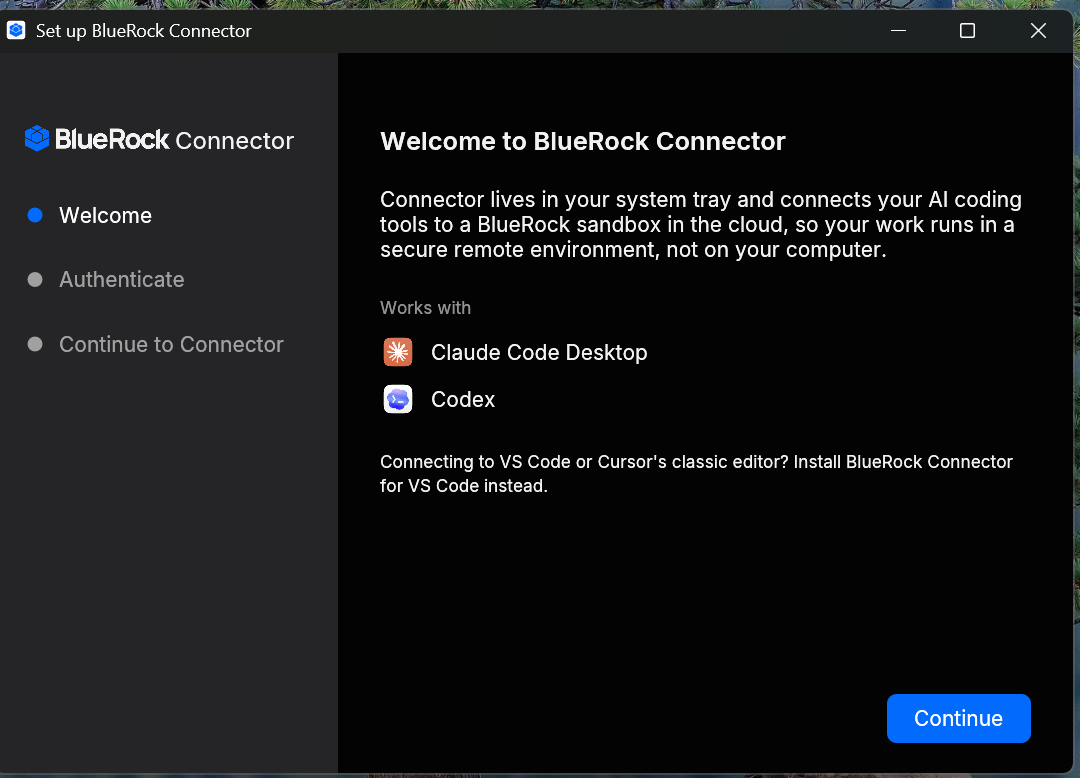
2. Select **Continue** on the welcome screen.<br>
   <div align="left"><img src="https://content.gitbook.com/content/ort4Br5IHojsiLdOMAV0/blobs/D6rNuBRV2U7RCBhsiITP/BlueRock-Connector-app-Welcome.png" alt="" width="563"></div>

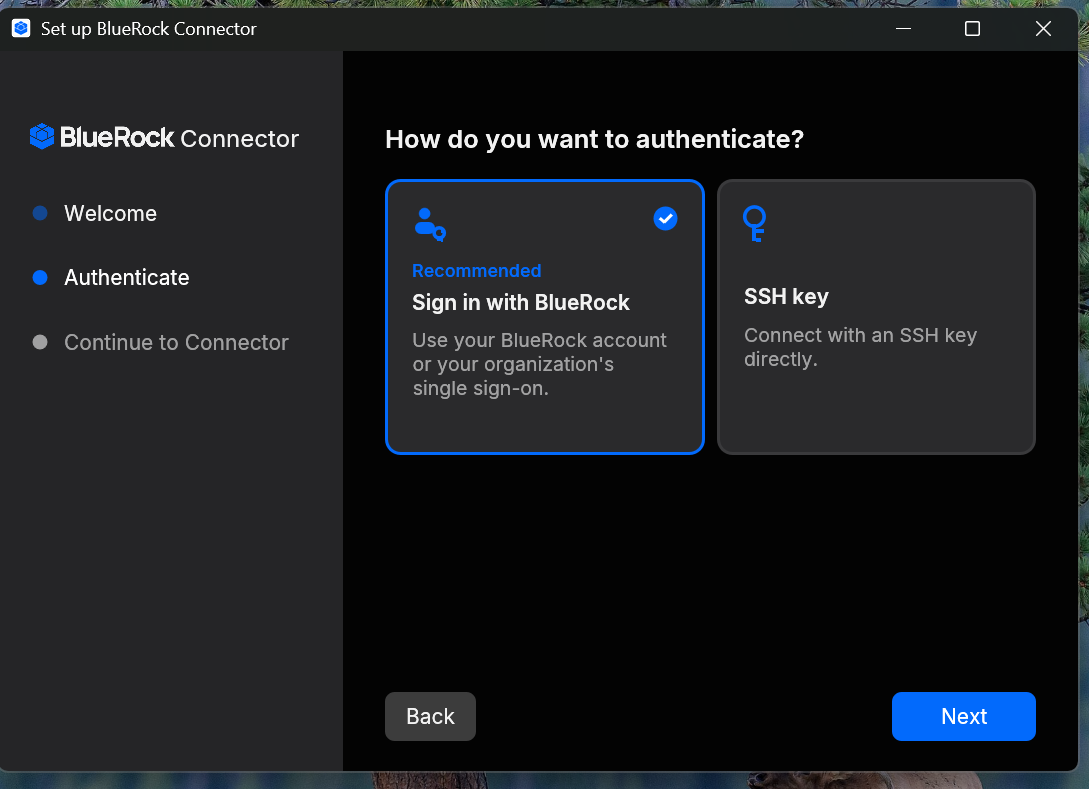
3. Choose one of the following authentication methods:
   1. Sign in with BlueRock\
      *Also, known as Single Sign On (SSO) login option.*
      1. Select the **Sign in with BlueRock** option then select **Next**.

         <div align="left"><figure><img src="https://content.gitbook.com/content/ort4Br5IHojsiLdOMAV0/blobs/WpzCFpZmpjykLpjwzlRn/image.png" alt="" width="563"><figcaption></figcaption></figure></div>
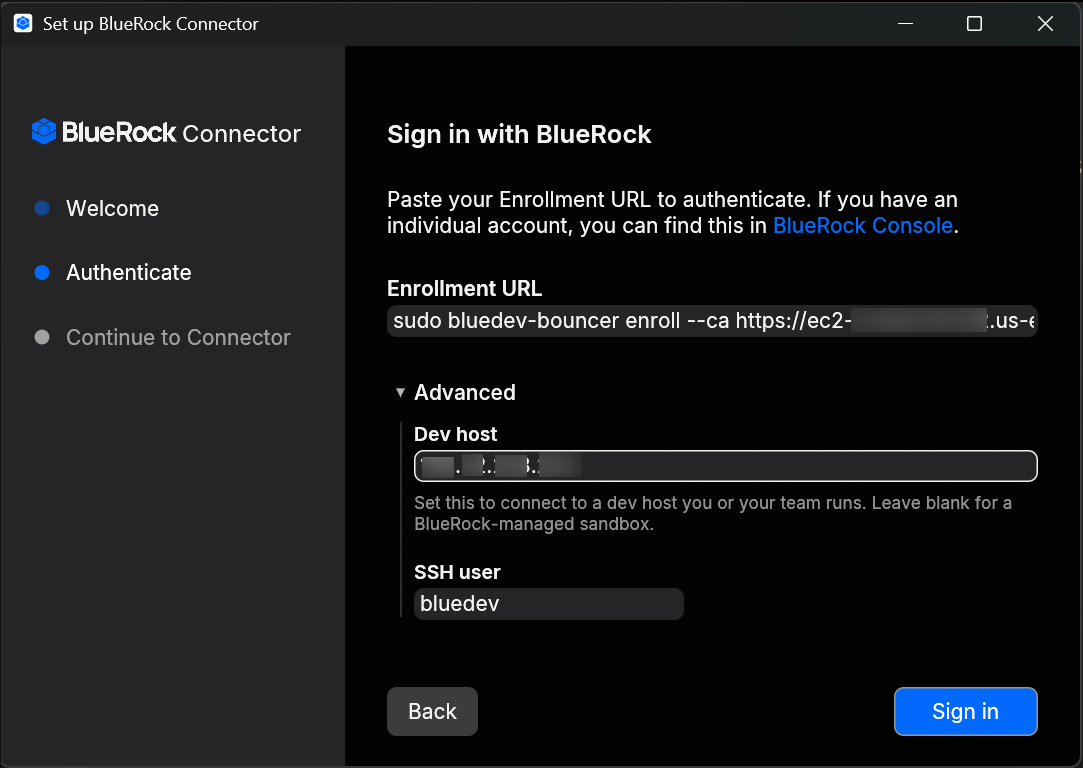
      2. Provide the bootstrap string URL in the **Enrollment URL** field and enter the public DNS or IP address of the BlueRock host in the **Dev host** field. Click **Sign in**.

         <div align="left"><figure><img src="https://content.gitbook.com/content/ort4Br5IHojsiLdOMAV0/blobs/vUagdv8eLfb40HuNzAaA/image.png" alt="" width="563"><figcaption></figcaption></figure></div>
      3. Complete the sign-in flow in the web browser to authorize the application.<br>
   2. SSH Key
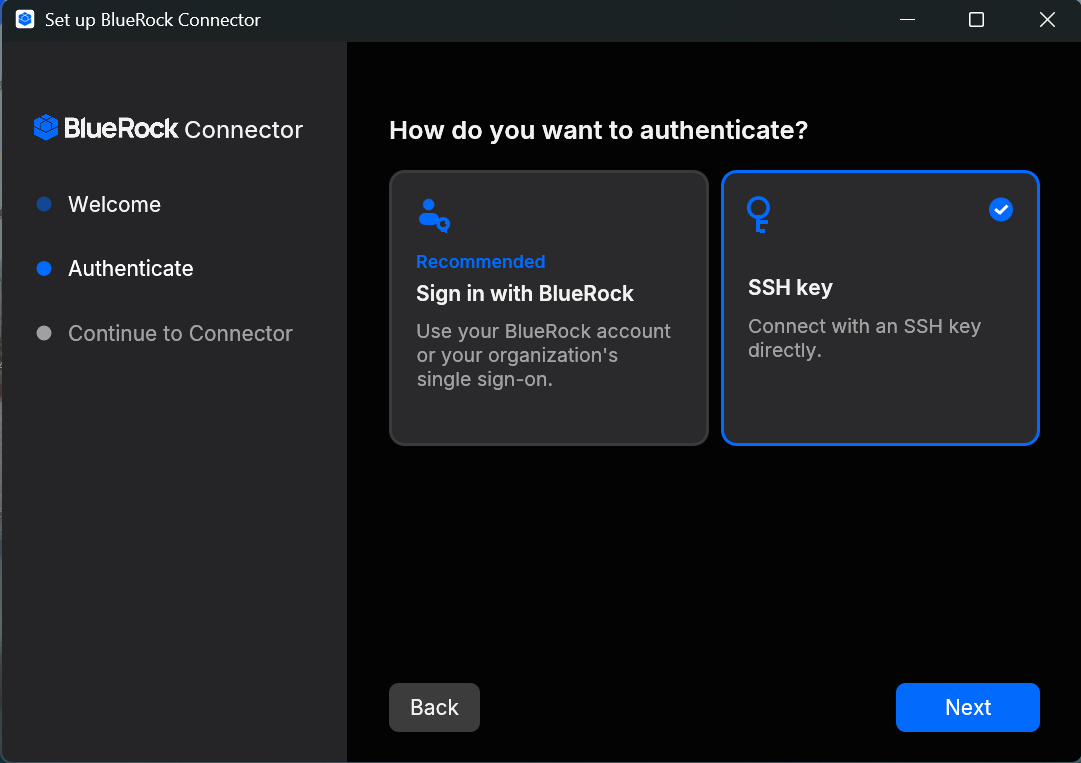
      1. Select the **SSH key** option then select **Next**.<br>

         <div align="left"><figure><img src="https://content.gitbook.com/content/ort4Br5IHojsiLdOMAV0/blobs/H9Epz6hxF05nCEG51YdG/image.png" alt="" width="563"><figcaption></figcaption></figure></div>
      2. Run the following command on the local machine to obtain the fingerprint:

         ```shellscript
         $ ssh-keyscan -T 10 -t ed25519 <host-ip> | ssh-keygen -lf - 2>&1
         ```
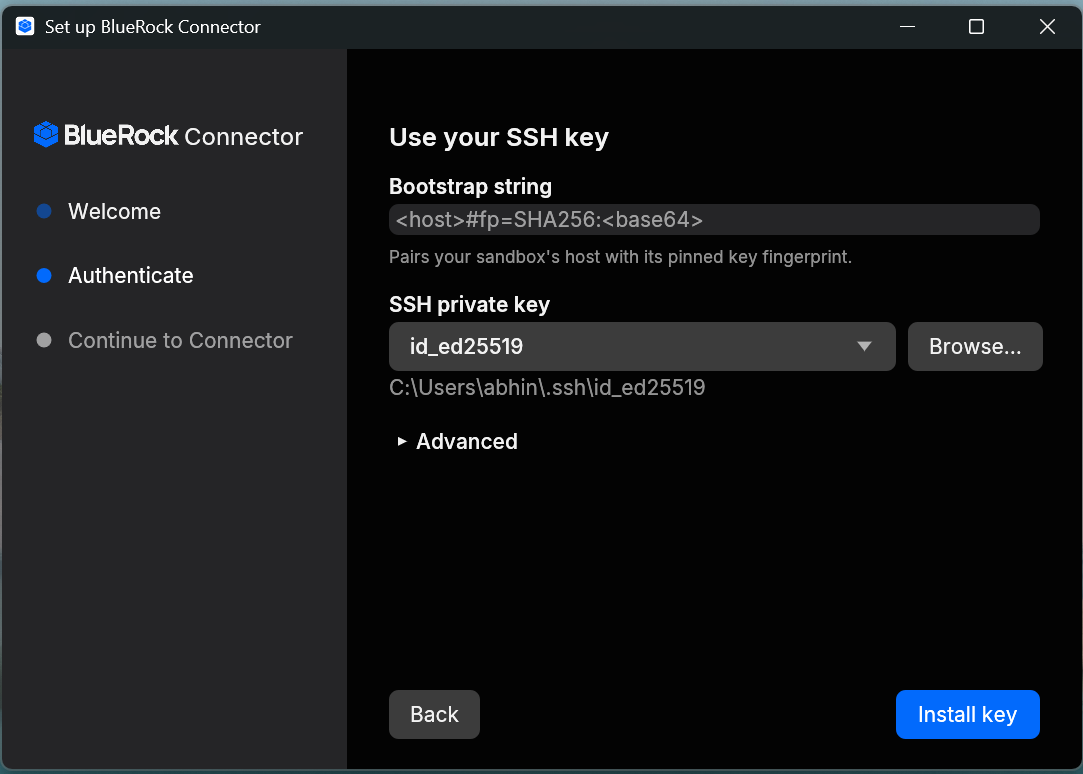
      3. Enter the Bootstrap string in the application using the following format: `<host-ip>#fp=SHA256:<base64>` (For example: `10.101.01.101#fp=SHA256:0x0x...`)
      4. Click **Browse**, select the required SSH private key, and click **Install Key**.<br>

         <div align="left"><figure><img src="https://content.gitbook.com/content/ort4Br5IHojsiLdOMAV0/blobs/YB3apMWXI4RjwIQeka6d/image.png" alt="" width="563"><figcaption></figcaption></figure></div>

{% hint style="info" icon="notes" %}
**Note:**&#x20;

Ensure the same SSH public key is present in the `.ssh` folder of the instance's Bluedev profile. Run the following commands on the BlueRock instance to configure the key:

```shellscript
sudo su
sudo su bluedev
mkdir -p ~/.ssh
chmod 700 ~/.ssh
vi ~/.ssh/authorized_keys
chmod 600 ~/.ssh/authorized_keys
```

{% endhint %}

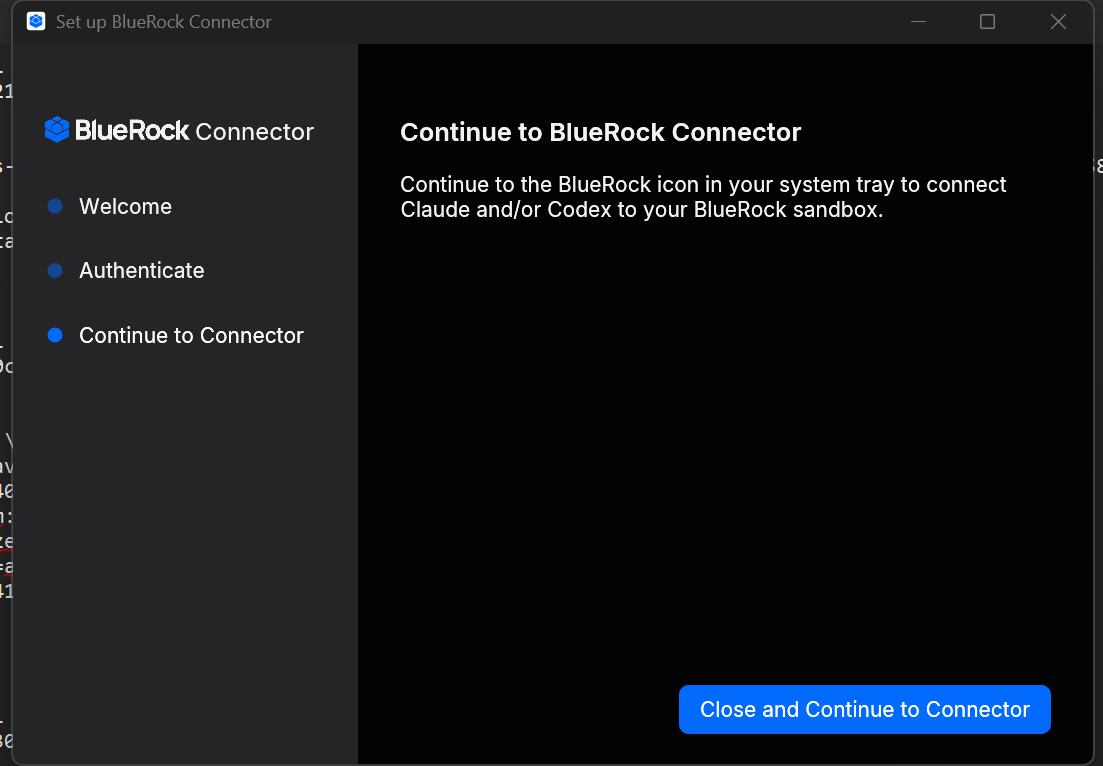
4. Then click **Close and Continue to Connector** to proceed working with the connector app.<br>

   <div align="left"><figure><img src="https://content.gitbook.com/content/ort4Br5IHojsiLdOMAV0/blobs/3PNSyPVQYEO2DtsXR7DV/image.png" alt="" width="563"><figcaption></figcaption></figure></div>

## Environment Lifecycle Management

### Create Sandbox

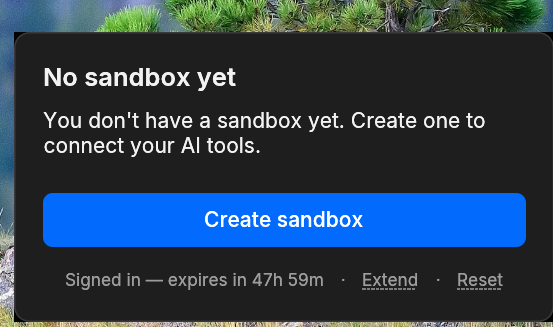
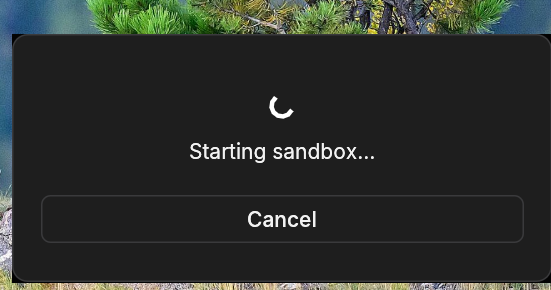
Select the **Create sandbox** button to initialize the remote container.<br>

<div align="left"><figure><img src="https://content.gitbook.com/content/ort4Br5IHojsiLdOMAV0/blobs/Z3QNOEcP1gPV43io6lg0/image.png" alt=""><figcaption></figcaption></figure></div>

<div align="left"><figure><img src="https://content.gitbook.com/content/ort4Br5IHojsiLdOMAV0/blobs/HQh9xLzmbunSkXCPoKOJ/image.png" alt=""><figcaption></figcaption></figure></div>

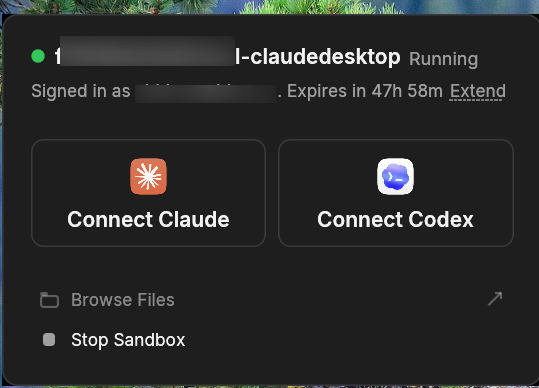
### Stop Sandbox

Click **Stop Sandbox** to halt the running container.

<div align="left"><figure><img src="https://content.gitbook.com/content/ort4Br5IHojsiLdOMAV0/blobs/QqghyCSCFaUD0O1dV4it/image.png" alt=""><figcaption></figcaption></figure></div>

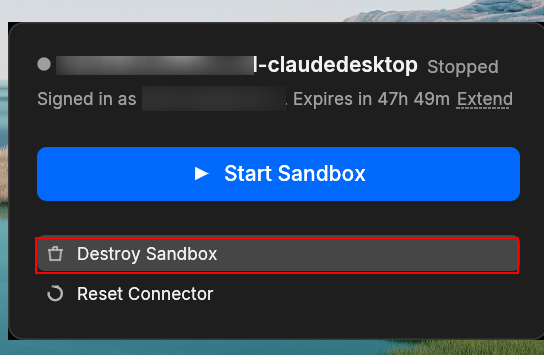
### Destroy Environment

Click **Destroy Sandbox** to completely purge and delete the container instance from the host.

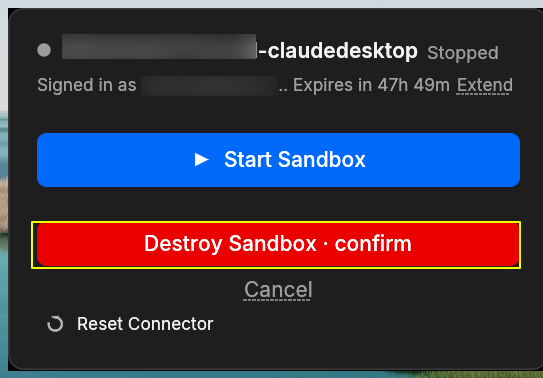
<div align="left"><figure><img src="https://content.gitbook.com/content/ort4Br5IHojsiLdOMAV0/blobs/Dal40fccCbdbMR5w43EV/image.png" alt=""><figcaption></figcaption></figure></div>

Click **Destroy Sandbox - confirm** buttong in the prompt to destrory the sandbox and its files completely.

<div align="left"><figure><img src="https://content.gitbook.com/content/ort4Br5IHojsiLdOMAV0/blobs/TdZHXGRw2LYA62kzOdEc/image.png" alt=""><figcaption></figcaption></figure></div>

## Connecting AI Tools and Workspace Integration

### Connecting to Claude Code IDE

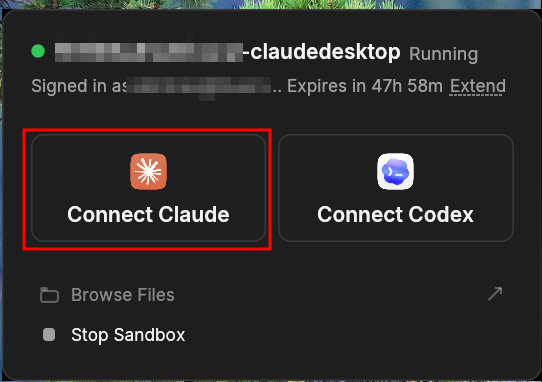
1. Select the **Connect Claude** button in the Connector app.

   <div align="left"><figure><img src="https://content.gitbook.com/content/ort4Br5IHojsiLdOMAV0/blobs/Mas0QSca877BOSbfwUCJ/image.png" alt=""><figcaption></figcaption></figure></div>

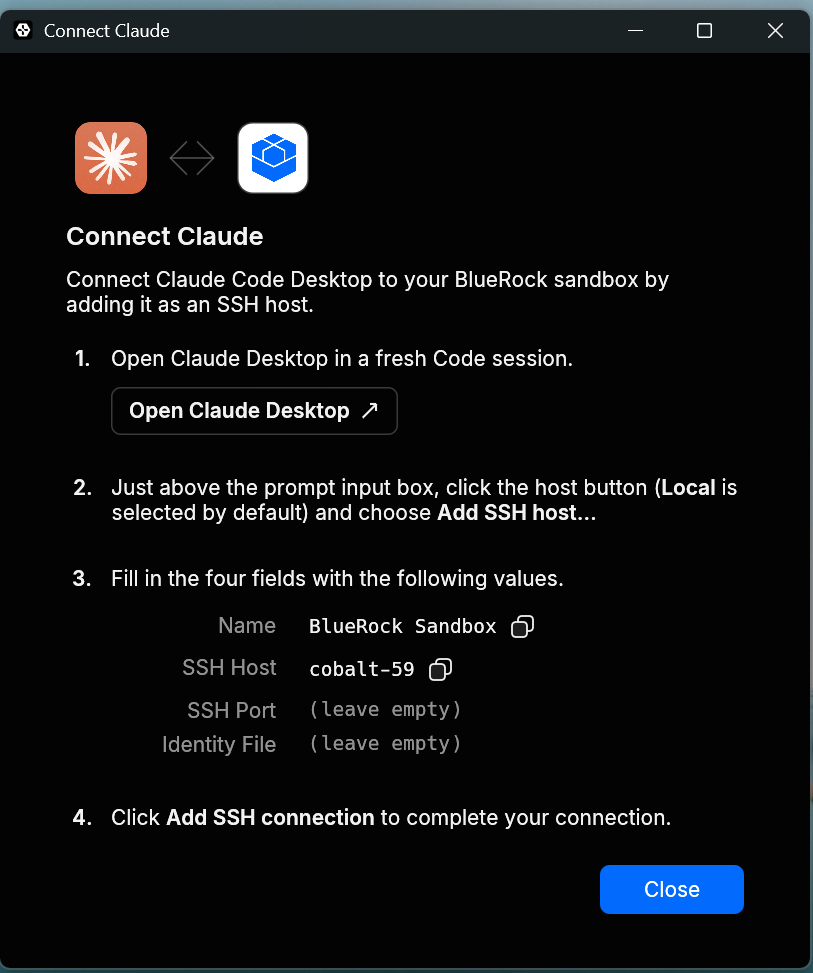
2. Select **Open Claude Desktop** and follow the instructions given on the screen.<br>

   <div align="left"><figure><img src="https://content.gitbook.com/content/ort4Br5IHojsiLdOMAV0/blobs/4kSYKgJMM5sTjqSV2kNz/image.png" alt="" width="563"><figcaption></figcaption></figure></div>

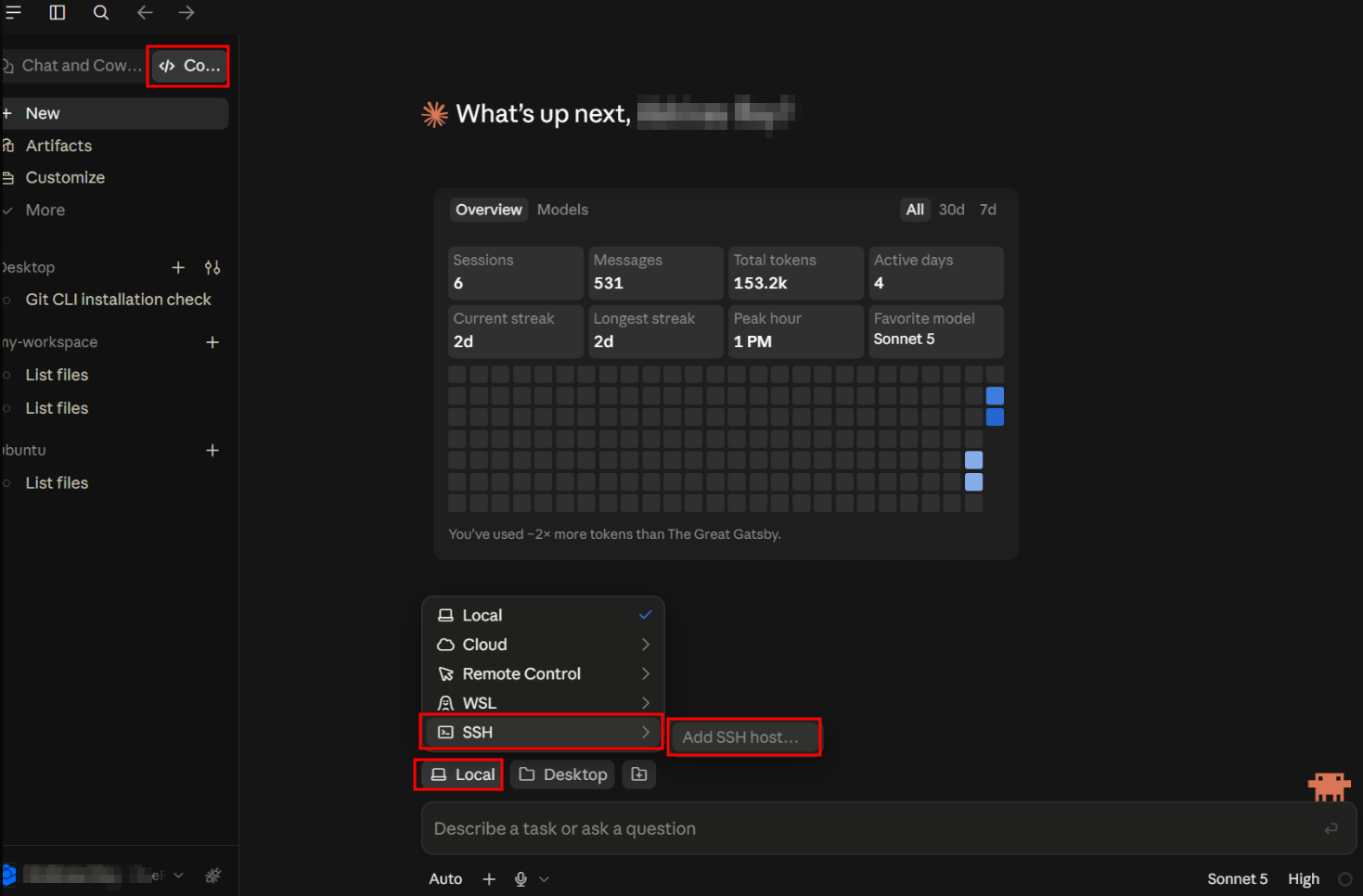
3. In the Claude Code IDE:
   1. Click the **Code** menu option.
   2. Select **Local** > **SSH** > **Add SSH Host...**<br>

      <div align="left"><figure><img src="https://content.gitbook.com/content/ort4Br5IHojsiLdOMAV0/blobs/rIUK975otSkqemNvoBEU/2026-08-27_11-24.png" alt="" width="563"><figcaption></figcaption></figure></div>
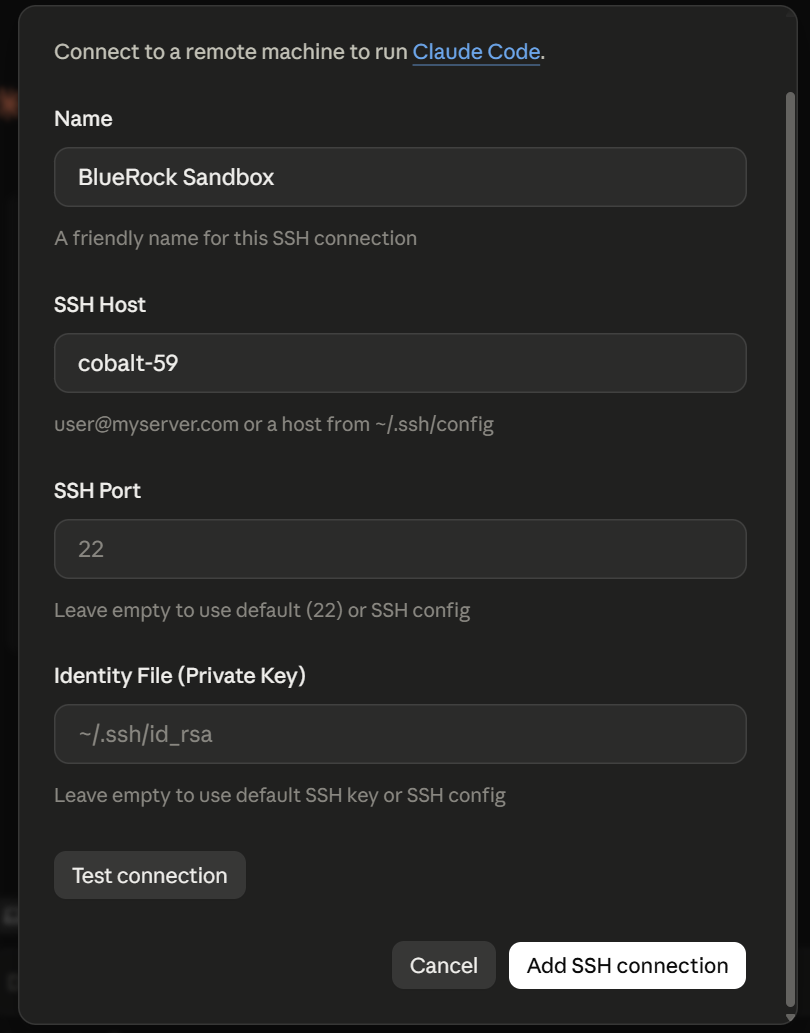
   3. Enter `cobalt-59` only in the **SSH Host** field, with the other details as per the requirements, and click **Add SSH Connection**.&#x20;

      <div align="left"><figure><img src="https://content.gitbook.com/content/ort4Br5IHojsiLdOMAV0/blobs/FNFHKu41KKJ6Sgns13BO/image.png" alt="" width="563"><figcaption></figcaption></figure></div>

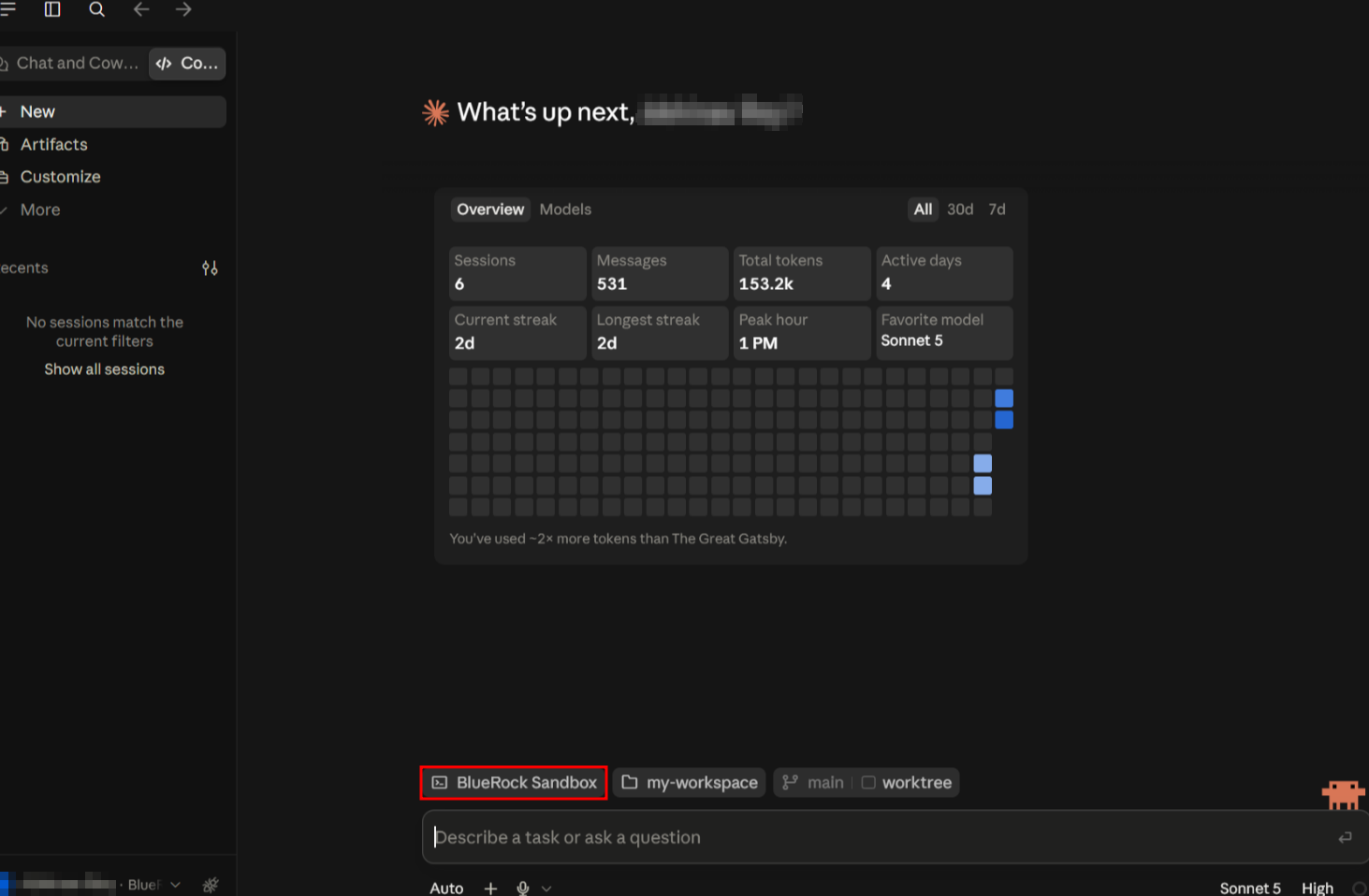
Then Claude Code will SSH into the instance, and any tasks or development scripts created inside this window will now execute directly inside your active remote `bluedev` Docker container.

<figure><img src="https://content.gitbook.com/content/ort4Br5IHojsiLdOMAV0/blobs/81q5gSGEVuPj9Go9QWQL/image.png" alt=""><figcaption></figcaption></figure>

{% hint style="info" icon="notes-sticky" %}
**Note:**

OTEL events are generated by the `blueclaude_sensor` for all the actions done by the coding agent running inside the remote container.
{% endhint %}

### Connecting to Codex

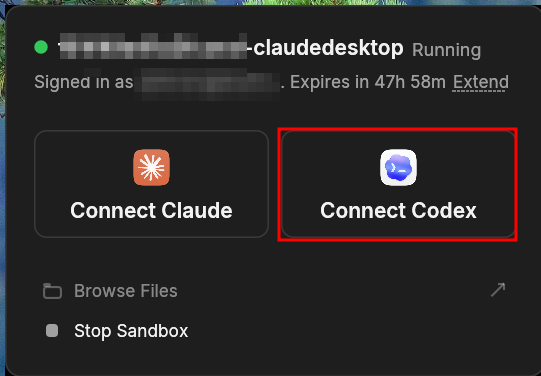
1. Select the **Connect Codex** button in the Connector app.&#x20;

   <div align="left"><figure><img src="https://content.gitbook.com/content/ort4Br5IHojsiLdOMAV0/blobs/CWreBx1GxTqZpPPkSjm1/image.png" alt=""><figcaption></figcaption></figure></div>
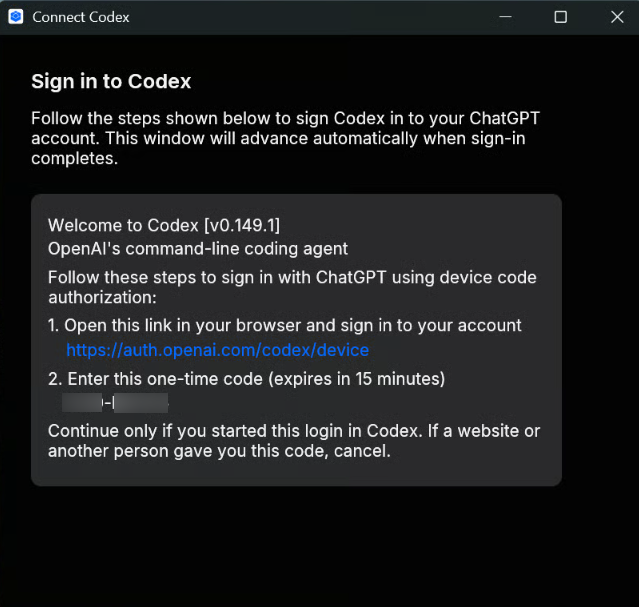
2. Follow the on-screen dialog instructions and click the provided link to authenticate. A one-time code is also present to enter while setting up an OpenAI account.<br>

   <div align="left"><figure><img src="https://content.gitbook.com/content/ort4Br5IHojsiLdOMAV0/blobs/Ex6UaKFNzeqmwPtApviW/image.png" alt="" width="479"><figcaption></figcaption></figure></div>
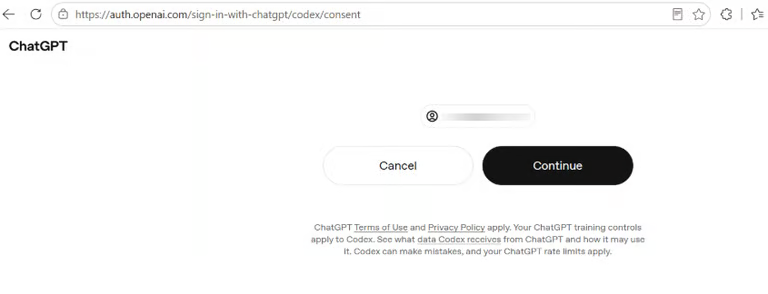
3. Authenticate with the OpenAI/ChatGPT account in the default browser.

   <div align="left"><figure><img src="https://content.gitbook.com/content/ort4Br5IHojsiLdOMAV0/blobs/HWtYRIW9frjBrg4zwXh0/image.png" alt="" width="563"><figcaption></figcaption></figure></div>
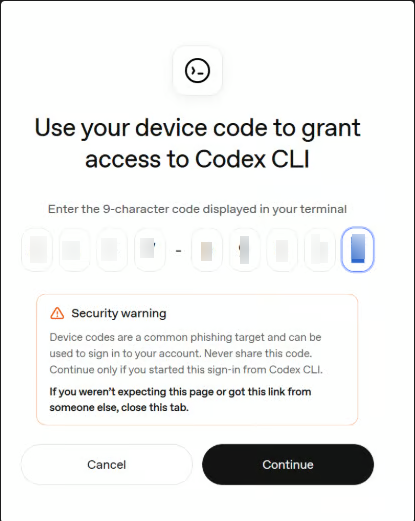
4. Enter the one-time code and select **Continue**.<br>

   <div align="left"><figure><img src="https://content.gitbook.com/content/ort4Br5IHojsiLdOMAV0/blobs/f4zNFCBngl723OxcIOuw/image.png" alt=""><figcaption></figcaption></figure></div>
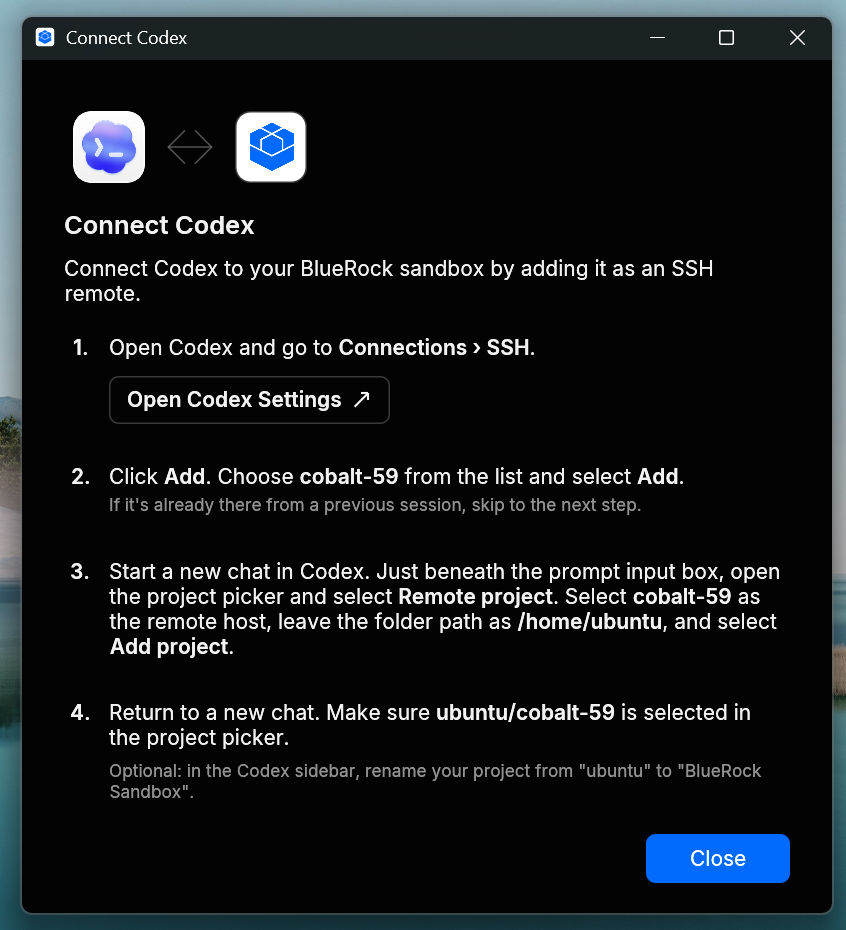
5. Upon completion of OpenAI account setup, the BlueRock Connector app gives a new prompt to **Open Codex Settings**.<br>

   <div align="left"><figure><img src="https://content.gitbook.com/content/ort4Br5IHojsiLdOMAV0/blobs/A5DKbMhi2PrnP1ItJ9CA/image.png" alt="" width="563"><figcaption></figcaption></figure></div>
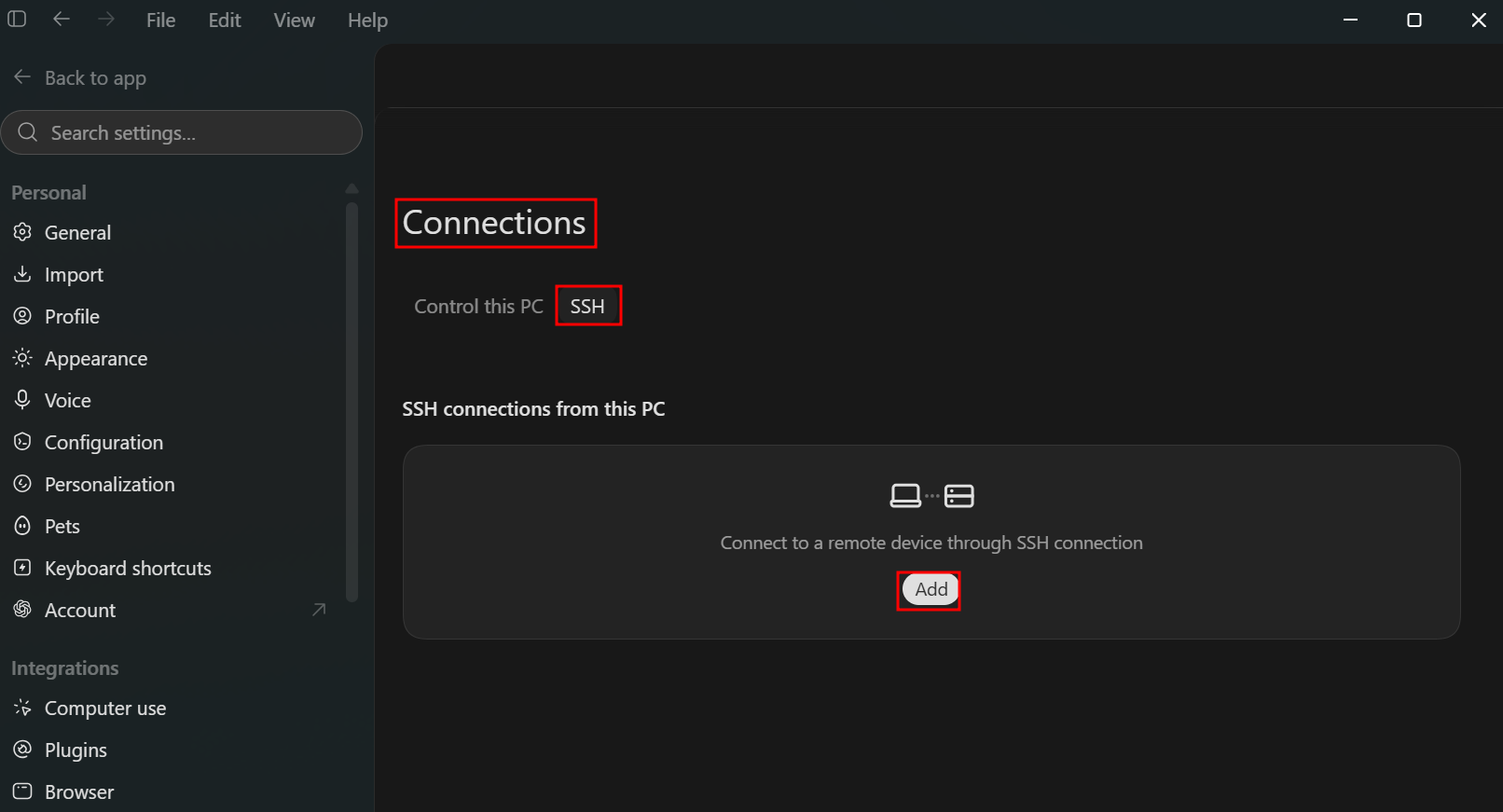
6. In Codex, navigate to **Connections** > select **SSH** > click **Add**.

   <div align="left"><figure><img src="https://content.gitbook.com/content/ort4Br5IHojsiLdOMAV0/blobs/CzpXKKLHVnP2lsOPFbeq/image.png" alt="" width="563"><figcaption></figcaption></figure></div>
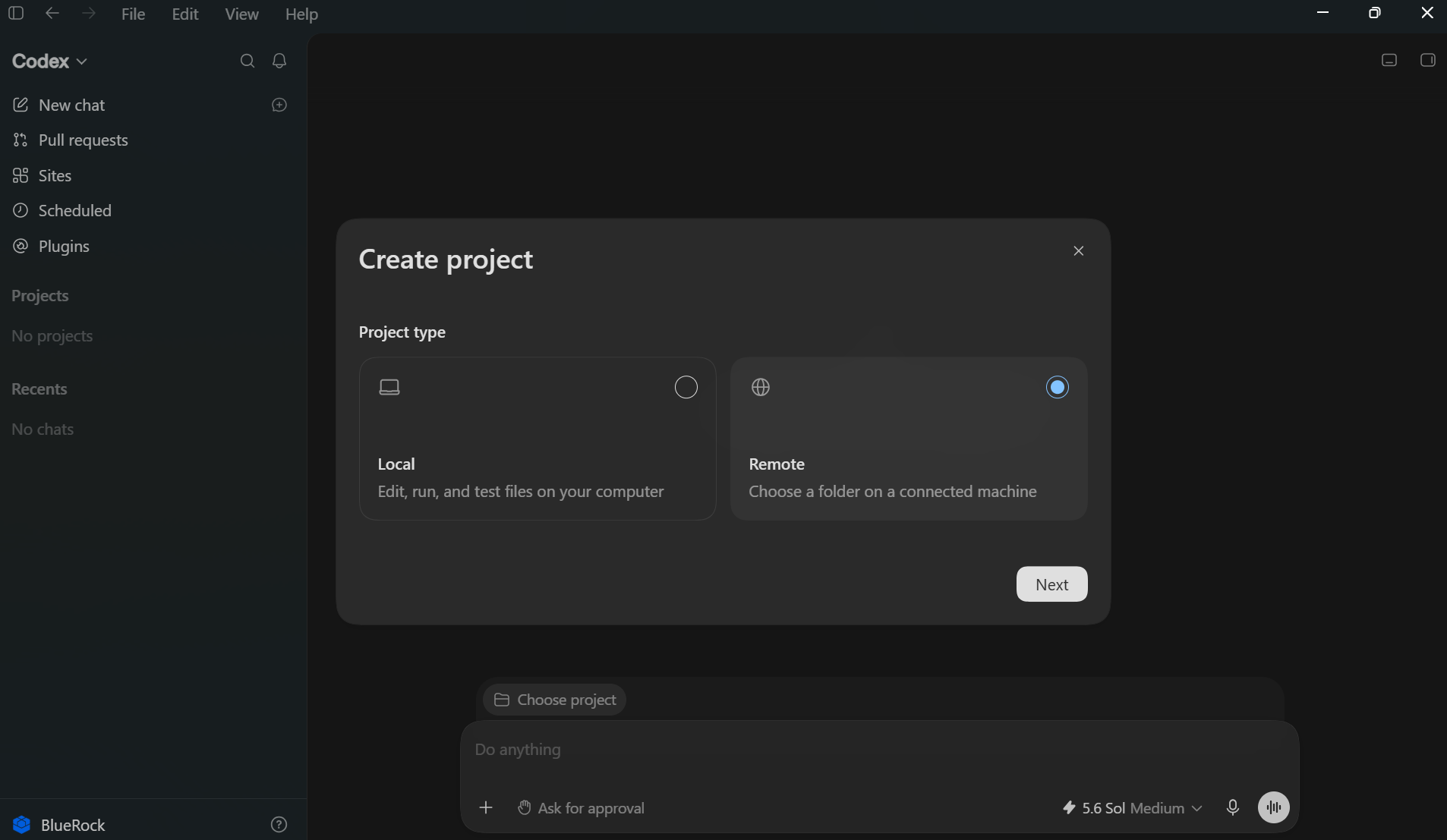
7. Select **Remote** and click **Next** to create a new remote project.

   <div align="left"><figure><img src="https://content.gitbook.com/content/ort4Br5IHojsiLdOMAV0/blobs/W5PtDNZPcnljMOWzLFBf/image.png" alt="" width="563"><figcaption></figcaption></figure></div>
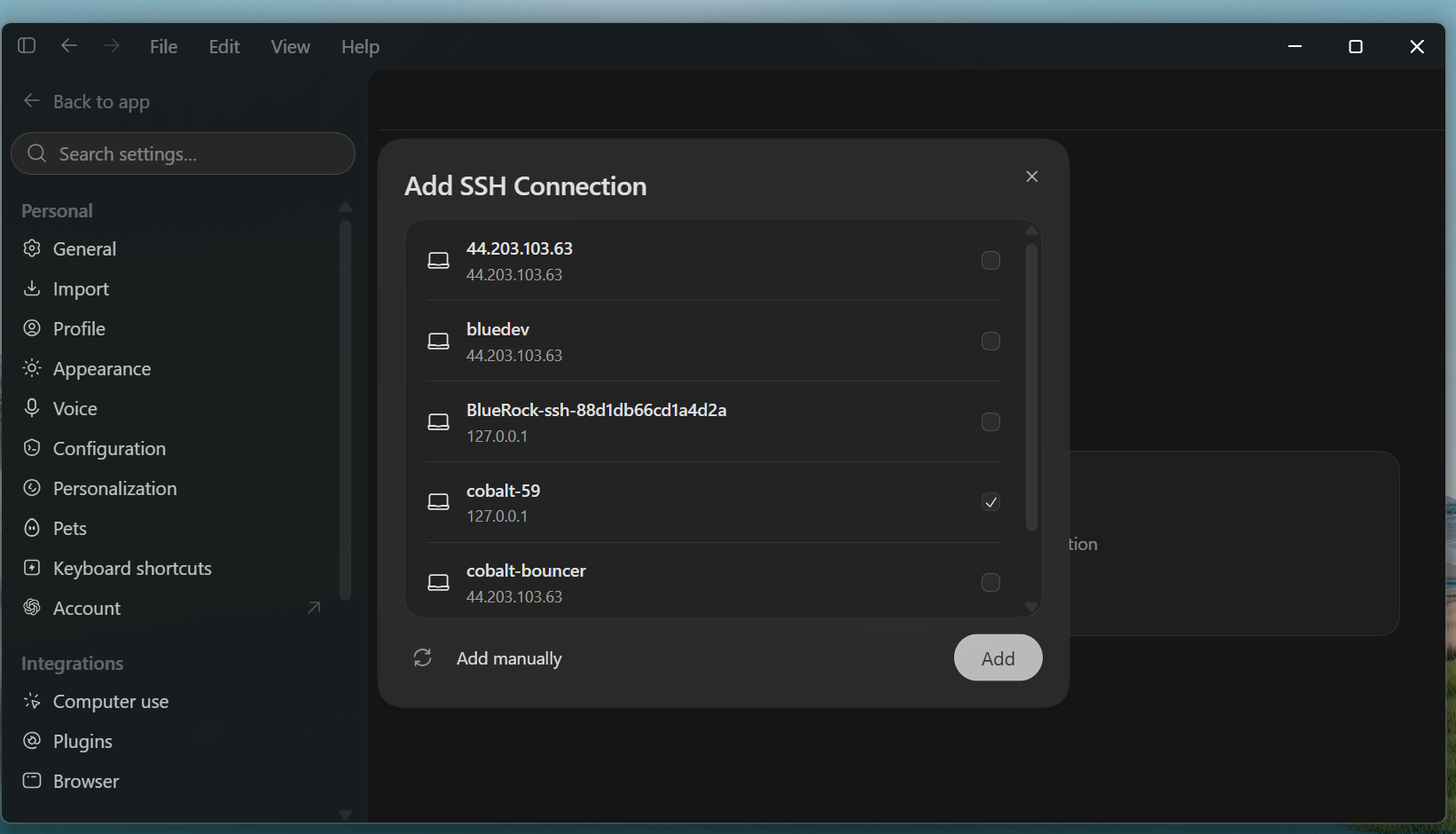
8. Select `cobalt-59` and click **Add.** Add the connection as a project to the Codex workspace.

   <div align="left"><figure><img src="https://content.gitbook.com/content/ort4Br5IHojsiLdOMAV0/blobs/VFg9amzlJ5kaAZWtm4Tv/image.png" alt="" width="563"><figcaption></figcaption></figure></div>
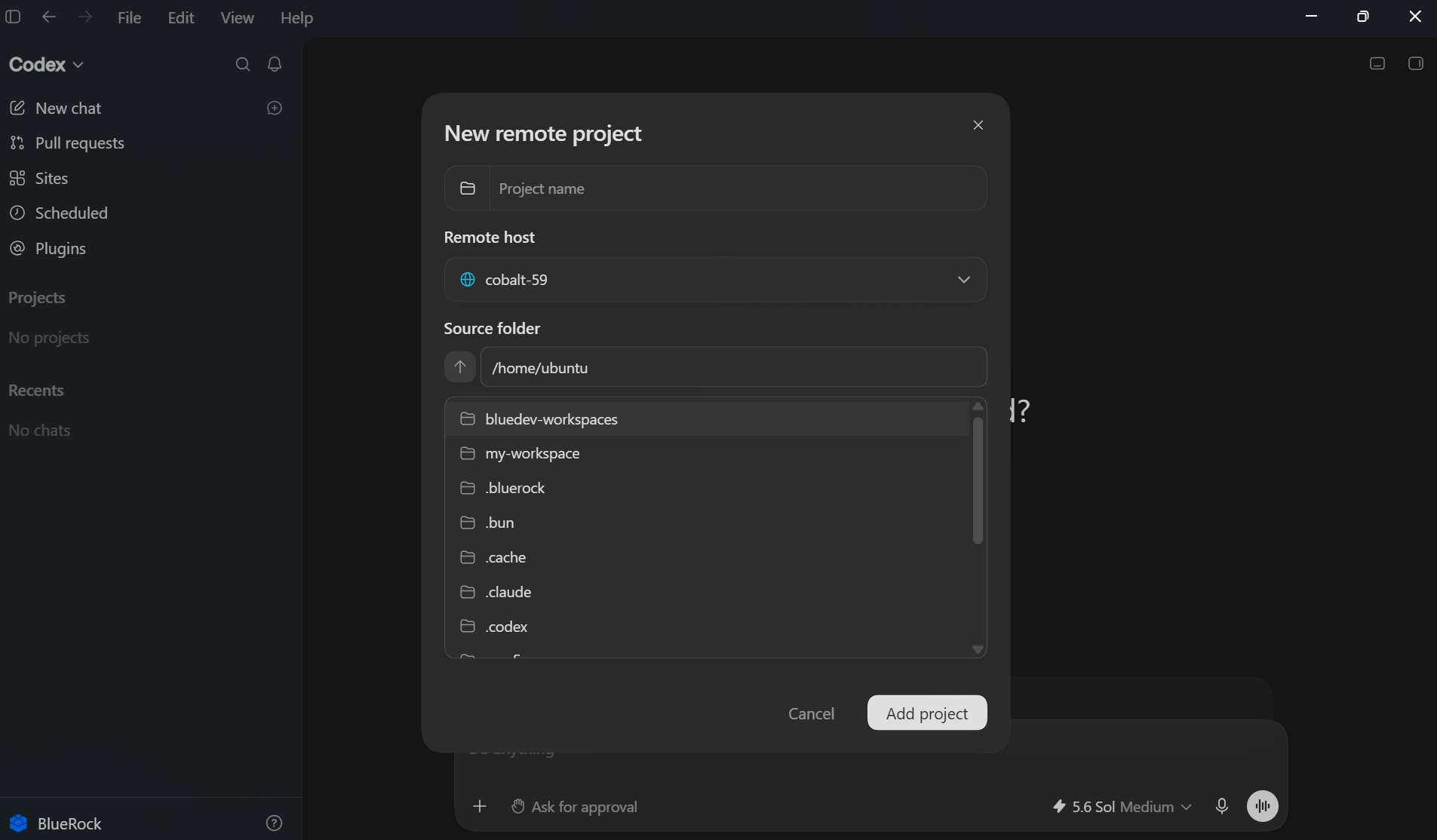
9. In the New Remote Project pane, select **cobalt-59** from the Remote dropdown and select **Add Project**.<br>

   <div align="left"><figure><img src="https://content.gitbook.com/content/ort4Br5IHojsiLdOMAV0/blobs/d6Pqz1UPxqangtfzn3WB/image.png" alt="" width="563"><figcaption></figcaption></figure></div>

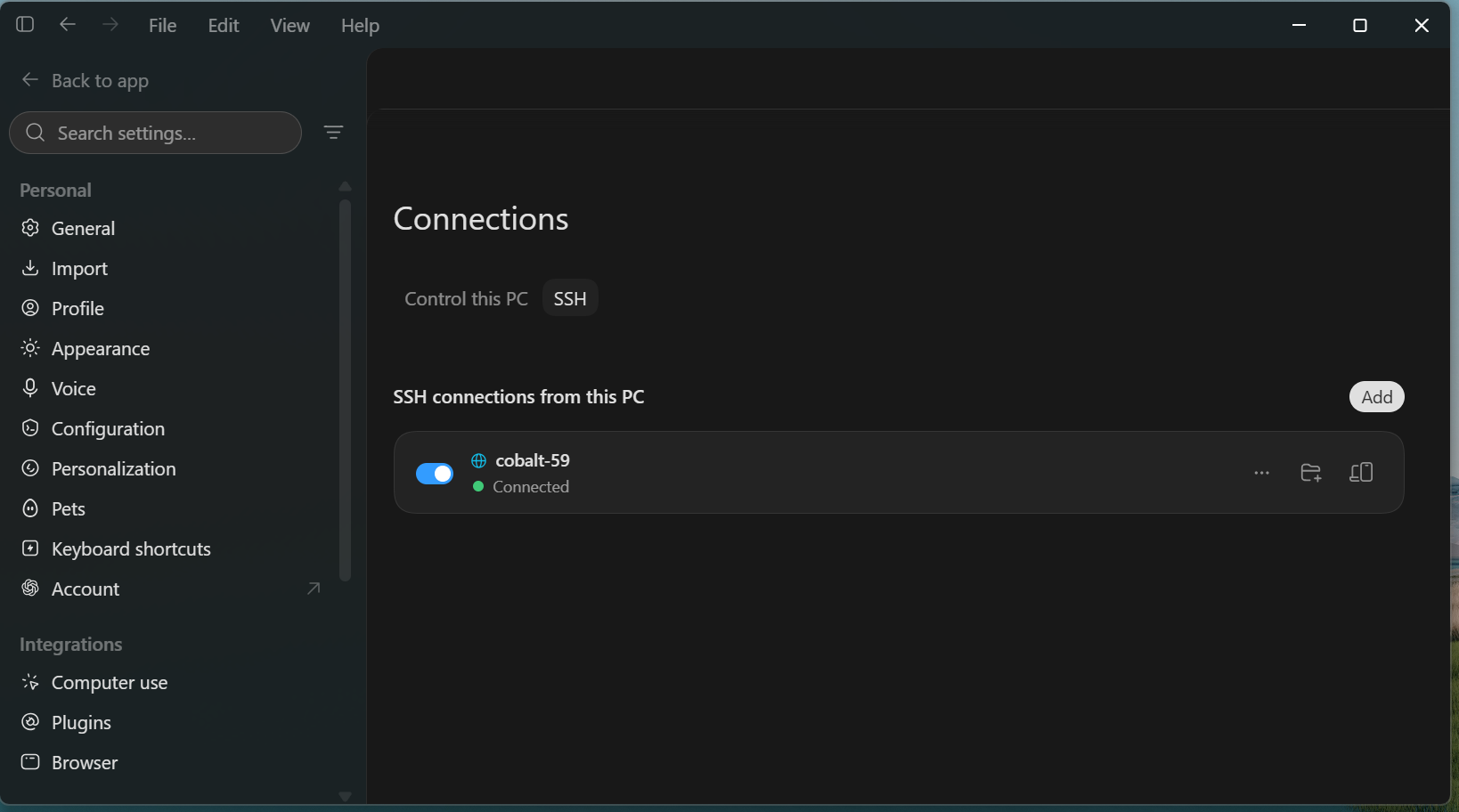
Once the project connects successfully, it will be added in the SSH section.

<div align="left"><figure><img src="https://content.gitbook.com/content/ort4Br5IHojsiLdOMAV0/blobs/i1mkUe7c4YguQPyMOrhT/image.png" alt="" width="563"><figcaption></figcaption></figure></div>

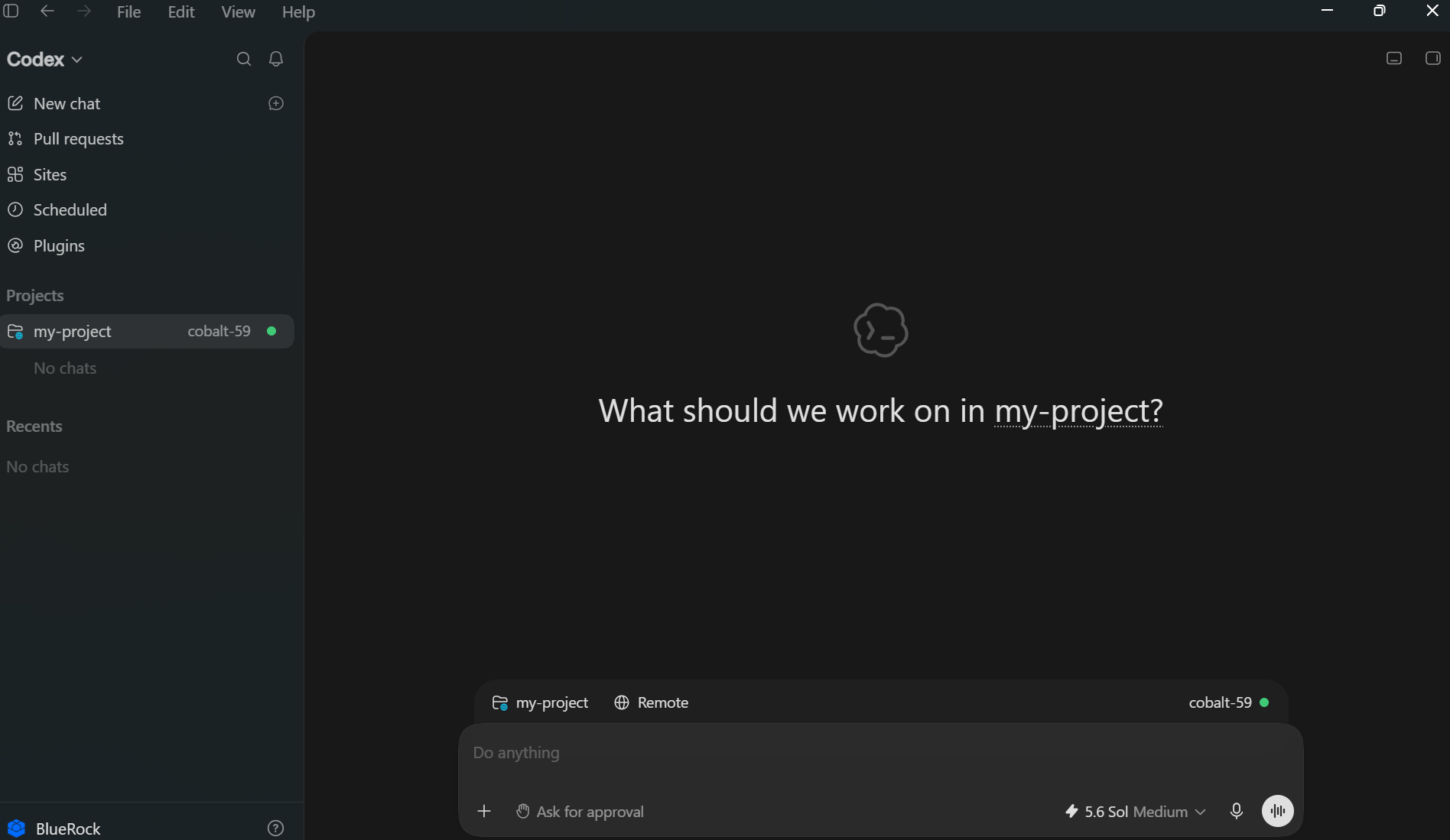
Then use it as a project in the Codex workspace.

<div align="left"><figure><img src="https://content.gitbook.com/content/ort4Br5IHojsiLdOMAV0/blobs/xAtyEB5o1rU6me1zmrEZ/image.png" alt="" width="563"><figcaption></figcaption></figure></div>

### Verifying Session Execution and Script Output

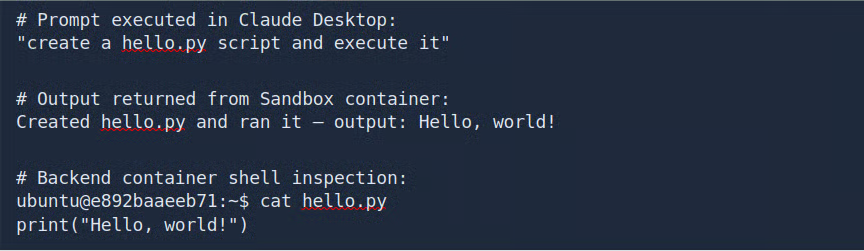
1. In the connected Claude IDE or Codex environment, provide a prompt to create a basic "**Hello World**" Python script to verify the session.
2. Review and verify the script output directly within the IDE's terminal or shell.<br>

   <div align="left"><figure><img src="https://content.gitbook.com/content/ort4Br5IHojsiLdOMAV0/blobs/dJDRIOxBxIBEgj2I0mif/image.png" alt=""><figcaption></figcaption></figure></div>

### Browsing Remote Sandbox Files via System File Explorer

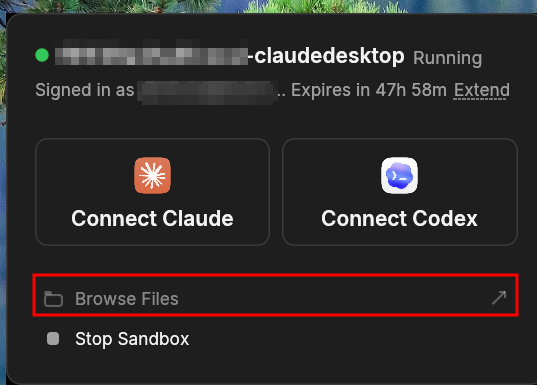
1. In the BlueRock Connector application, select the **Browse Files** option.<br>

   <div align="left"><figure><img src="https://content.gitbook.com/content/ort4Br5IHojsiLdOMAV0/blobs/koknyUKRilSjQ5mLkT1T/image.png" alt=""><figcaption></figcaption></figure></div>
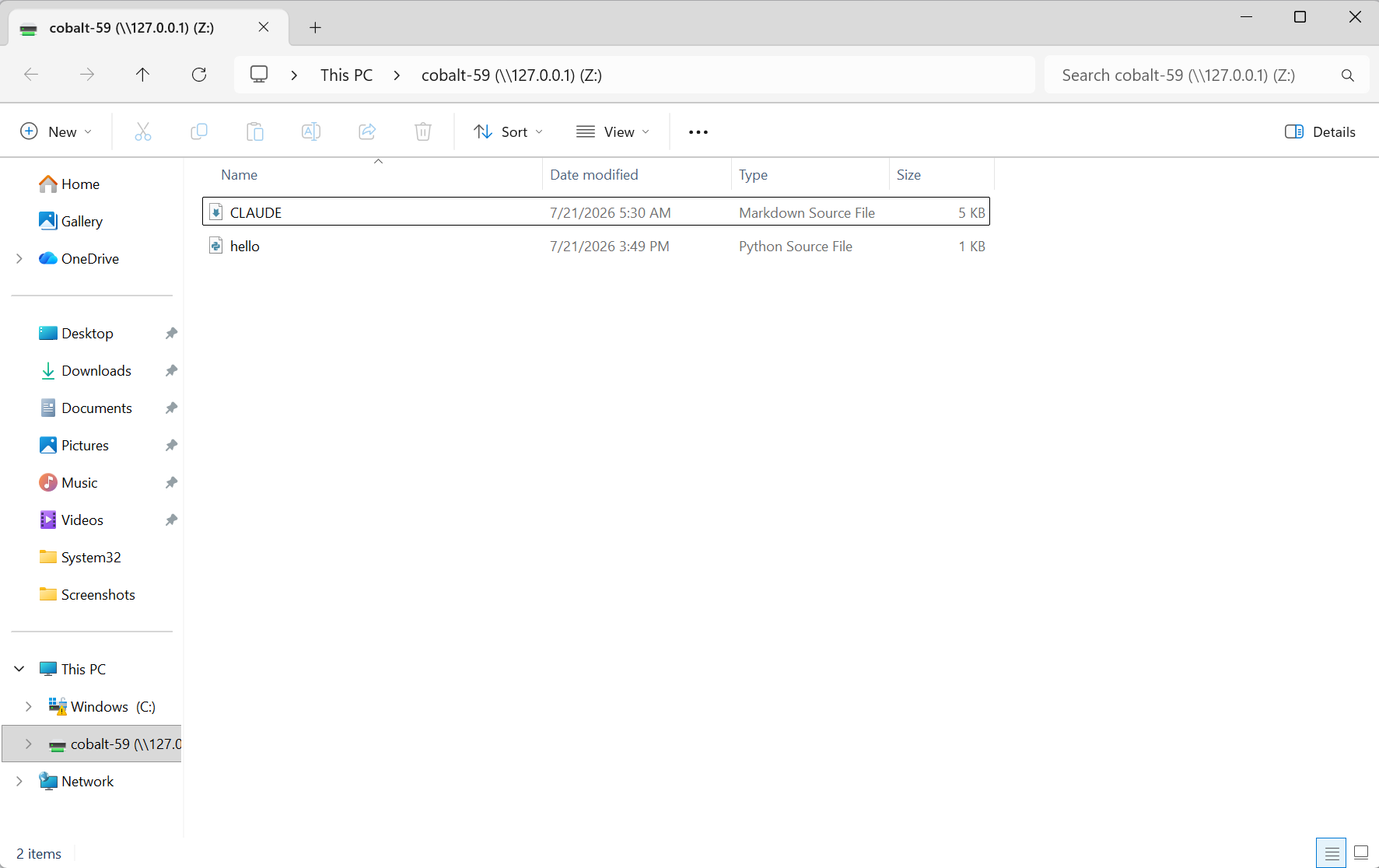
2. View and interact with the remote files directly within **Windows Explorer**.&#x20;

   <div align="left"><figure><img src="https://content.gitbook.com/content/ort4Br5IHojsiLdOMAV0/blobs/GNB4cvqKprXwca0rG0df/image.png" alt="" width="563"><figcaption></figcaption></figure></div>

   \
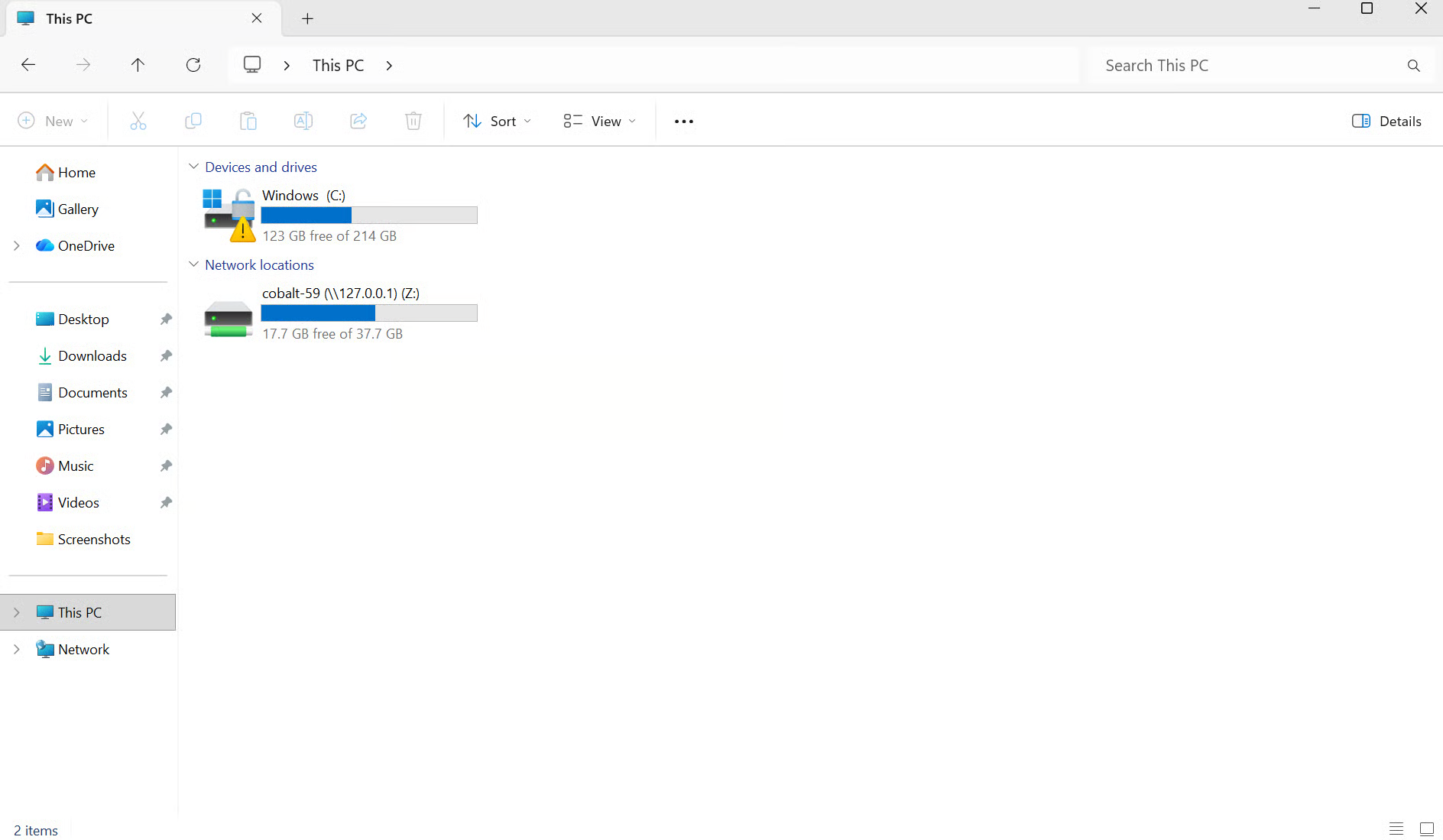
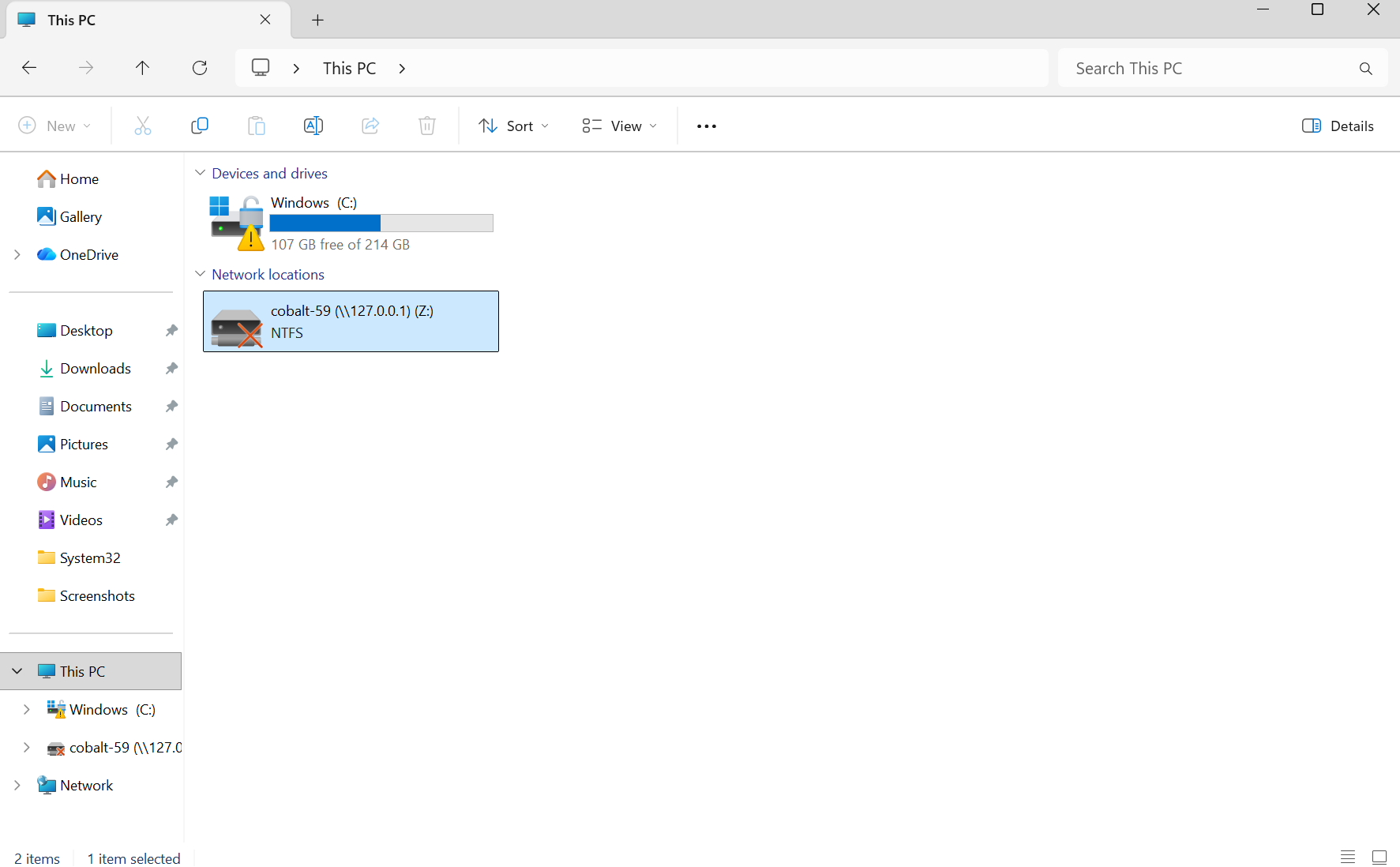
   The `bluedev` container mounts natively on the Windows file system under **Network Locations**.<br>

   <div align="left"><figure><img src="https://content.gitbook.com/content/ort4Br5IHojsiLdOMAV0/blobs/JDXOL0n6avfljM0FBvJM/image.png" alt="" width="563"><figcaption></figcaption></figure></div>

## BlueRock Connector Command-Line Interface Features

The BlueRock Connector provides a Command-Line Interface (CLI) for advanced configurations on Windows. Developers must use the CLI to configure remote shares and manage manual port forwarding, as the graphical menu bar application does not include interfaces for these features.

### Remote Shares

Remote shares mount external network storage directly into the sandbox.

{% hint style="success" icon="lightbulb-exclamation-on" %}
**Important:**&#x20;

The system refuses the `cobalt up --share` command on an existing sandbox. Shares require container recreation. Destroy the existing sandbox using the `cobalt destroy` command before creating a new sandbox with shares.
{% endhint %}

#### Creating a Sandbox with a Share

1. Define the share parameters using the `--share` flag with the `cobalt up` command.
2. Add an additional `--share` flag for each required mount.
3. Execute the `ls` command inside the sandbox to verify the mount target.

**Network File System (NFS) Example for Amazon Web Services (AWS) Elastic File System (EFS):**

```bash
cobalt up --share 'type=nfs,server=fs-0123.efs.us-east-1.amazonaws.com,export=/,target=/home/ubuntu/efs'
```

**Server Message Block (SMB) Example for Azure Files:**

{% hint style="success" icon="lightbulb-exclamation-on" %}
**Important:**

Exposing credentials causes security vulnerabilities. Never type the Server Message Block (SMB) password directly in the command line. Store the password in an environment variable.
{% endhint %}

```shellscript
export AZ_KEY='<storage_account_key>'
cobalt up --share 'type=cifs,server=acct.file.core.windows.net,export=data,target=/mnt/data,user=acct,password-env=AZ_KEY'
```

#### Share Configuration Parameters

The `--share` flag accepts a comma-separated list of key-value pairs.

<table data-header-hidden data-search="false"><thead><tr><th></th><th></th></tr></thead><tbody><tr><td><strong>Key</strong></td><td><strong>Meaning</strong></td></tr><tr><td><code>type=nfs</code> or <code>type=cifs</code></td><td>Required. The storage type. The system accepts <code>smb</code> as an alias for <code>cifs</code>.</td></tr><tr><td><code>server=</code></td><td>Required. The hostname or Internet Protocol (IP) address of the file server.</td></tr><tr><td><code>export=</code></td><td>Required. The NFS export path (must start with <code>/</code>) or the SMB share name.</td></tr><tr><td><code>target=</code></td><td>Required. The absolute path inside the sandbox.</td></tr><tr><td><code>ro</code></td><td>Mounts the storage as read-only.</td></tr><tr><td><code>user=</code></td><td>The SMB username.</td></tr><tr><td><code>password-env=VAR</code></td><td>The SMB password, read from the specified environment variable.</td></tr><tr><td><code>opt=key=value</code></td><td>An extra mount option. This key is repeatable.</td></tr></tbody></table>

### Port Forwarding

The BlueRock Connector relays a TCP server running inside the sandbox to the local machine.

{% hint style="info" icon="notes-sticky" %}
**Note:**

The BlueRock Connector menu bar application does not display forwarded ports. Execute the `cobalt bridge` command in a local terminal to view active forwards.
{% endhint %}

#### Automating Forwards with Claude Code

The Claude Code agent handles port forwarding automatically for development servers.

1. Ensure the sandbox is running. The BlueRock Connector menu bar application maintains the bridge connection.
2. Select Connect Claude in the BlueRock Connector menu bar to initiate the agent.
3. Instruct the agent to build and start a web server.
4. The agent writes the code, starts the server inside the sandbox, and publishes the port.
5. Open the provided local address (e.g., `http://127.0.0.1:3000`) in a web browser.

#### Manual Port Forwarding

To publish a server manually, use the `.bluedev-relay` command directly inside the sandbox terminal:

```shellscript
# Start a server listening on 127.0.0.1
python3 -m http.server 3000 --bind 127.0.0.1 &

# Publish the port to the local machine. The system prints the local address.
/.bluedev-relay expose 3000
```

#### Specifying a Local Port

To pin a specific local port to a sandbox port, execute the `cobalt bridge` command with the `-L` flag on the local machine:

```shellscript
# Map local port 8080 to sandbox port 3000
cobalt bridge -L 8080:3000
```

The `-L` flag is repeatable. The system does not count these manual forwards toward the 16-forward limit.

#### Sandbox Terminal Commands

The following commands manage port forwards from within the sandbox terminal:

* `/.bluedev-relay expose 3000` publishes sandbox port 3000.
* `/.bluedev-relay expose 8080 3000` requests mapping local port 8080 to sandbox port 3000.
* `/.bluedev-relay list` displays all current forwards.
* `/.bluedev-relay unexpose 3000` terminates the forward for sandbox port 3000.

## OTEL Events

The BlueRock Connector application enables developers to launch a remote sandbox container and execute coding agents within a secure workspace. Executing the coding agent inside the BlueDev Sandbox container on the BlueRock host provides visibility into agent activities and enforces security policies at runtime.

To provide this visibility, the system generates OTEL events from two primary sources and forwards both event streams to the external OTEL collector target configured in the `bluerockd.toml` file:

* **BlueRock Sensor Events:** \
  The BlueRock Sensor module generates OTEL events for actions occurring within the remote sandbox container, including process creation, file access, tool calls executed by the agent, and MCP server responses.
* **Agent Native OTEL events:** \
  The system captures standard OTLP events generated directly by coding agents, such as Claude, Codex, and Gemini. These events provide visibility into LLM conversations and token usage.

The system continuously combines these two event streams and forwards the unified telemetry to the external OTLP target specified in the host's `bluerockd.toml` configuration file. This routing ensures that AWS CloudWatch captures, structures, and displays all coding agent and container actions, providing administrators with a centralized dashboard for security and operational analysis.

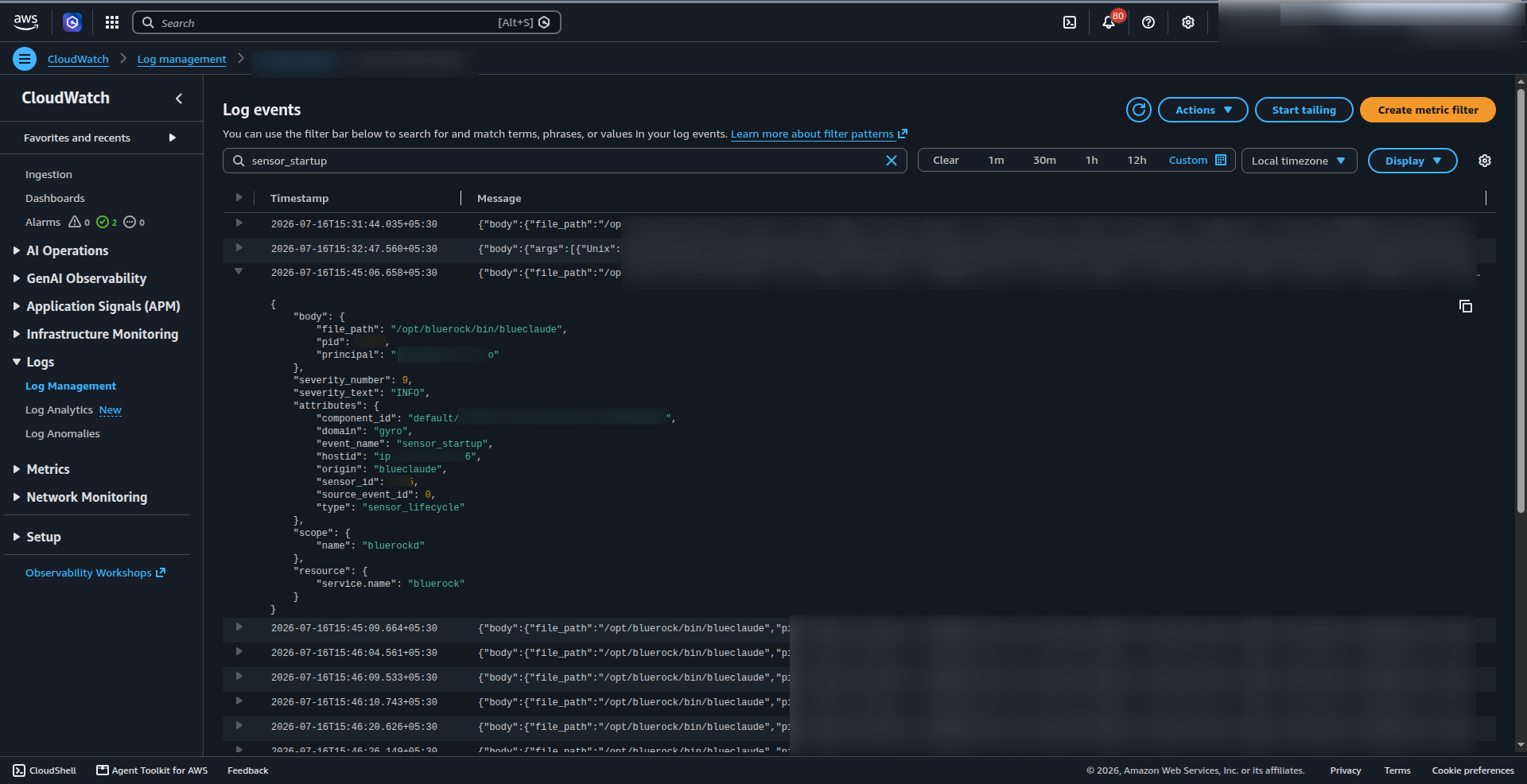
For example, the following CloudWatch OTEL log shows an OTEL event of  `sensor_startup` lifecycle event emitted by `bluerockd` when the identity monitoring agent binary initializes on a host.

{% code overflow="wrap" %}

```json
{
    "body": {
        "file_path": "/opt/bluerock/bin/blueclaude",
        "pid": 00000,
        "principal": "<user_email>@<domain>.com"
    },
    "severity_number": 9,
    "severity_text": "INFO",
    "attributes": {
        "component_id": "default/xxx-xxx-xxx-xxx-xxx",
        "domain": "gyro",
        "event_name": "sensor_startup",
        "hostid": "ip-<ip_address>",
        "origin": "blueclaude",
        "sensor_id": 0000,
        "source_event_id": 0,
        "type": "sensor_lifecycle"
    },
    "scope": {
        "name": "bluerockd"
    },
    "resource": {
        "service.name": "bluerock"
    }
}
```

{% endcode %}

OTEL event in AWS CloudWatch:

<figure><img src="https://content.gitbook.com/content/ort4Br5IHojsiLdOMAV0/blobs/Pv9MfIlEQR50KiZ5xlK5/image.png" alt=""><figcaption></figcaption></figure>

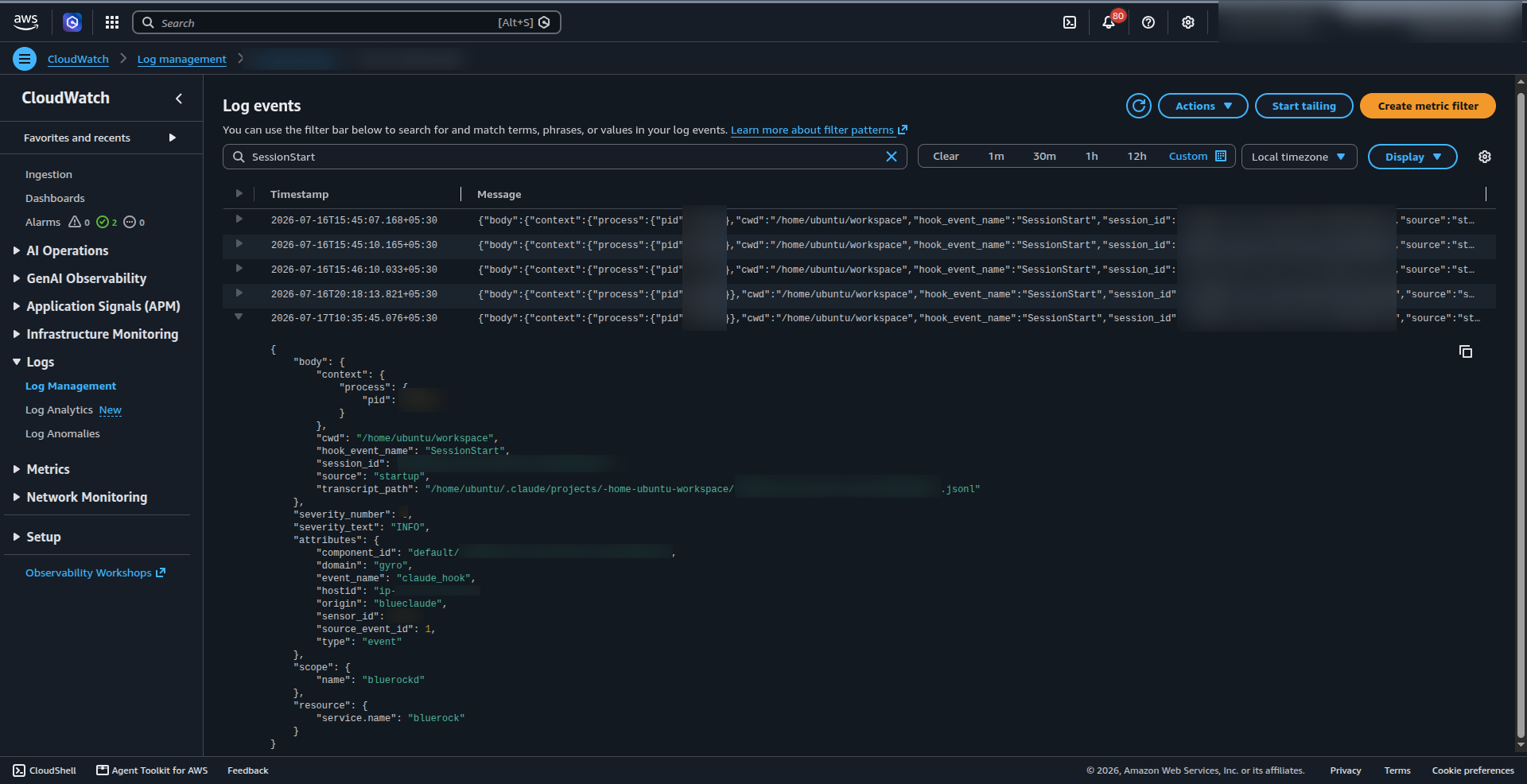
Another example is an OTEL event `claude_hook` event emitted by `bluerockd` when a new Claude session (`SessionStart`) initializes within a user's workspace context.

{% code overflow="wrap" %}

```json
{
    "body": {
        "context": {
            "process": {
                "pid": 00000
            }
        },
        "cwd": "/home/<username>/<workspace_dir>",
        "hook_event_name": "SessionStart",
        "session_id": "xxx-xxx-xxx-xxx-xxx",
        "source": "startup",
        "transcript_path": "/home/<username>/.claude/projects/xxx/xxx.jsonl"
    },
    "severity_number": 9,
    "severity_text": "INFO",
    "attributes": {
        "component_id": "default/xxx-xxx-xxx-xxx-xxx",
        "domain": "gyro",
        "event_name": "claude_hook",
        "hostid": "ip-<ip_address>",
        "origin": "blueclaude",
        "sensor_id": 0000,
        "source_event_id": 1,
        "type": "event"
    },
    "scope": {
        "name": "bluerockd"
    },
    "resource": {
        "service.name": "bluerock"
    }
}
```

{% endcode %}

OTEL event in AWS CloudWatch:

<figure><img src="https://content.gitbook.com/content/ort4Br5IHojsiLdOMAV0/blobs/MzdsL73c9GD1NniSD4eq/image.png" alt=""><figcaption></figcaption></figure>

## Maintenance and Troubleshooting

### Exporting Connector Logs

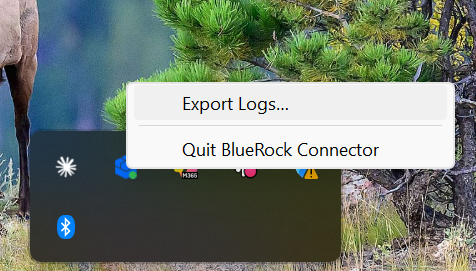
To troubleshoot issues, export the application logs directly from the system tray. Right-click the **BlueRock Connector** icon in the System Tray and select **Export Logs...**. Save the generated log file to a preferred location.

<div align="left"><figure><img src="https://content.gitbook.com/content/ort4Br5IHojsiLdOMAV0/blobs/Bmxx8GZ43DKHBxFgMmP9/image.png" alt=""><figcaption></figcaption></figure></div>

### Resetting Connector Configuration

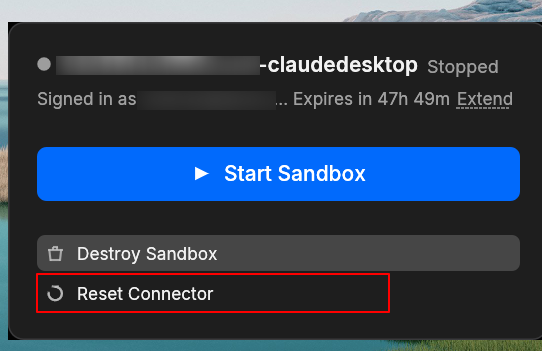
Select **Reset** in the **Sandbox** dialog box.

<div align="left"><figure><img src="https://content.gitbook.com/content/ort4Br5IHojsiLdOMAV0/blobs/MhX1PLhn09aqi9Zdo0Jh/image.png" alt=""><figcaption></figcaption></figure></div>

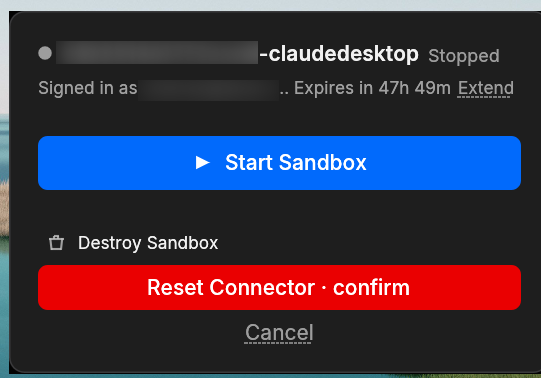
Then confirm the prompt to clear the current configuration.

<div align="left"><figure><img src="https://content.gitbook.com/content/ort4Br5IHojsiLdOMAV0/blobs/bJOGMoHTxNQRNUR0GLSa/image.png" alt=""><figcaption></figcaption></figure></div>

#### **Re-authenticating After Reset or Expiration**

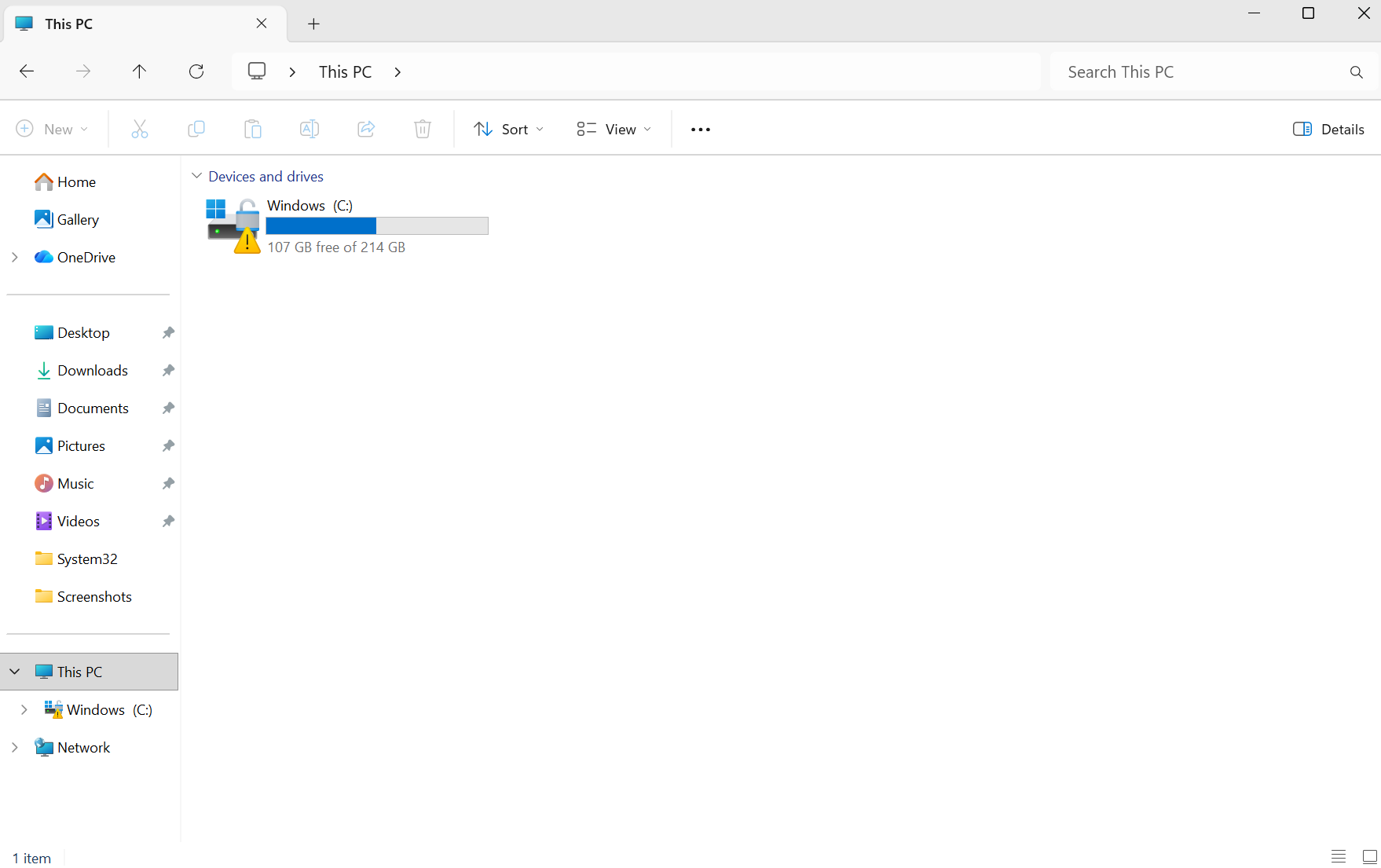
When a session expires or after stopping/destroying containers and resetting configuration, remote network locations automatically unmount, and Docker containers terminate. Re-run Authentication and Sandbox Creation to establish a new session.

* After stopping the container

  <div align="left"><img src="https://content.gitbook.com/content/ort4Br5IHojsiLdOMAV0/blobs/RRutMXdpLEDDg7wtj9xn/unknown.png" alt="" height="214" width="350"></div>
* After destroying the container

  <div align="left"><img src="https://content.gitbook.com/content/ort4Br5IHojsiLdOMAV0/blobs/ZFPpPHu58XG3VAWLE6Tg/unknown.png" alt="" height="219" width="350"></div>


---

# Agent Instructions
This documentation is published with GitBook. GitBook is the documentation platform designed so that both humans and AI agents can read, navigate, and reason over technical content effectively. Learn more at gitbook.com.

## Querying This Documentation
If you need additional information that is not directly available in this page, you can query the documentation by asking a question.

Perform an HTTP GET request on the following URL with the `ask` and `goal` query parameters:

```
GET https://docs.bluerock.io/bluerock-documentation-2.7.0-beta/bluedev-container/bluerock-connector-for-claude-and-codex-ide/bluerock-connector-windows.md?ask=<question>&goal=<user_goal>
```

`ask` is the immediate question: it should be specific, self-contained, and written in natural language.
`goal` is what the user is ultimately trying to achieve, the reason they need the answer. Sharing it helps GitBook give you a better, more relevant answer. A goal is most helpful when it describes the outcome the user wants rather than restating the question. For example, with `ask=how do I create an API token`, a goal like `automate deployments from our CI pipeline` lets GitBook tailor the answer to that use case.

The response will contain a direct answer to the question and relevant excerpts and sources from the documentation.

Use this mechanism when the answer is not explicitly present in the current page, you need clarification or additional context, or you want to retrieve related documentation sections.