> For the complete documentation index, see [llms.txt](https://docs.bluerock.io/llms.txt). Markdown versions of documentation pages are available by appending `.md` to page URLs; this page is available as [Markdown](https://docs.bluerock.io/bluerock-documentation-2.7.0-beta/bluedev-container/bluerock-connector-for-vs-code.md).
# BlueRock Connector for VS Code
The BlueRock Connector extension authenticates to connect to and execute the BlueRock instance VM, and to run Sandbox containers from VS Code.
This document details the configuration, authentication, and access requirements for the BlueRock Connector VS Code extension.
#### Setup and Configuration Workflow
Follow the complete deployment path below, or jump directly to the required phase:
1. [**Prerequisites**](#prerequisites)
2. [**Host Enrollment**](#host-enrollment)
3. [**VS Code Identity Configuration**](#setting-up-the-identity)
1. [BlueRock Identity Service](#bluerock-identity-service)
2. [SSH Key Trust](#ssh-key-trust)
4. [**Working with Containers**](#working-with-containers)
1. [Creating a Container using Catalog](#creating-a-container-using-catalog)
2. [Creating a Container using a Git Repo](#creating-a-container-using-a-git-repo)
5. [**Configuring Remote Shares**](#configuring-remote-shares)
1. [Adding a Share in VS Code](#adding-a-share-in-vs-code)
2. [Credential Requirements](#credential-requirements)
3. [Share Lifetime](#share-lifetime)
6. [**Port Forwarding**](#port-forwarding)
1. [Automating Forwards with Claude Code](#automating-forwards-with-claude-code)
2. [Manual Port Forwarding](#manual-port-forwarding)
3. [Port Forwarding Limitations](#port-forwarding-limitations)
7. [**Autostop**](#autostop)
1. [Configuring Autostop at Launch](#configuring-autostop-at-launch)
2. [Modifying Autostop Settings](#modifying-autostop-settings)
3. [Resuming a Suspended Sandbox](#resuming-a-suspended-sandbox)
8. [**Manage Containers**](#manage-containers)
9. [**OTEL Events**](#otel-events)
## Prerequisites
* [VS Code](https://code.visualstudio.com/) (latest version)
* Remote - SSH extension (from Microsoft VS Code Marketplace)
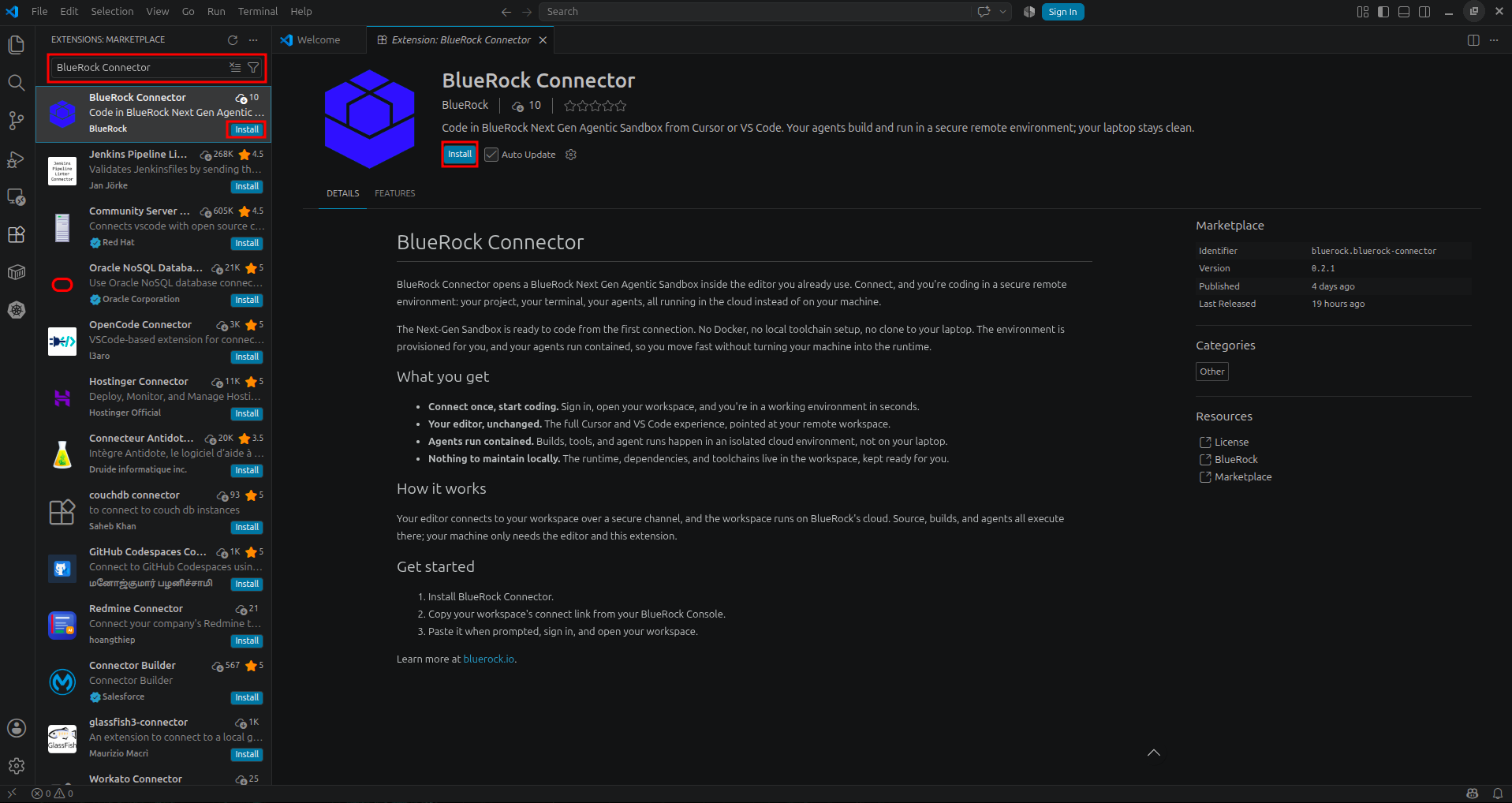
* BlueRock Connector VS Code Extension (from Microsoft VS Code Marketplace).
{% hint style="warning" %}
**Windows System Requirements:**
The **BlueRock Connector** requires the **Microsoft Visual C++ Redistributable** package `VCRUNTIME140.dll` to function correctly on **Windows**. Ensure optimal performance by installing this package via the terminal before launching the connector:
```shellscript
winget install Microsoft.VCRedist.2015+.x64
```
{% endhint %}
### Host Enrollment
Run the BlueRock host enrollment directly on the BlueRock instance VM before configuring the BlueRock Connector in VS Code.
1. Access the BlueRock instance VM terminal.
2. Run the following command to enroll the `bluedev-bouncer`:
```shellscript
$ sudo bluedev-bouncer enroll --ca --password
```
\
Enter the `BOUNCER_PASSWORD` when prompted.
3. Construct the `` by combining the instance's Public DNS (or IP address) and the appropriate SHA256 fingerprint:
```
https://#fp=
```
1. **Obtaining the Public DNS / IP Address**
Navigate to the respective cloud provider console such as AWS, GCP, or Azure to locate the public address of the BlueRock instance:
2. **Obtaining the Fingerprint (``)**
The required fingerprint depends on the chosen authentication method for the workspace:
* **For BlueRock Identity Service (OIDC):** The fingerprint is the SHA-256 hash of the CA certificate. Retrieve this directly from the identity service administrator, or by running `just fingerprint --auto` on the CA host. For more details, refer to the [BlueDev Identity Development Kit](/bluerock-documentation-2.7.0-beta/bluedev-container/bluedev-identity-deployment-kit.md).
* **For SSH Key Trust:** The fingerprint is the host's SSH key fingerprint. Retrieve it by running the following command on the local machine, replacing `` with the public address obtained above:
Bash
```shellscript
ssh-keyscan -t ed25519 | ssh-keygen -lf -
```
## Setting up the Identity
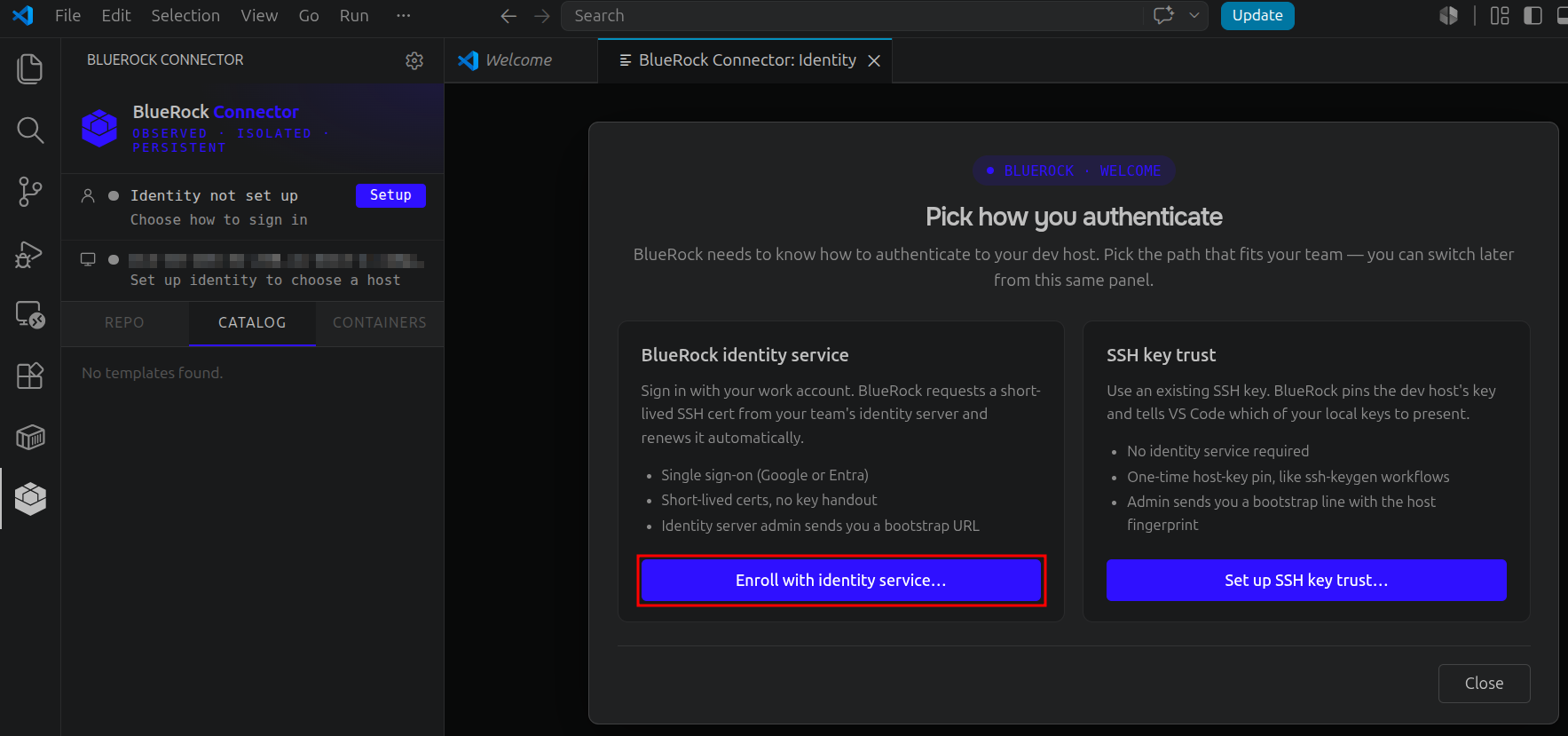
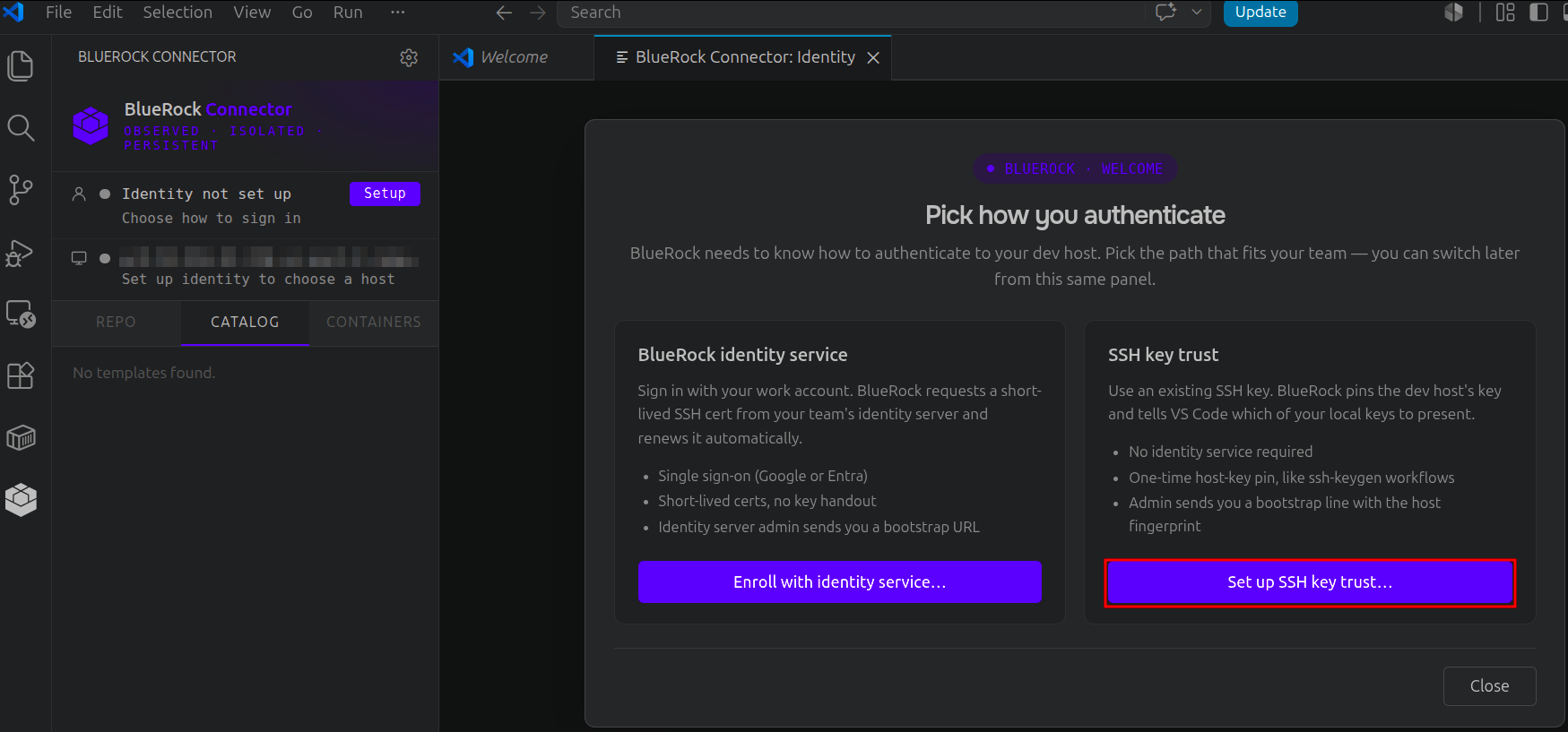
Once the BlueRock Connector extension is installed, restart VS Code. The extension will load in the left panel. In the extension, select the **Setup** button to configure the BlueRock Instance using either of the following authentication methods.
1. BlueRock Identity Service
2. SSH key trust
### BlueRock Identity Service
1. Select the **Enroll with identity service...** button.
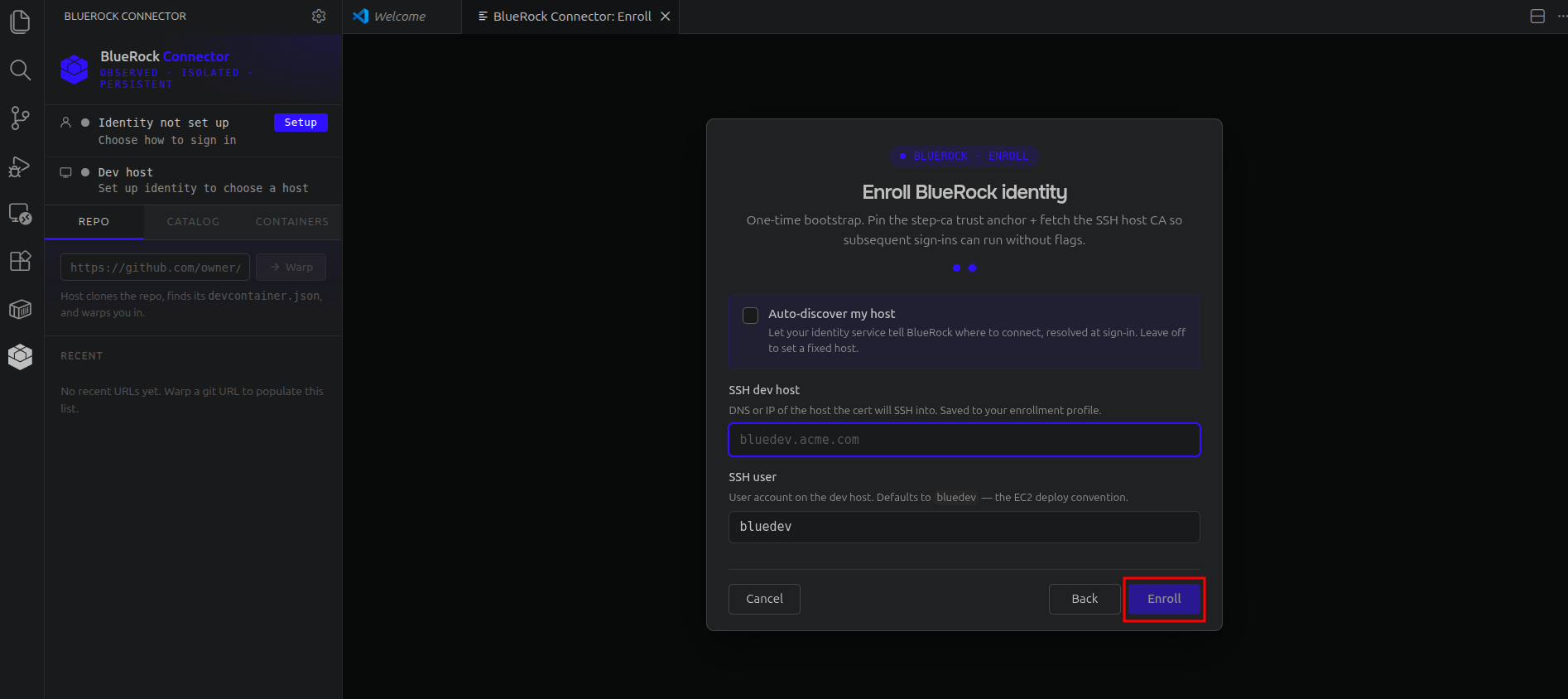
2. Insert the [**`Bootstrap URL`**](#host-enrollment) .
```shellscript
https://#fp=
```
3. Enter the Public DNS or IP Address of the instance and select **Enroll**.
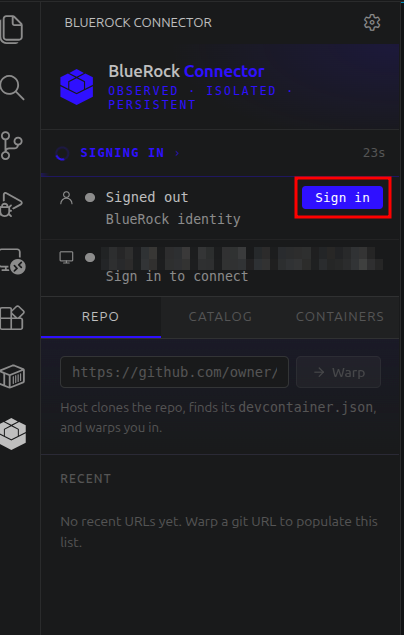
4. Select **Sign-in** and complete the authentication on the browser.
5. After successful authentication, the left panel will show the green icon next to the identity and host.
When authenticated with the identity service, the following files are created on the BlueRock instance:
{% code overflow="wrap" %}
```shellscript
$ ls -l .config/bluedev/identity/
total 12
-rw------- 1 bluerock bluerock 200 Jun 30 08:56 config.toml
-rw------- 1 bluerock bluerock 179 Jun 30 08:57 known_hosts
drwx------ 2 bluerock bluerock 4096 Jun 30 08:56 trust
$ cat .config/bluedev/identity/config.toml
schema_version = 1
service_url = "https://"
default_provisioner = "google"
tls_trust_mode = "system"
[host]
address = "0.101.010.0"
user = "bluedev"
```
{% endcode %}
### SSH key trust
{% hint style="info" icon="notes-sticky" %}
**Note**:
If **BlueRock Identity Service** is previously configured, then unenroll the bouncer on the host instance first to prevent configuration conflicts before switching to the **SSH Key Trust**:
{% code overflow="wrap" %}
```shellscript
$ sudo bluedev-bouncer unenroll
```
{% endcode %}
{% endhint %}
1. Select the **Set up SSH key Trust...** button to enroll using an existing SSH key.
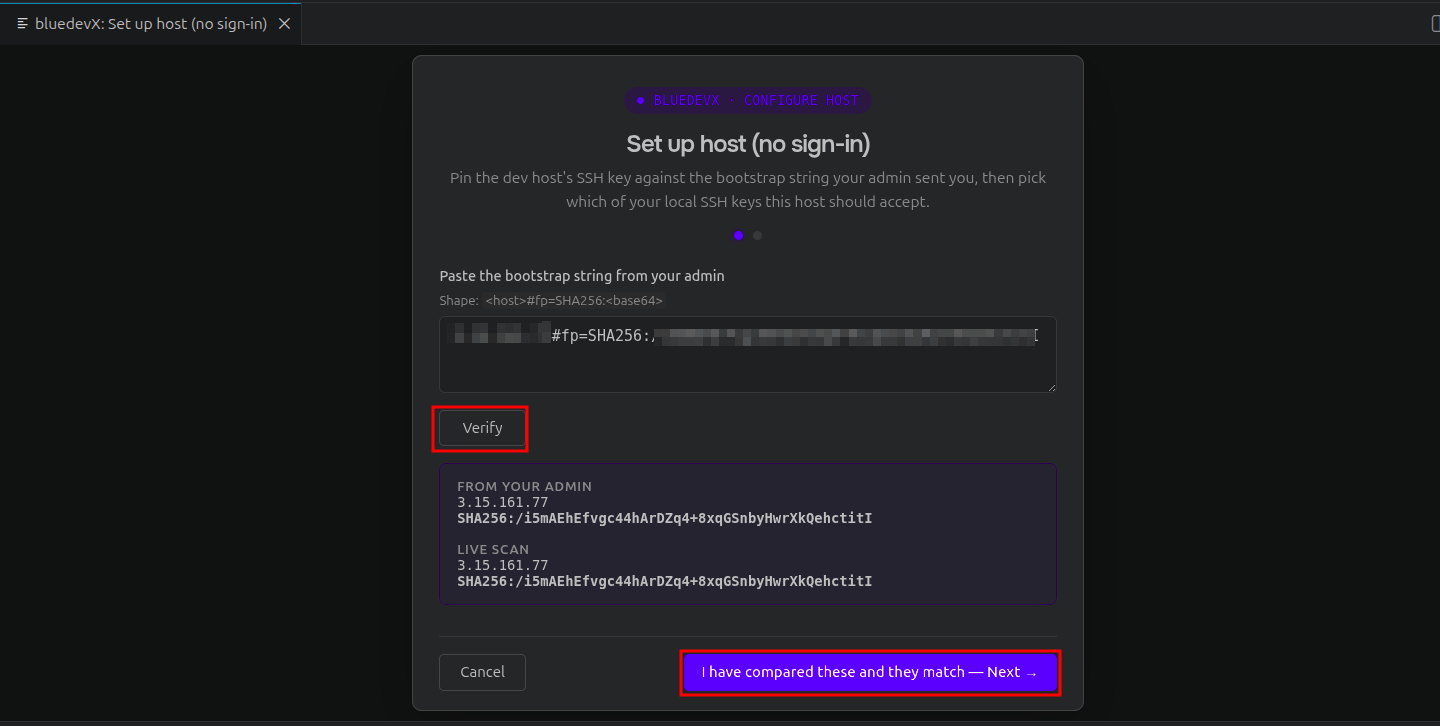
2. Run the following command on the local machine to get the fingerprint (`SHA256: `):
\
Insert the Bootstrap string with the following format
```
#fp=SHA256:
```
\
For example:
```
10.101.01.101#fp=SHA256:0x0x0xx00xxx0xx0000x000xxx000000xx0x0x00x00xx0x000x0000xx000x00x/mU
```
3. Select **Verify**, and once verified, select **I have compared these and they match - Next** button.
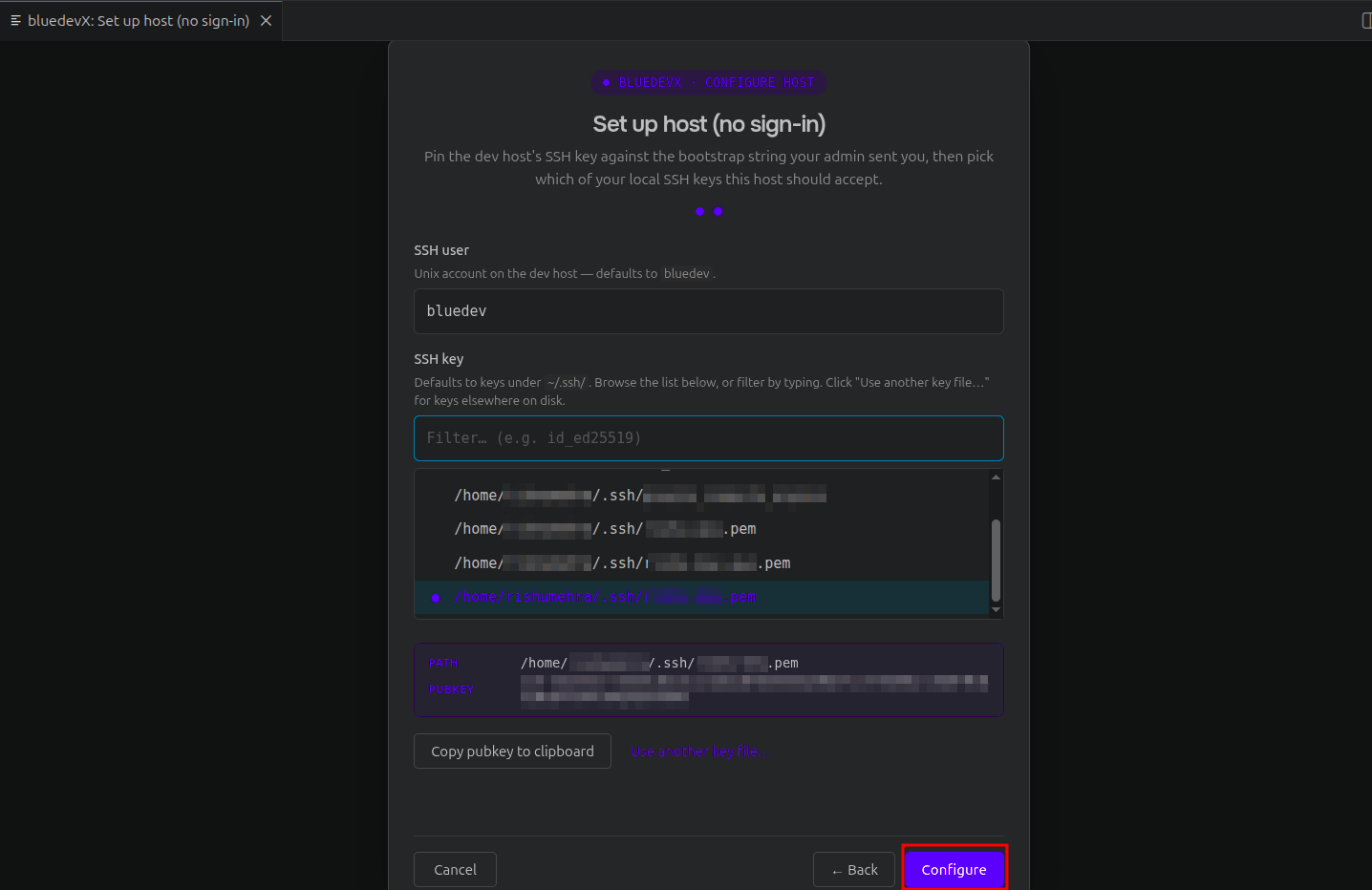
4. Select the required key from the local `.ssh` folder or select **Use another key file...** to browse the other keys. Click the **Configure** button.
{% hint style="info" icon="notes-sticky" %}
**Note:**
Ensure the same key is present in the `.ssh` folder of the instance's Bluedev profile. For that, run the following commands:
```shellscript
## Switch to bluedev user
$ sudo su bluedev
# Create the .ssh directory with correct permissions
$ mkdir -p ~/.ssh
$ chmod 700 ~/.ssh
# Add your local public key to authorized_keys
$ vi ~/.ssh/authorized_keys
# Set secure permissions for the authorized_keys file
$ chmod 600 ~/.ssh/authorized_keys
```
{% endhint %}
## Working with Containers
### Creating a Container using Catalog
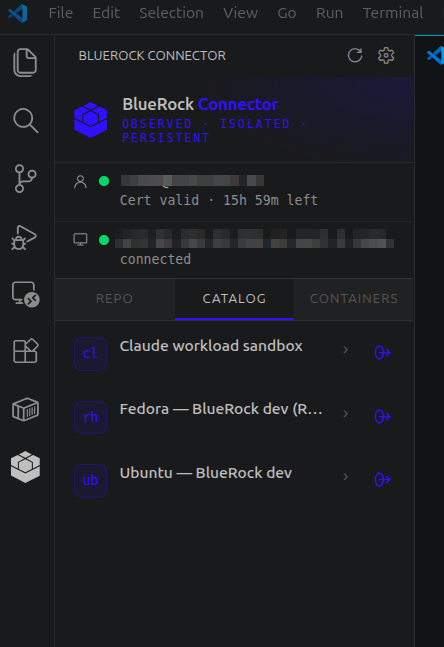
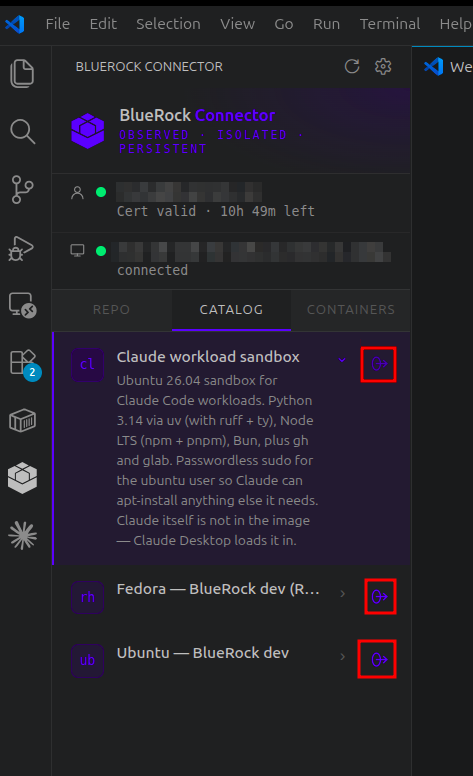
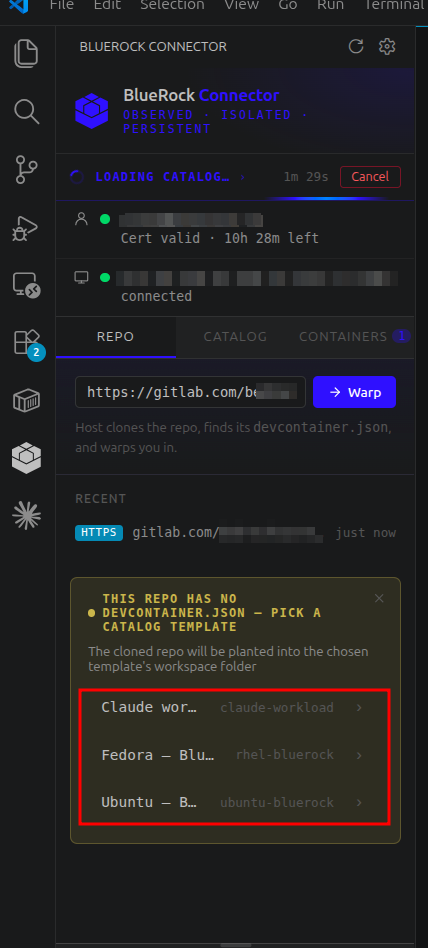
Once the instance is successfully connected to VS Code, create containers using a pre-built template from the Catalog. These reside at the `/srv/bluedev/catalog` in the BlueRock instance with packages at `/srv/bluedev/packages`.
By default, the BlueRock Instance ships the following catalog containers:
* **Claude workload sandbox**:\
It’s a template specifically for the Claude IDE for dev containers.
* **Fedora - BlueRock dev**:\
It’s a template with a Fedora environment for dev containers.
* **Ubuntu - BlueRock dev**:\
It’s a template with an Ubuntu environment for dev containers.
To launch them in VS Code, select the **Arrow** icon next to the container template. It will create the Container and connect it automatically. For example, starting an **Ubuntu - BlueRock dev** container
Then the Ubuntu Container will be created on the fly and load in a new VS Code window with all its files.
While loading, click the **Connecting to Dev Container (show log)** dialog box
To trust the authors of the files and folders\

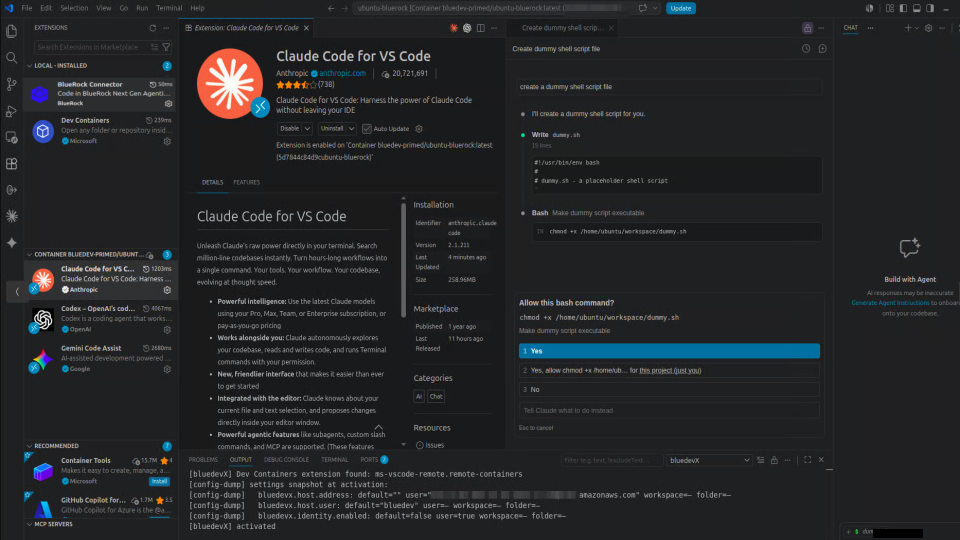
Also loads pre-installed packages such as Claude, Gemini, and Codex in the container. Authenticate the package with the required account to run within the container.
For example, using Claude to create a dummy shell script in the Ubuntu container.
### Creating a Container using a Git Repo
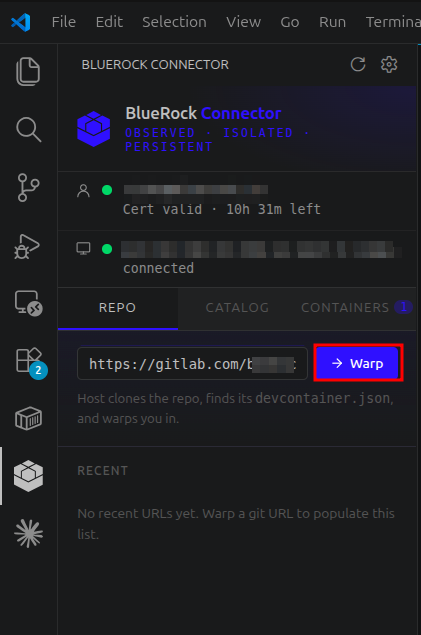
Select the Repo tab and paste the GitHub/GitLab repo link that has `devcontainer.json` . Click **Warp**; it will fetch the `devcontainer.json`.
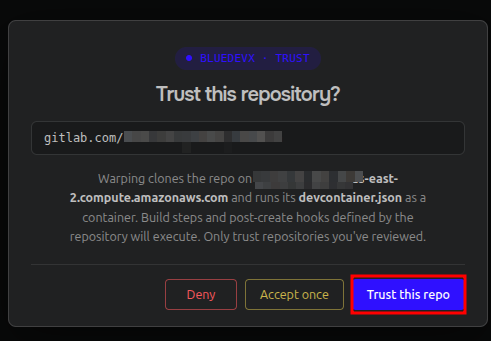
For the first time on a new repo, it will prompt to **Trust this repo** to build and create hooks defined in the repo.
Also, provide the Personal Access Token (PAT) of your GitLab/GitHub account once prompted.
Select the Container based on the options from the `devcontainer.json` file.
Then it will clone the repo, create the container, and open it in a new VS Code window.
## Configuring Remote Shares
Remote shares allow external network storage (such as AWS EFS, FSx, or Azure Files) to be mounted directly into the sandbox container. The sandbox accesses the network server without requiring host filesystem access.
Remote shares must be configured during container creation. Shares cannot be added to an existing sandbox. To add a share to an existing environment, destroy the container and recreate it with the shares configured. A maximum of 8 shares can be attached per launch.
### Adding a Share in VS Code
When launching a sandbox from a catalog template or Git repository, the **Launch options** dialog appears. Use the **Remote shares** section to configure the storage mounts:
1. Select **Add Share** to create a new mount row.
2. Fill in the required fields:
* **Service**: \
Select the cloud storage type (AWS EFS, AWS FSx for OpenZFS, Azure Files NFS/SMB, or Other NFS/SMB). Selecting a cloud service automatically populates optimized mount options.
* **Server**: \
Enter the hostname or IP address of the file server.
* **Export / share**: \
Enter the NFS export path (must start with `/`) or the CIFS share name.
* **Mount target (in sandbox)**: \
Enter the absolute path where the storage should mount inside the sandbox (e.g., `/home/ubuntu/efs`).
* **Read-only**: \
Check this box to mount the storage as read-only (`ro`).
* **Username / Password**: \
Enter credentials if required (SMB/CIFS only).
3. Select **Save** to apply the configuration and launch the sandbox. Select **Continue without shares** to bypass this step.
{% hint style="info" icon="notes" %}
**Note:**
The connector saves share configurations for future launches, except for passwords. Passwords are never stored in settings or logs and must be re-entered at each launch.
{% endhint %}
### Credential Requirements
* **NFS**: \
Access is determined by the server's network rules (security groups, private endpoints). NFS does not accept usernames or passwords.
* **SMB/CIFS**: \
Requires either complete authentication (both a username and a password) or guest access (neither). Azure Files (SMB) rejects guest mounts and strictly requires the storage account name as the username and the account key as the password.
### Share Lifetime
Remote shares persist for the lifetime of the sandbox. Stopping the sandbox retains the share configuration. Destroying the sandbox permanently removes the attached shares.
## Port Forwarding
A TCP server running inside the sandbox (such as a development server, an API, or a notebook) is not reachable from the local machine until a forward is established. A forward creates a listener on the local `127.0.0.1` address that relays traffic into the sandbox. The system configures these automatically for most workflows.
### Automating Forwards with Claude Code
The standard BlueRock template includes the Claude Code extension, which handles port forwarding automatically.
1. Connect to the sandbox in VS Code.
2. Open **Claude Code** from the sidebar.
3. Instruct the agent to build and start a web server.
4. The agent writes the code, starts the server, and publishes the port automatically.
5. A notification appears displaying the local address (e.g., `Port 3000` is exposed at `http://127.0.0.1:3000`). Select **Open in Browser**.
6. View or manage active forwards using the **Forwarded Ports** section in the BlueRock sidebar.
### Manual Port Forwarding
To publish a port manually without an AI agent, execute the `.bluedev-relay` command directly inside the sandbox terminal:
```bash
# Start a server listening on 127.0.0.1
python3 -m http.server 3000 --bind 127.0.0.1 &
# Publish the port to the local machine
/.bluedev-relay expose 3000
```
To stop forwarding a port manually, run `/.bluedev-relay unexpose `.
{% hint style="info" icon="notes" %}
**Note:**
Ports listed under `forwardPorts` in the project's `devcontainer.json` file bind automatically upon connection. Manual exposure is not required for these declared ports.
{% endhint %}
### Port Forwarding Limitations
* **TCP Only:** \
UDP services (such as DNS or QUIC) cannot be forwarded.
* **Connection Dependent:**\
Forwards remain active only while the VS Code window remains connected to the sandbox.
* **Active Limit:** \
The system permits a maximum of 16 container-driven forwards at one time\[cite: 3].
* **Dynamic Assignment:** \
If the requested port number is already in use on the local machine, the system assigns a different available port. Always use the address provided in the notification or terminal output
## Autostop
The Autostop feature suspends the sandbox after a period of inactivity to conserve system resources. Suspending a sandbox retains all files, edits, and workspace configurations. The system tracks connection states (open editor windows, active terminals, or port forwards) rather than CPU usage to determine inactivity.
### Configuring Autostop at Launch
When creating a new sandbox, configure the grace periods in the Autostop section of the Launch options dialog:
* **Keep running - never autostop**: \
Check this box to disable Autostop. The sandbox remains running until manually stopped.
* **Grace after disconnect (minutes)**: \
The wait time before suspending the sandbox after a normal disconnection (e.g., closing the editor).
* **Grace after a dropped connection (minutes)**: \
The wait time before suspending the sandbox after an unexpected network drop or client crash.
Leave a field empty to apply the administrator-defined default values.
### Modifying Autostop Settings
To update the Autostop configuration on an existing sandbox:
1. Open the BlueRock sidebar.
2. Select the gear (Sandbox settings) icon next to the target sandbox.
3. Update the grace period values.
4. Select Save. The new settings apply immediately.
### Resuming a Suspended Sandbox
If a sandbox triggers Autostop, the sidebar displays a *Workspace suspended* status. Select Resume or Attach on the sandbox to restart the environment.
{% hint style="success" icon="lightbulb-exclamation-on" %}
**Important:**
All port forwards terminate when a sandbox stops. Expose the required ports again after the sandbox resumes.
{% endhint %}
## Manage Containers
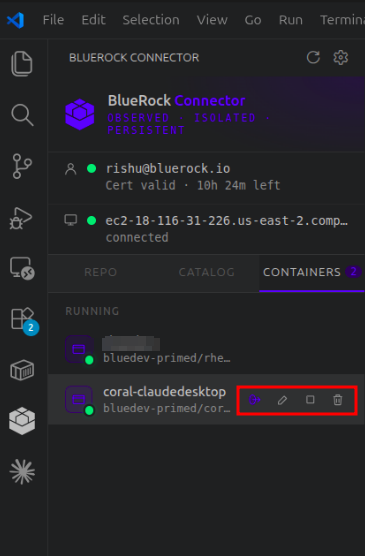
Select the **Containers** tab to manage the Containers created with different icons.
* **Arrow** icon to attach the container in a new VS Code window.
* **Pen** icon to rename the container.
* **Square** icon to stop the running container.
* **Bin** icon to destroy the container and its content from VS Code and the host.
## OTEL Events
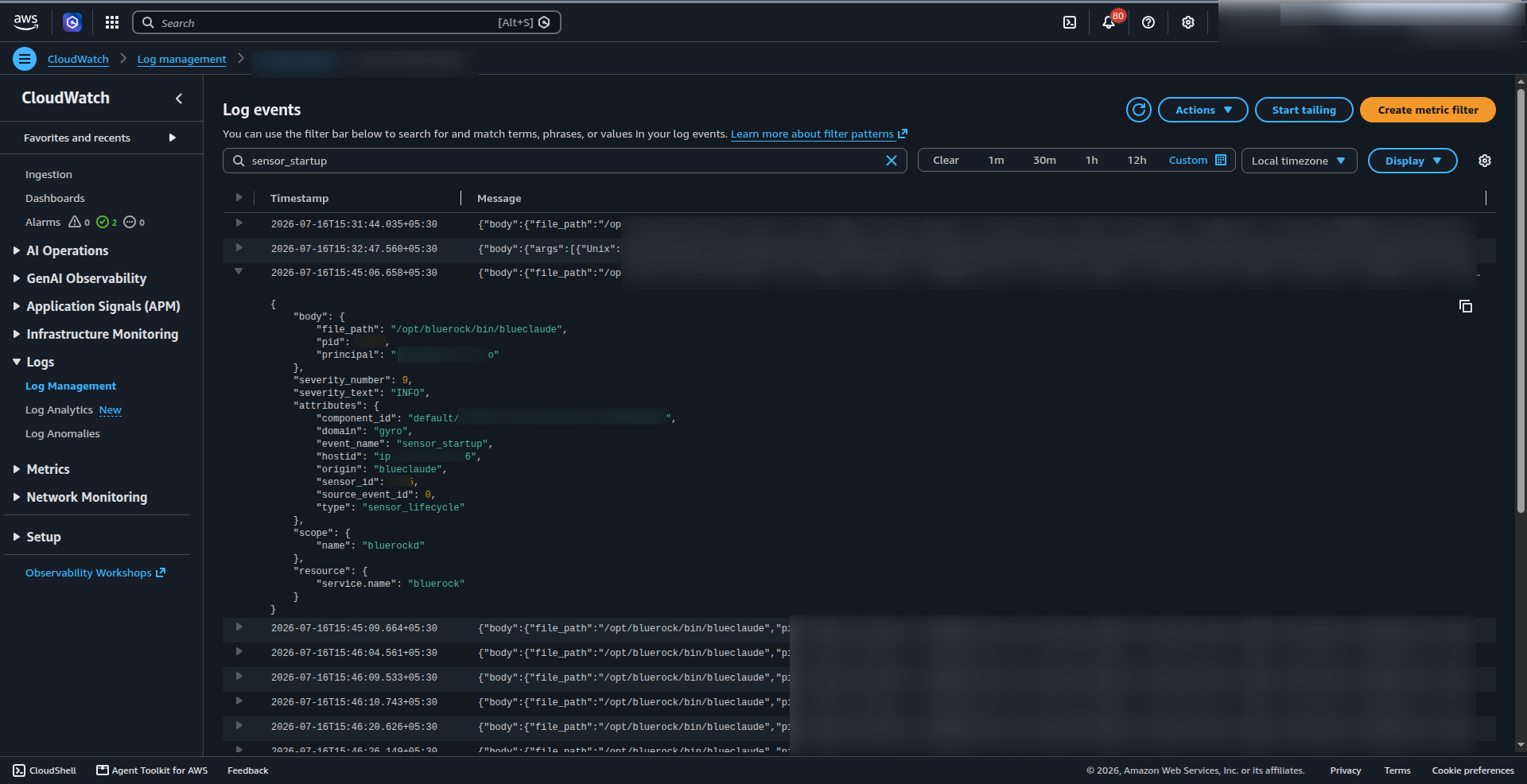
In CloudWatch, all events are captured for all actions triggered on any Container from VS Code. \
\
For example, the following CloudWatch OTEL log shows an OTEL event of `sensor_startup` lifecycle event emitted by `bluerockd` when the identity monitoring agent binary initializes on a host.
{% code overflow="wrap" %}
```json
{
"body": {
"file_path": "/opt/bluerock/bin/blueclaude",
"pid": 00000,
"principal": "@.com"
},
"severity_number": 9,
"severity_text": "INFO",
"attributes": {
"component_id": "default/xxx-xxx-xxx-xxx-xxx",
"domain": "gyro",
"event_name": "sensor_startup",
"hostid": "ip-",
"origin": "blueclaude",
"sensor_id": 0000,
"source_event_id": 0,
"type": "sensor_lifecycle"
},
"scope": {
"name": "bluerockd"
},
"resource": {
"service.name": "bluerock"
}
}
```
{% endcode %}
OTEL event in AWS CloudWatch:
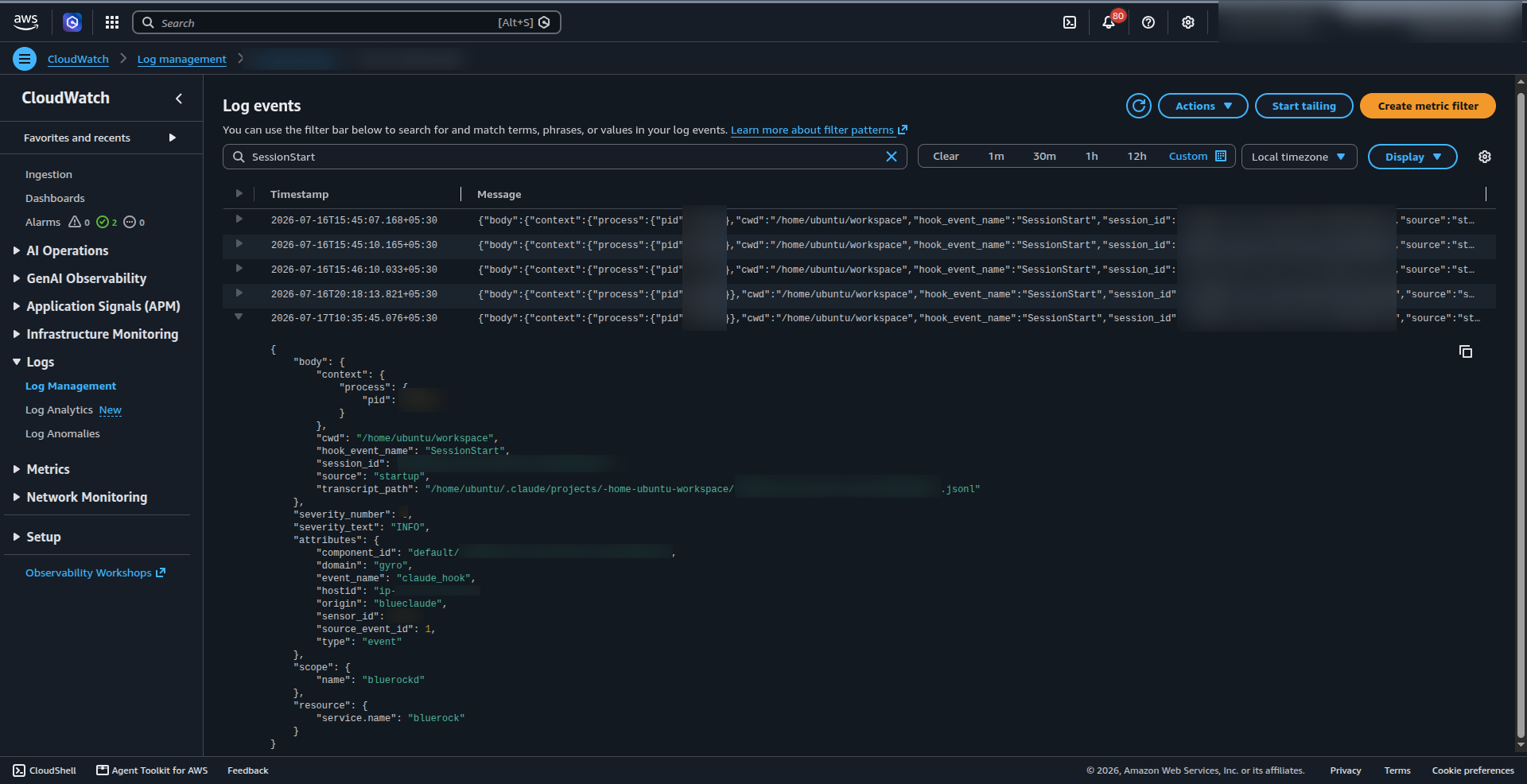
Another example is an OTEL event `claude_hook` event emitted by `bluerockd` when a new Claude session (`SessionStart`) initializes within a user's workspace context.
{% code overflow="wrap" %}
```json
{
"body": {
"context": {
"process": {
"pid": 00000
}
},
"cwd": "/home//",
"hook_event_name": "SessionStart",
"session_id": "xxx-xxx-xxx-xxx-xxx",
"source": "startup",
"transcript_path": "/home//.claude/projects/xxx/xxx.jsonl"
},
"severity_number": 9,
"severity_text": "INFO",
"attributes": {
"component_id": "default/xxx-xxx-xxx-xxx-xxx",
"domain": "gyro",
"event_name": "claude_hook",
"hostid": "ip-",
"origin": "blueclaude",
"sensor_id": 0000,
"source_event_id": 1,
"type": "event"
},
"scope": {
"name": "bluerockd"
},
"resource": {
"service.name": "bluerock"
}
}
```
{% endcode %}
OTEL event in AWS CloudWatch:
---
# Agent Instructions
This documentation is published with GitBook. GitBook is the documentation platform designed so that both humans and AI agents can read, navigate, and reason over technical content effectively. Learn more at gitbook.com.
## Querying This Documentation
If you need additional information that is not directly available in this page, you can query the documentation by asking a question.
Perform an HTTP GET request on the following URL with the `ask` and `goal` query parameters:
```
GET https://docs.bluerock.io/bluerock-documentation-2.7.0-beta/bluedev-container/bluerock-connector-for-vs-code.md?ask=&goal=
```
`ask` is the immediate question: it should be specific, self-contained, and written in natural language.
`goal` is what the user is ultimately trying to achieve, the reason they need the answer. Sharing it helps GitBook give you a better, more relevant answer. A goal is most helpful when it describes the outcome the user wants rather than restating the question. For example, with `ask=how do I create an API token`, a goal like `automate deployments from our CI pipeline` lets GitBook tailor the answer to that use case.
The response will contain a direct answer to the question and relevant excerpts and sources from the documentation.
Use this mechanism when the answer is not explicitly present in the current page, you need clarification or additional context, or you want to retrieve related documentation sections.