> For the complete documentation index, see [llms.txt](https://docs.bluerock.io/llms.txt). Markdown versions of documentation pages are available by appending `.md` to page URLs; this page is available as [Markdown](https://docs.bluerock.io/bluerock-documentation-2.7.0-beta/bluerock-dashboard/cost-management.md).
# Cost Management
### Overview
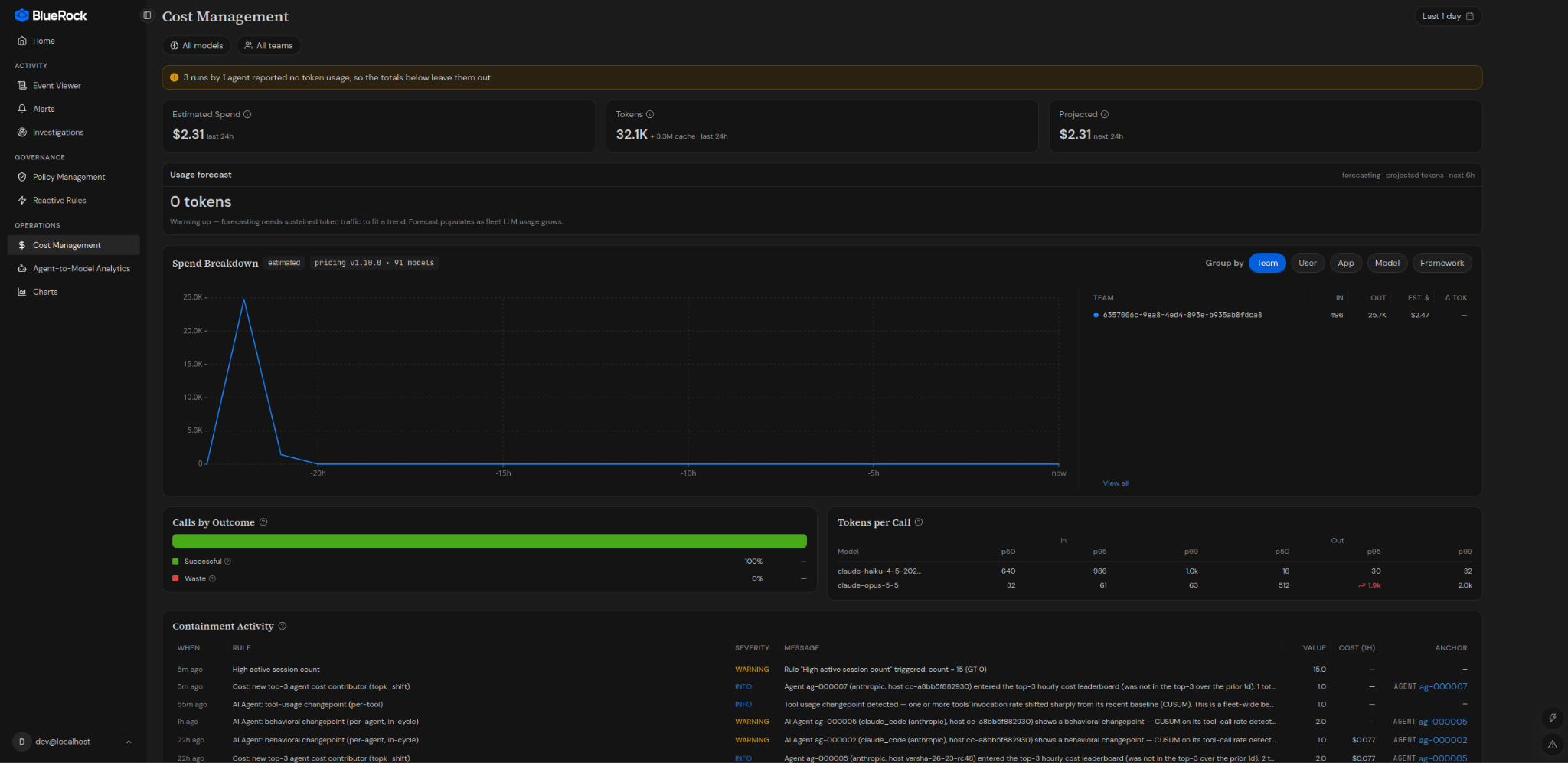
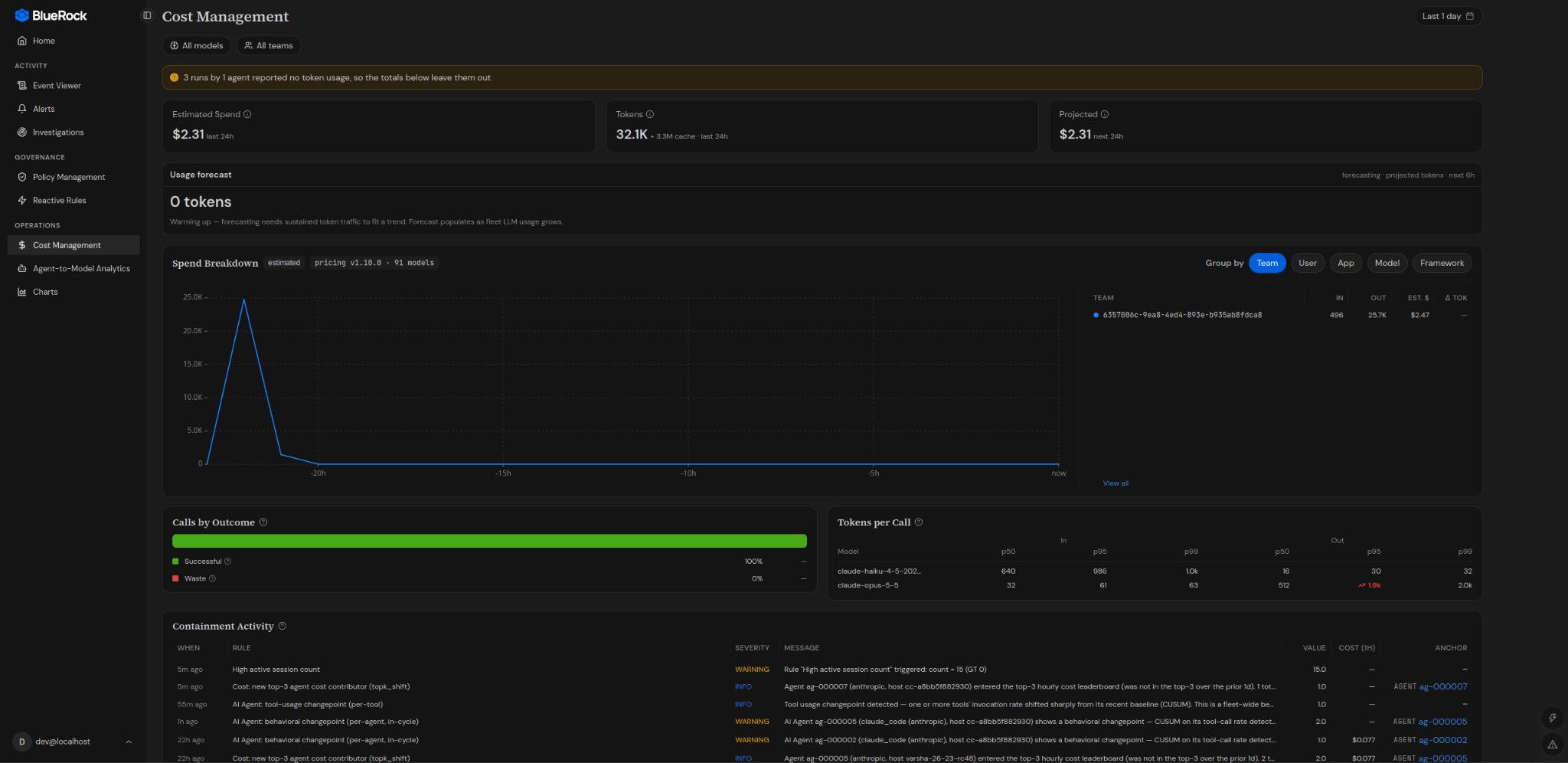
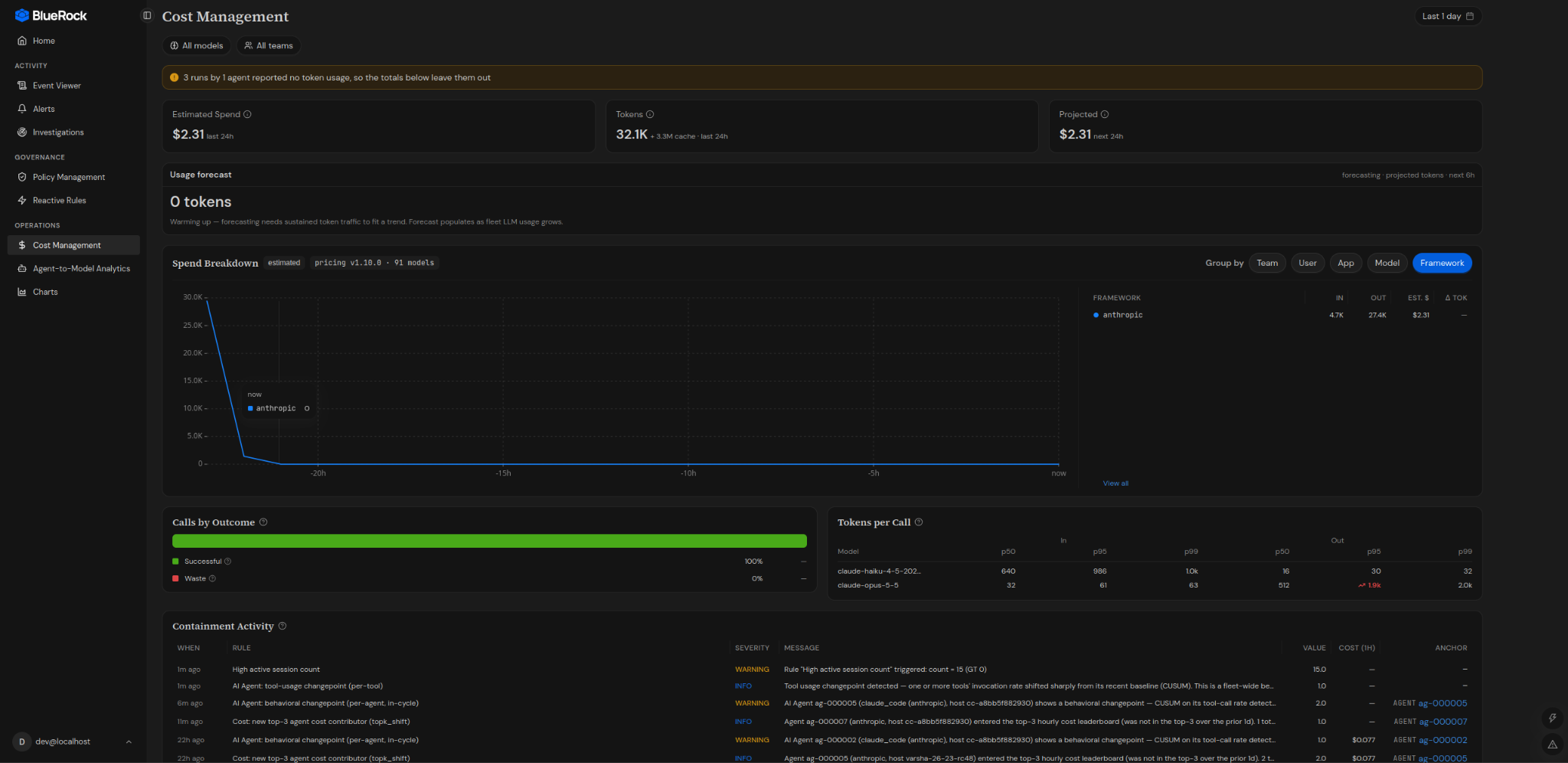
The Cost Management dashboard provides visibility into LLM usage and estimated spend across the agent fleet, teams, and applications.
Use Cost Management to:
* Monitor estimated LLM spend.
* Review token consumption.
* View projected spend based on current activity.
* Analyze usage and cost by different dimensions.
* Identify changes in token consumption.
* Review request outcomes and token usage per call.
* Monitor cost-governance activity.
> **Note:** Cost figures are estimates based on public rate tables or custom configuration. They are not direct vendor billing statements.
***
### Access Cost Management
To access Cost Management:
1. Sign in to the BlueRock UI.
2. In the navigation pane, under **Operations**, select **Cost Management**.
The Cost Management dashboard opens with the available usage and cost information.
***
### Filters and Time Range
Use the filters at the top of the Cost Management dashboard to narrow the displayed metrics.
#### Model and Team Filters
The dashboard provides filters for:
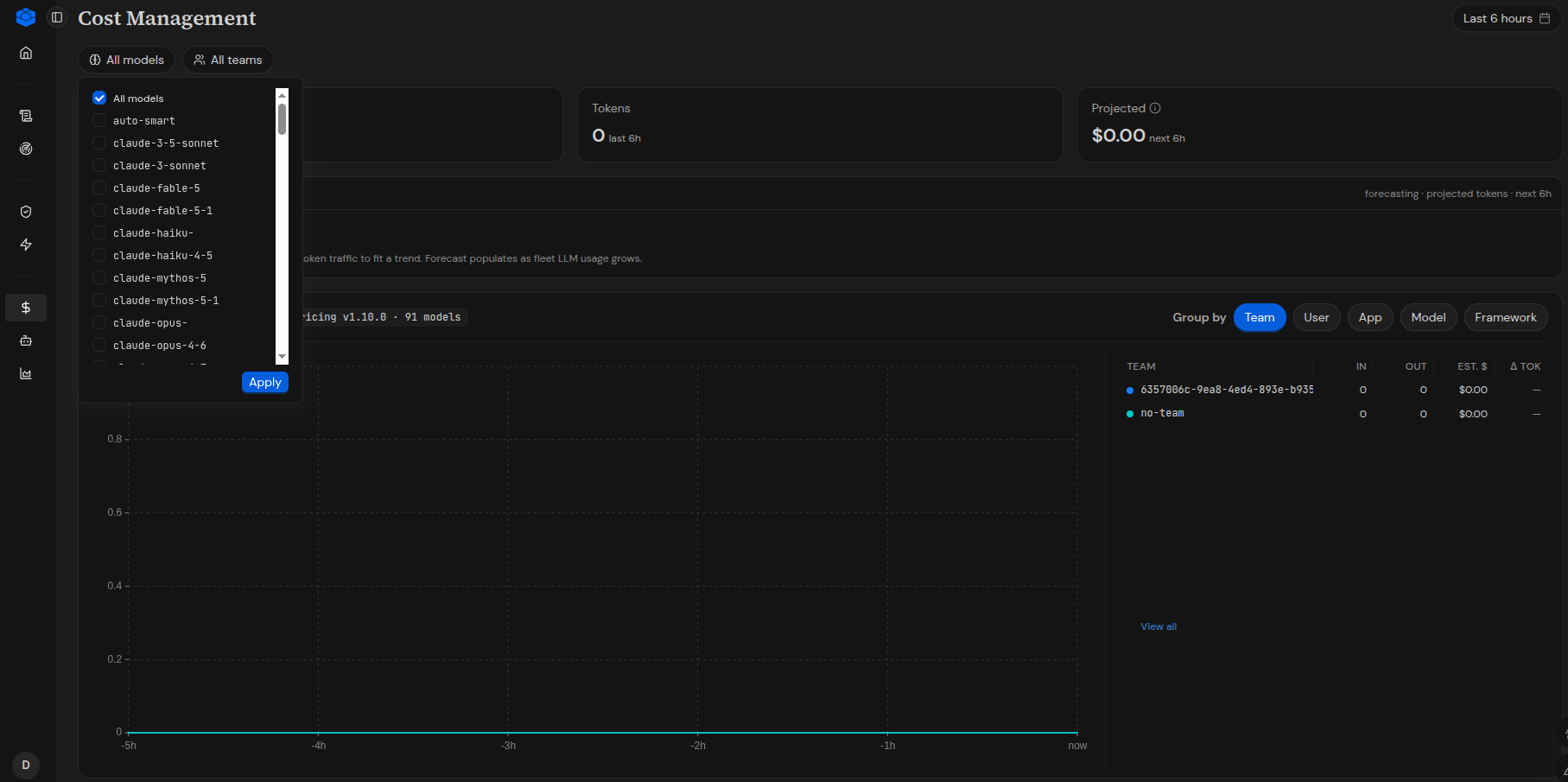
* **Model**
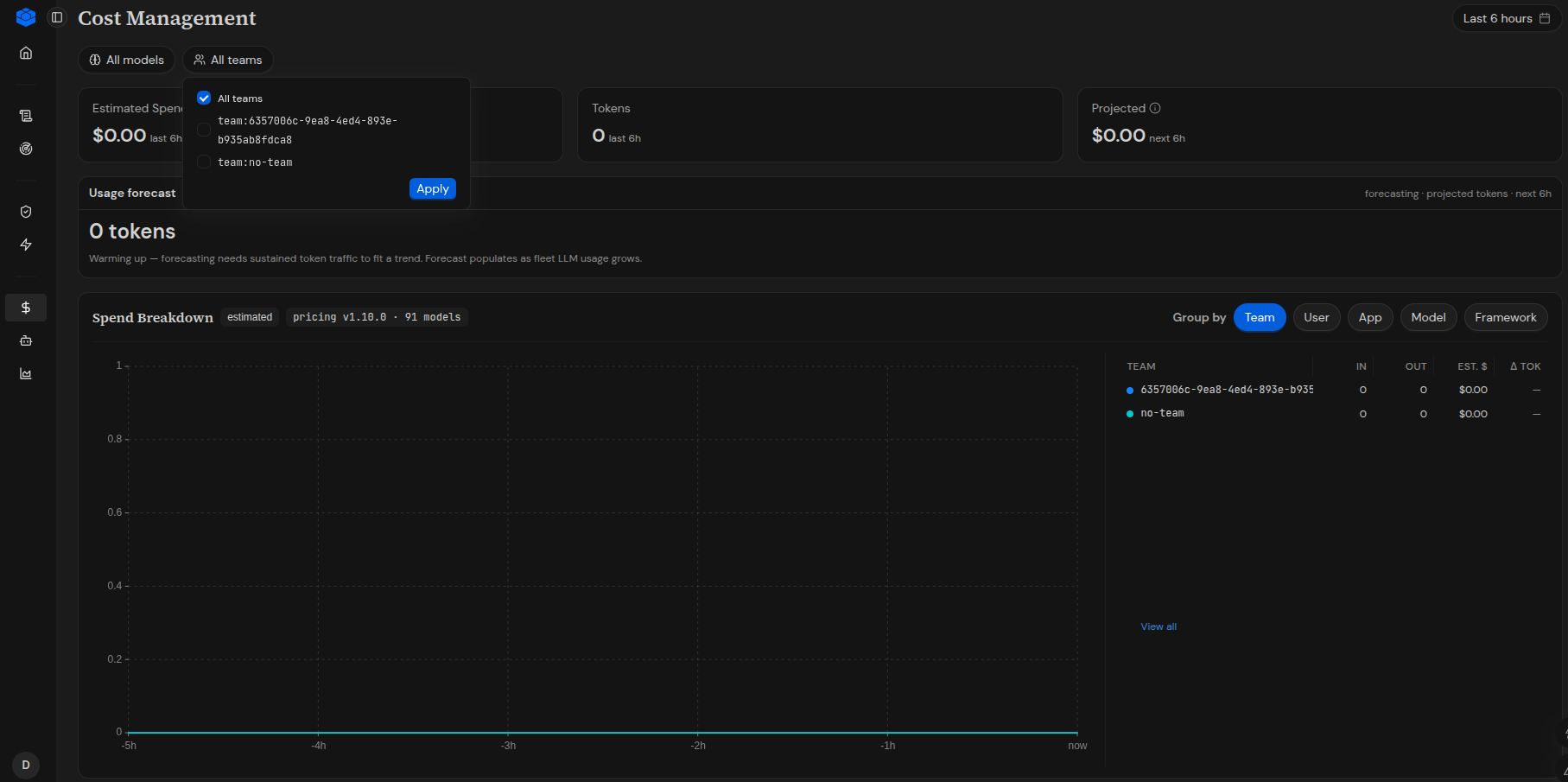
* **Team**
Select the required values to analyze cost and usage for specific models or teams.
**Model Filter**
**Teams Filter**
#### Time Range
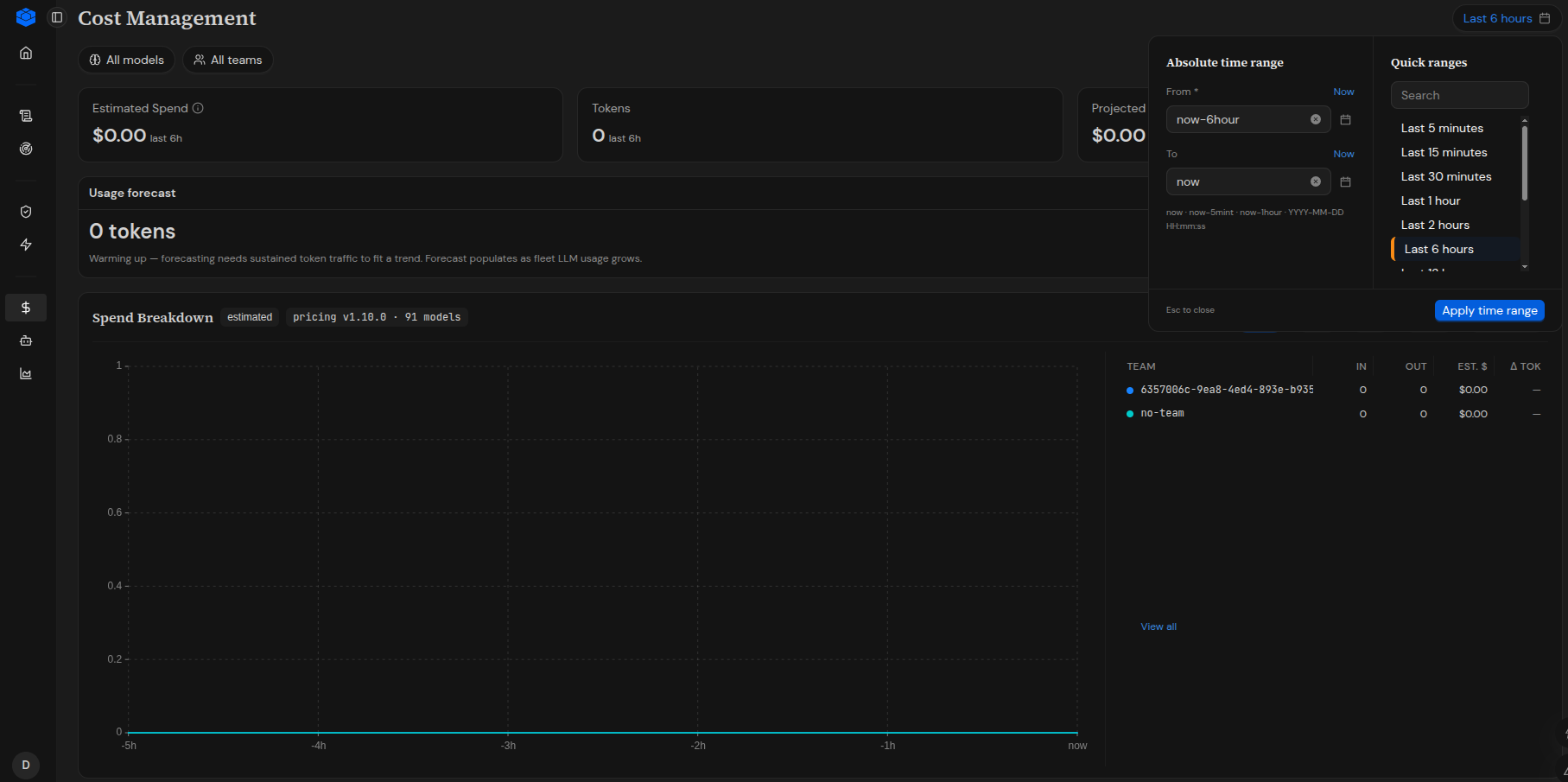
Use the **Time Range** selector to specify the analysis period.
The default time range is **Last 24 Hours**.
The selected filters and time range apply to the dashboard metrics and visualizations.
***
### Key Metrics
The Cost Management dashboard provides the following key metrics.
#### Estimated Spend
**Estimated Spend** displays the total estimated USD spend across the selected fleet and timeframe.
The value is calculated using available pricing information or custom configuration.
{% hint style="info" %}
**Note:** Estimated Spend is an estimate and should not be treated as a vendor billing statement.
{% endhint %}
#### Tokens
**Tokens** displays the total conversation token volume processed during the selected timeframe.
The value includes:
* Input tokens
* Output tokens
#### Projected Spend
**Projected Spend** displays an estimated cost projection based on current activity.
***
### Usage Forecast
The **Usage Forecast** visualization shows token consumption trends over time.
Use the forecast to:
* Review token consumption trends.
* Identify changes in usage.
* Anticipate potential increases in usage.
The forecast is based on observed usage activity and should be interpreted as an estimate rather than a guaranteed future value.
***
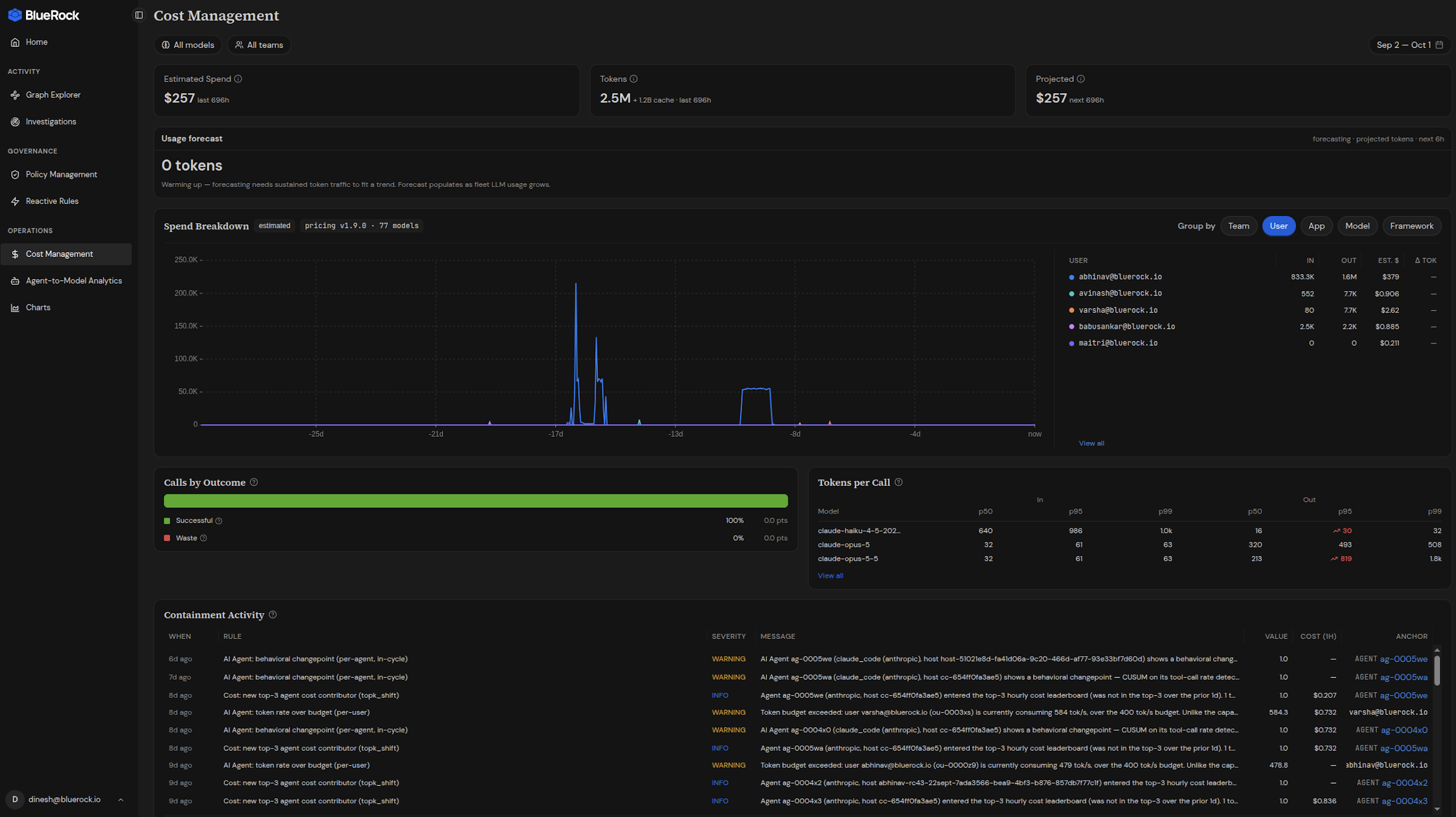
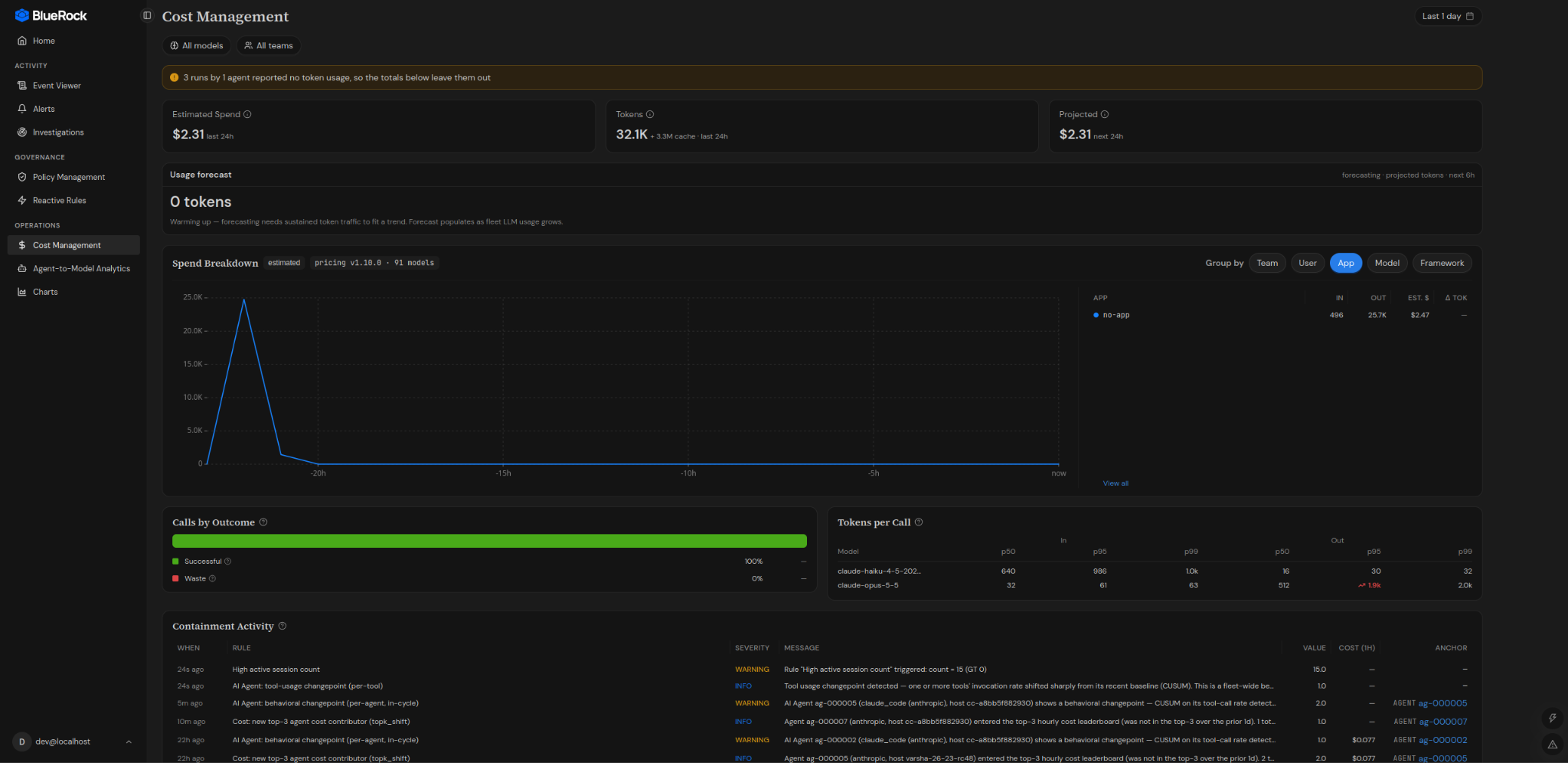
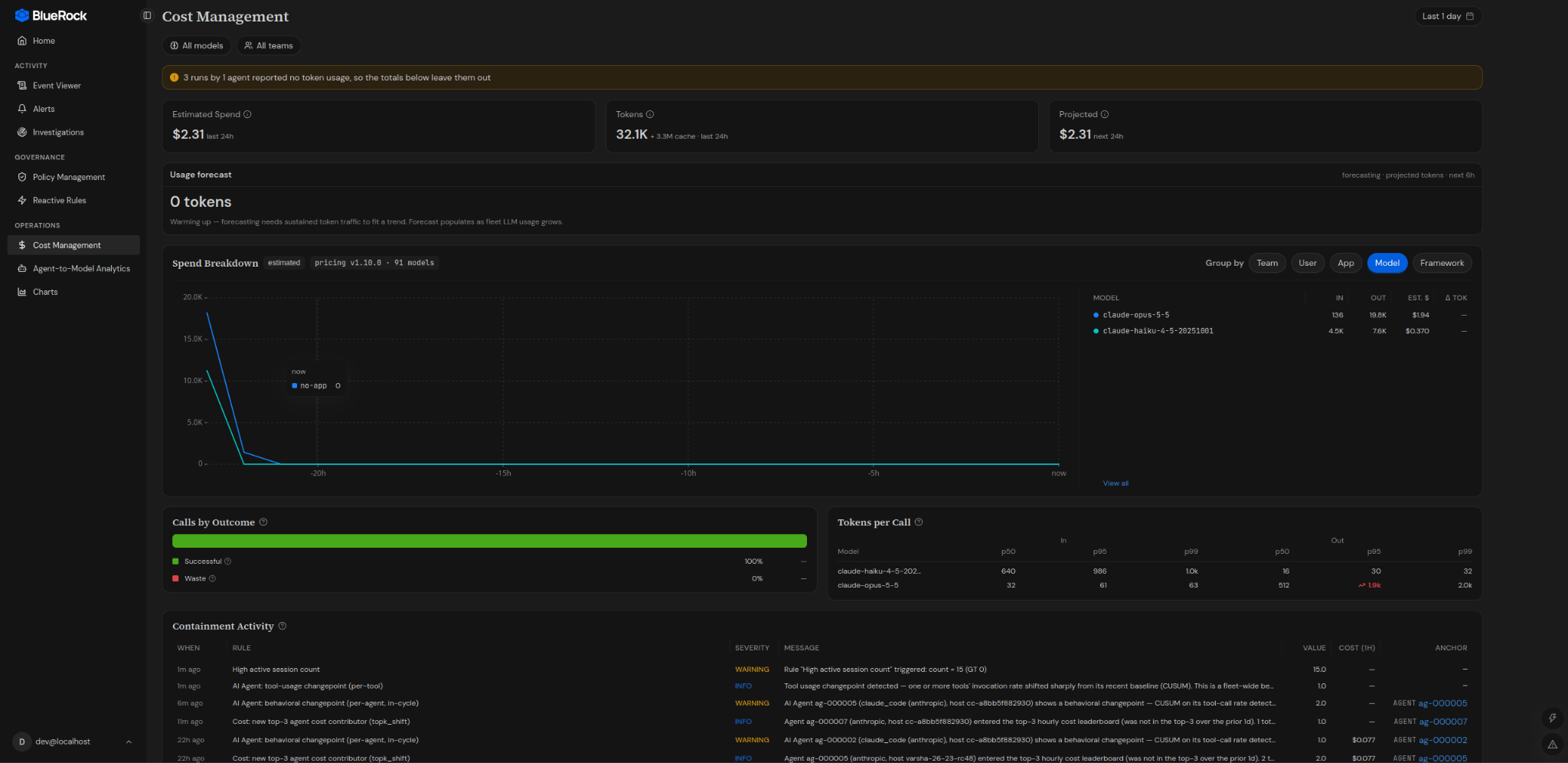
### Spend Breakdown
The **Spend Breakdown** section allows you to analyze cost and token consumption across different dimensions.
Use the **Group By** controls to categorize the available data by:
* **Team** — View usage and estimated spend grouped by team.
* **User** — View usage and estimated spend grouped by user.
* **App** — View usage and estimated spend grouped by application.
* **Model** — View usage and estimated spend grouped by LLM model.
* **Framework** — View usage and estimated spend grouped by framework.
**Team**
**User**
**App**
**Model**
**Framework**
#### Breakdown Metrics
The breakdown provides the following information:
* **IN / OUT**: Input and output token counts.
* **EST. $**: Estimated spend for the selected category.
* **Δ TOK**: Token volume variance compared with the previous equivalent time period.
Use the grouping options to examine usage and estimated spend from different operational perspectives.
***
### Calls by Outcome
The **Calls by Outcome** panel shows the completion status of requests.
The panel can show outcomes such as:
* Successful requests
* Errors
* Length-limited requests
### Tokens per Call
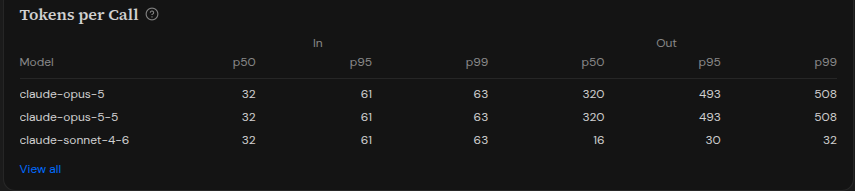
The **Tokens per Call** panel shows the distribution of token usage for individual requests.
Use this panel to identify unusually large:
* Input prompts
* Output responses
* Overall token loads
The panel can help identify changes in request size and token consumption patterns.
### Containment Activity
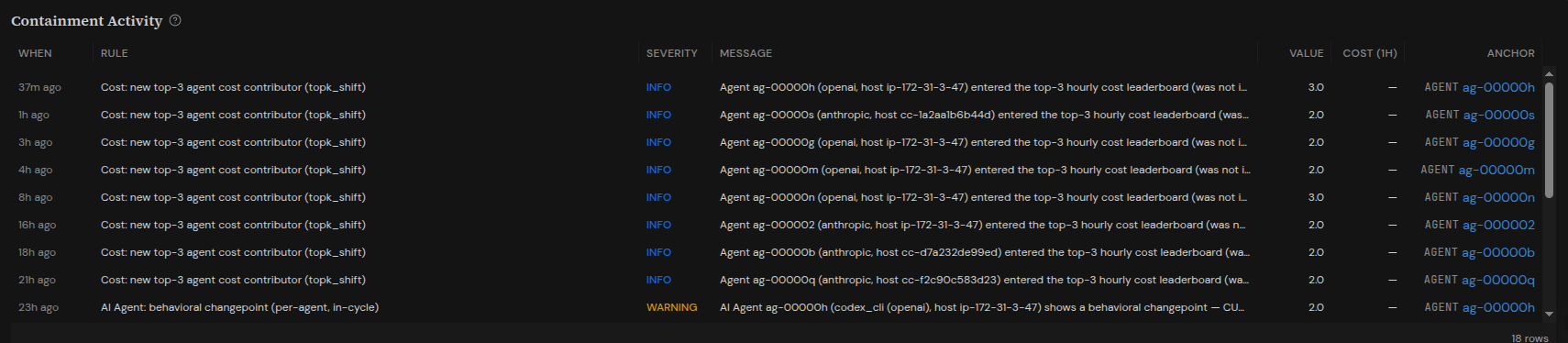
The **Containment Activity** panel displays cost-governance rule activity.
It can show:
* Cost ceiling rule triggers.
* Anomaly rule triggers.
* Severity of the triggered rule.
* The affected resource or resource anchor.
Use this information to review cost-control activity and identify resources associated with triggered cost-governance rules.
***
### Analyze Cost and Usage
A typical Cost Management workflow is:
1. Open **Cost Management**.
2. Select the required **Model** or **Team** filters.
3. Set the required **Time Range**.
4. Review **Estimated Spend**, **Tokens**, and **Projected Spend**.
5. Review the **Usage Forecast** to understand token consumption trends.
6. Select a **Group By** dimension in **Spend Breakdown**.
7. Review input and output token usage and estimated spend.
8. Review **Calls by Outcome** for request completion patterns.
9. Review **Tokens per Call** for request and response token usage.
10. Review **Containment Activity** for cost-governance rule activity.
***
### Cost Data Interpretation
Keep the following points in mind when interpreting Cost Management data:
* **Estimated Spend** represents estimated cost rather than direct vendor billing.
* **Tokens** represents conversation token volume, including input and output tokens.
* **Projected Spend** is based on current activity and is an estimate.
* Spend and usage values depend on the selected filters and time range.
* The available data depends on telemetry received from the monitored environment.
***
---
# Agent Instructions
This documentation is published with GitBook. GitBook is the documentation platform designed so that both humans and AI agents can read, navigate, and reason over technical content effectively. Learn more at gitbook.com.
## Querying This Documentation
If you need additional information that is not directly available in this page, you can query the documentation by asking a question.
Perform an HTTP GET request on the following URL with the `ask` and `goal` query parameters:
```
GET https://docs.bluerock.io/bluerock-documentation-2.7.0-beta/bluerock-dashboard/cost-management.md?ask=&goal=
```
`ask` is the immediate question: it should be specific, self-contained, and written in natural language.
`goal` is what the user is ultimately trying to achieve, the reason they need the answer. Sharing it helps GitBook give you a better, more relevant answer. A goal is most helpful when it describes the outcome the user wants rather than restating the question. For example, with `ask=how do I create an API token`, a goal like `automate deployments from our CI pipeline` lets GitBook tailor the answer to that use case.
The response will contain a direct answer to the question and relevant excerpts and sources from the documentation.
Use this mechanism when the answer is not explicitly present in the current page, you need clarification or additional context, or you want to retrieve related documentation sections.