> For the complete documentation index, see [llms.txt](https://docs.bluerock.io/llms.txt). Markdown versions of documentation pages are available by appending `.md` to page URLs; this page is available as [Markdown](https://docs.bluerock.io/bluerock-documentation-2.7.0-beta/bluerock-dashboard/investigations.md).
# Investigations
### Overview
The **Investigations** module provides a focused, time-bound workspace for analyzing issues affecting observed entities in your environment. Instead of relying solely on dashboard monitoring, you can create an investigation to examine a specific component and identify patterns that may indicate an underlying issue.
You can investigate observed entities such as **MCP servers, MCP clients, LLM models, agents, sandboxed processes, and sandboxes**.
When an investigation runs, BlueRock's findings engine analyzes the selected target for patterns such as:
* Latency spikes
* Service denials
* Policy blocks
* Sandbox violations
Findings are presented as **hypothesis leads** to help guide analysis. A hypothesis lead is an indication of a potential issue, not a definitive diagnosis. You can mark leads as important or mute them based on their relevance to the investigation.
You can also compare **point-in-time snapshot reports** to examine how findings change over time.
To help analysts maintain focus, each analyst can have a maximum of **three open standing investigations** at a time. A one-time **Investigate now** check does not consume an open investigation slot.
***
## Create an Investigation
You can create an investigation to perform either a one-time analysis or establish a continuous watch on an observed entity.
#### Before you begin
Make sure the entity you want to investigate is available as an observed entity in BlueRock.
#### Procedure
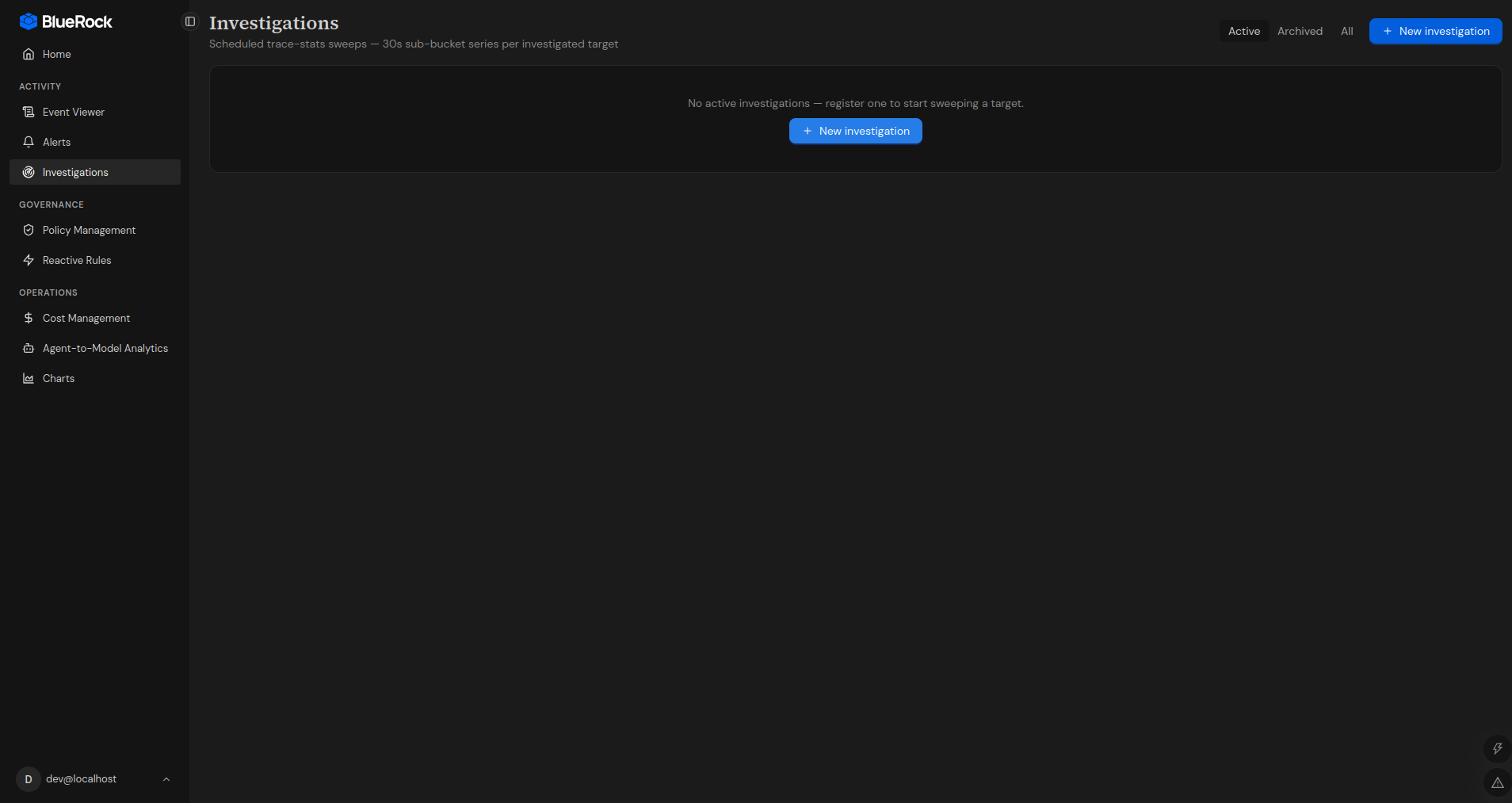
1. In the left navigation sidebar, under **Activity**, select **Investigations**.
The Investigations workspace opens.
2. Select **+ New investigation** in the upper-right corner.
You can also select **New investigation** from the primary action area in the workspace.
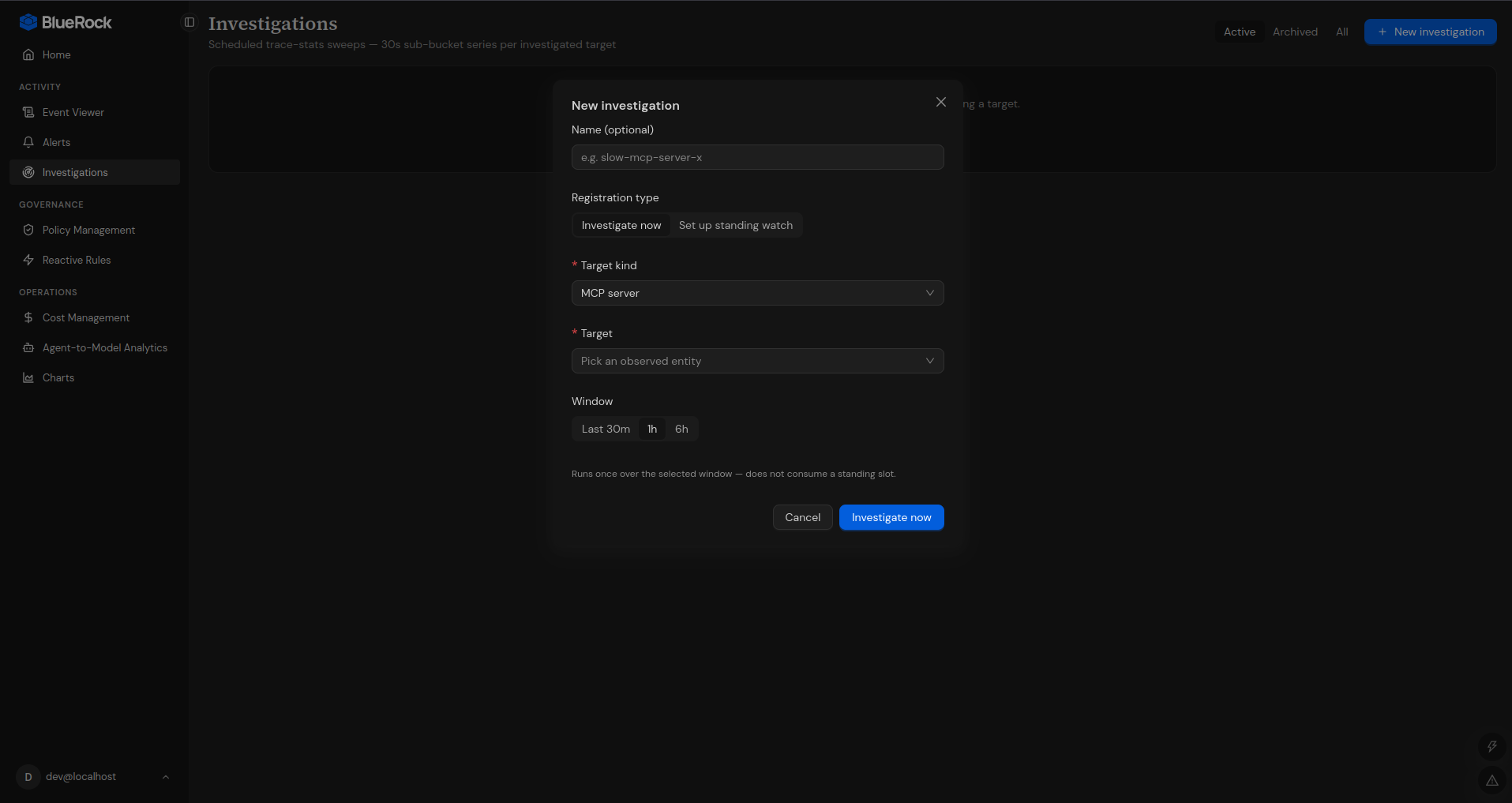
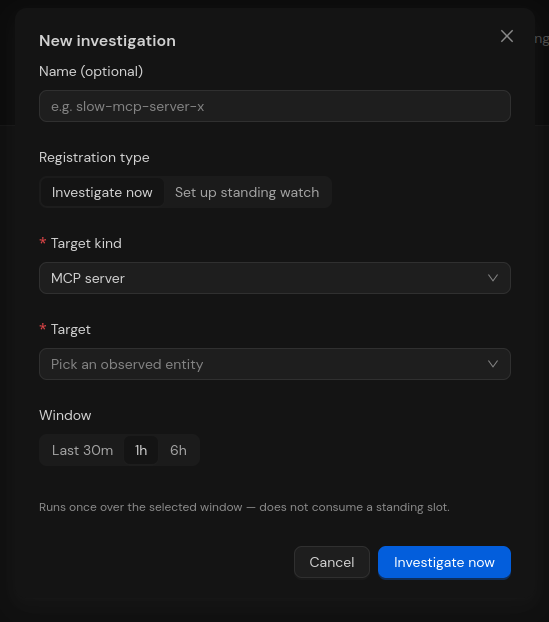
3. In the investigation setup window, configure the following options:
| Field | Description |
| --------------------- | -------------------------------------------------------------------------------------------------------------------------------------------------------------------- |
| **Name** | Optional. Enter a descriptive name for the investigation, such as `slow-mcp-server-x`. |
| **Registration type** | Select how you want to run the investigation. |
| **Target kind** | Select the type of observed entity you want to investigate, such as **MCP server**, **MCP client**, **LLM model**, **Agent**, **Sandboxed process**, or **Sandbox**. |
| **Target** | Select the specific observed entity to investigate. |
| **Window** | Select the period of historical data to analyze: **Last 30m**, **1h**, or **6h**. |
4. Under **Registration type**, select one of the following options:
**Investigate now**\
Runs a one-time investigation using the selected target and time window. A one-time investigation does not consume an open standing-investigation slot.
**Set up standing watch**\
Creates a continuous investigation that periodically sweeps the selected target for relevant findings. A standing watch counts toward the maximum of three open investigations per analyst.
***
### Investigation Findings
After an investigation runs, BlueRock presents findings identified during the analysis.
Findings are provided as **hypothesis leads** rather than confirmed diagnoses. Use these leads to focus your analysis on patterns that may require further investigation.
For each hypothesis lead, you can:
* **Mark it as important** to highlight a finding that requires attention.
* **Mute it** when the finding is not relevant to your investigation.
You can also review snapshot reports to compare findings from different points in time and identify changes in the target's behavior.
***
### Investigation Types
| Investigation type | Purpose | Open-investigation limit |
| ------------------- | ------------------------------------------------------------------------ | ---------------------------------------------------------- |
| **Investigate now** | Perform a one-time analysis of a target over a selected lookback window. | Does not consume a standing-investigation slot. |
| **Standing watch** | Continuously analyze a target for relevant patterns and findings. | Maximum of three open standing investigations per analyst. |
***
---
# Agent Instructions
This documentation is published with GitBook. GitBook is the documentation platform designed so that both humans and AI agents can read, navigate, and reason over technical content effectively. Learn more at gitbook.com.
## Querying This Documentation
If you need additional information that is not directly available in this page, you can query the documentation by asking a question.
Perform an HTTP GET request on the following URL with the `ask` and `goal` query parameters:
```
GET https://docs.bluerock.io/bluerock-documentation-2.7.0-beta/bluerock-dashboard/investigations.md?ask=&goal=
```
`ask` is the immediate question: it should be specific, self-contained, and written in natural language.
`goal` is what the user is ultimately trying to achieve, the reason they need the answer. Sharing it helps GitBook give you a better, more relevant answer. A goal is most helpful when it describes the outcome the user wants rather than restating the question. For example, with `ask=how do I create an API token`, a goal like `automate deployments from our CI pipeline` lets GitBook tailor the answer to that use case.
The response will contain a direct answer to the question and relevant excerpts and sources from the documentation.
Use this mechanism when the answer is not explicitly present in the current page, you need clarification or additional context, or you want to retrieve related documentation sections.