> For the complete documentation index, see [llms.txt](https://docs.bluerock.io/llms.txt). Markdown versions of documentation pages are available by appending `.md` to page URLs; this page is available as [Markdown](https://docs.bluerock.io/bluerock-documentation-2.7.0-beta/bluerock-dashboard/policy-management.md).
# Policy Management
### Overview
Policy Management provides a UI-based workflow for creating, configuring, validating, submitting, reviewing, approving, revising, and deploying BlueRock policies.
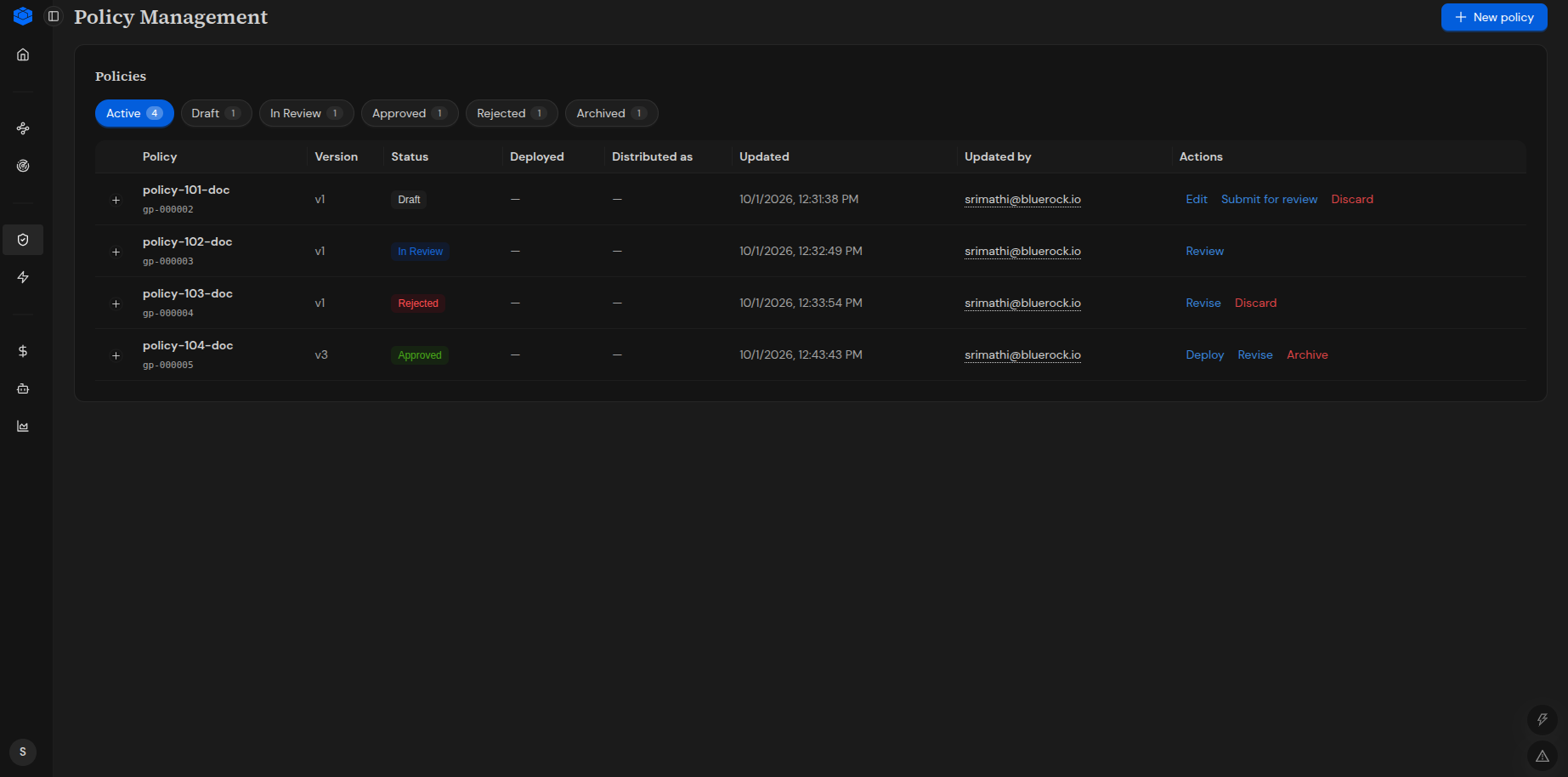
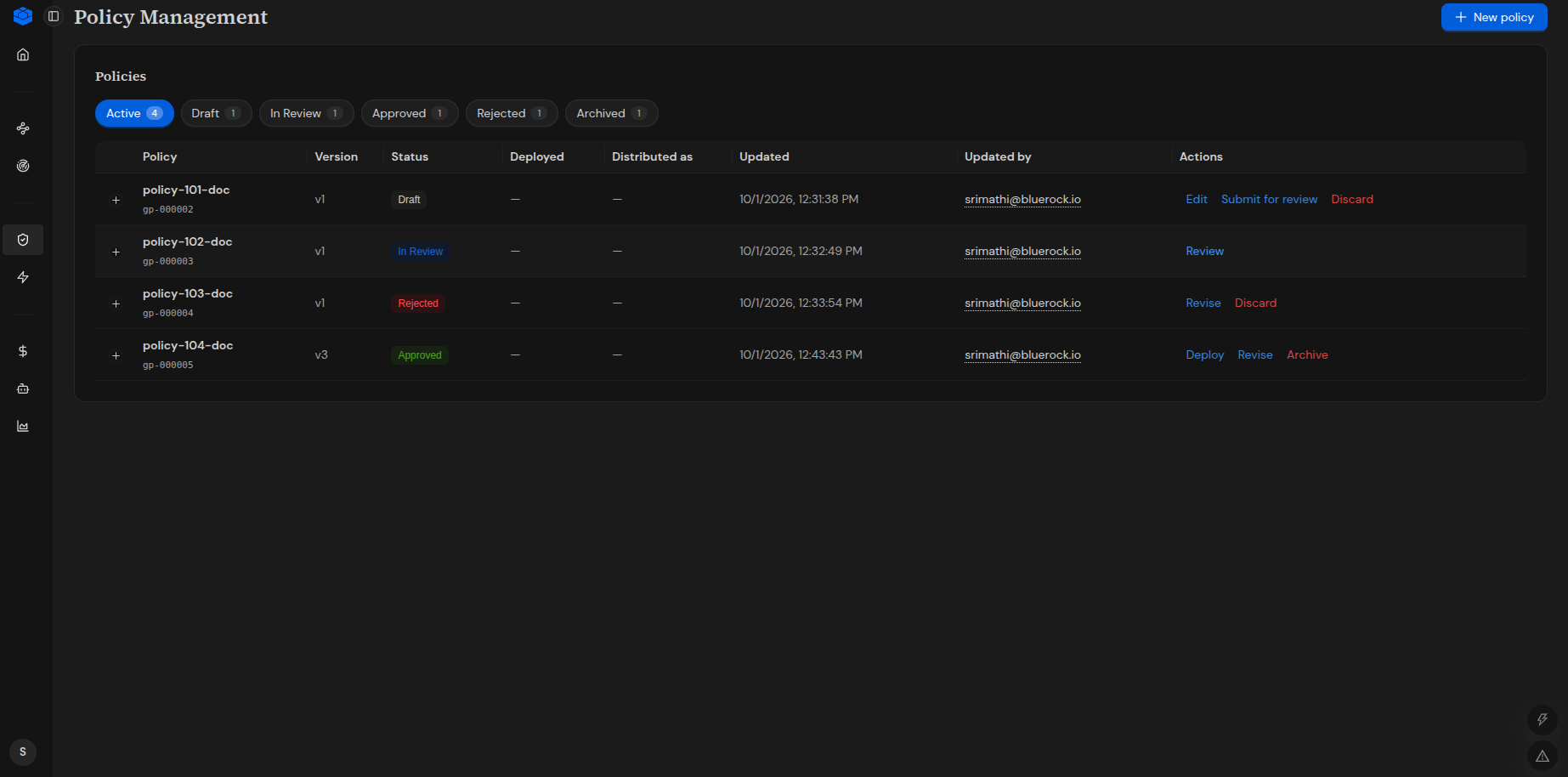
The **Policy Management** page provides a central view of policies and their current status. From this page, you can create new policies, edit drafts, submit policies for review, review and approve or reject policies, deploy approved policies, and revise existing policies.
***
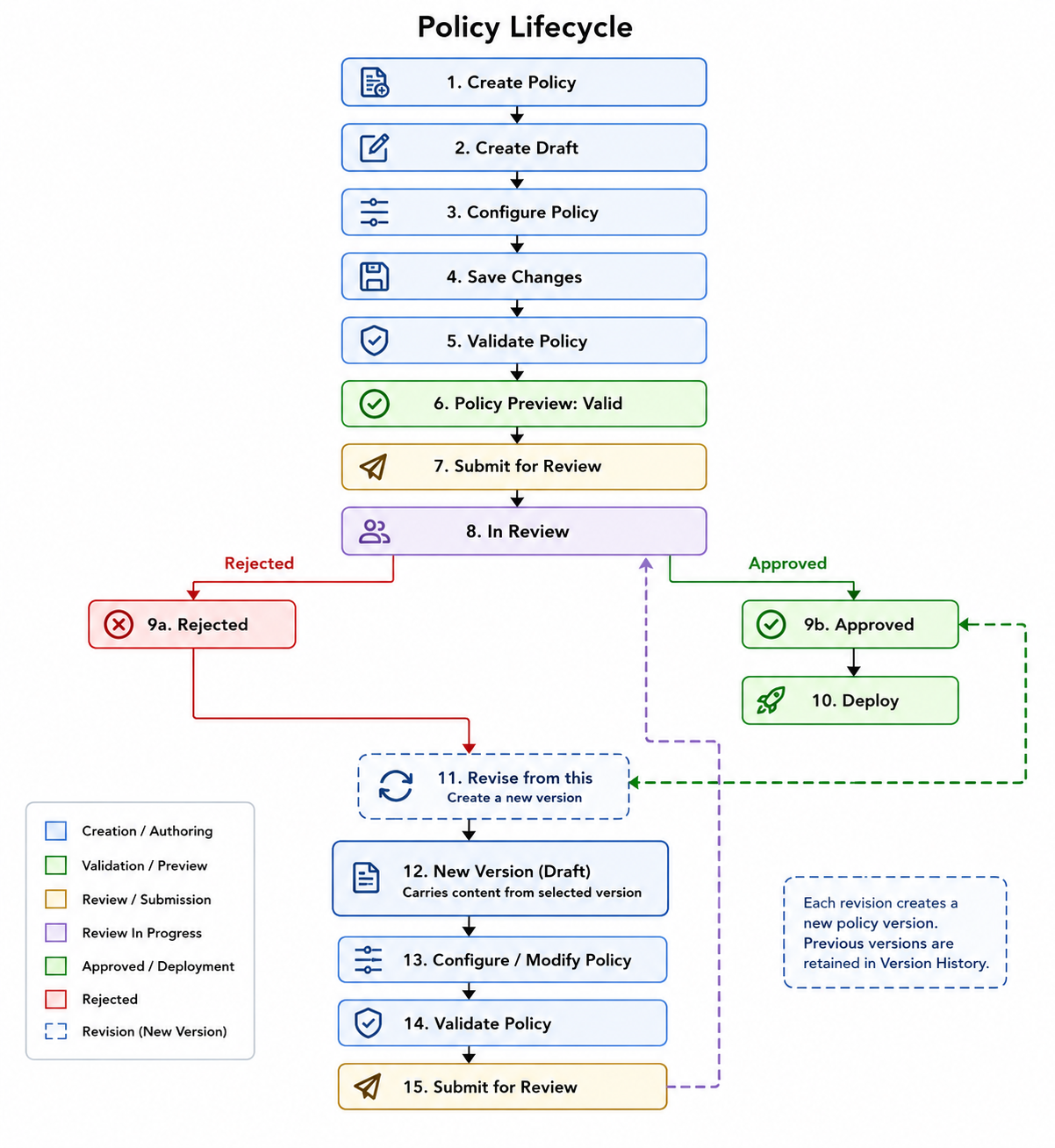
### Policy Lifecycle
A typical policy management workflow starts with creating a policy draft and configuring the required controls. The policy is then validated, submitted for review, approved or rejected, and deployed when approved.
When changes are required for an existing policy, use **Revise** or **Revise from this** to create a new draft version. The new version follows the validation and review workflow before it can be deployed.
The Policy Management workflow can be summarized as follows:
**Create Policy → Create Draft → Configure → Save Changes → Validate → Submit for Review → In Review → Approve/Reject → Approved/Rejected → Deploy or Revise → New Version (Draft)**
A policy that requires changes after creation can be revised and progressed through the validation and review workflow again.
***
### Access Policy Management
To access Policy Management:
1. Sign in to the BlueRock UI.
2. In the navigation pane, under **Governance**, select **Policy Management**.
The Policy Management page displays the available policies.
Policies can be filtered by status using the following filters:
* **Draft**
* **In review**
* **Approved**
* **Rejected**
* **Archived**
Archived policies can be accessed from the **Archived** tab.
> **Note:** A policy lifecycle state is displayed when at least one policy exists in that state. If no policies exist in a state, its count is **0**.
The policy list displays the following information:
* **Policy**
* **Version**
* **Status**
* **Deployed**
* **Distributed as**
* **Updated**
* **Updated by**
* **Actions**
The available actions depend on the current policy state. Actions shown in the current UI include **Review**, **Deploy**, **Revise**, and **Archive**.
***
### Create a Policy
To create a new policy:
1. Open **Policy Management**.
2. Select **+ New policy**.
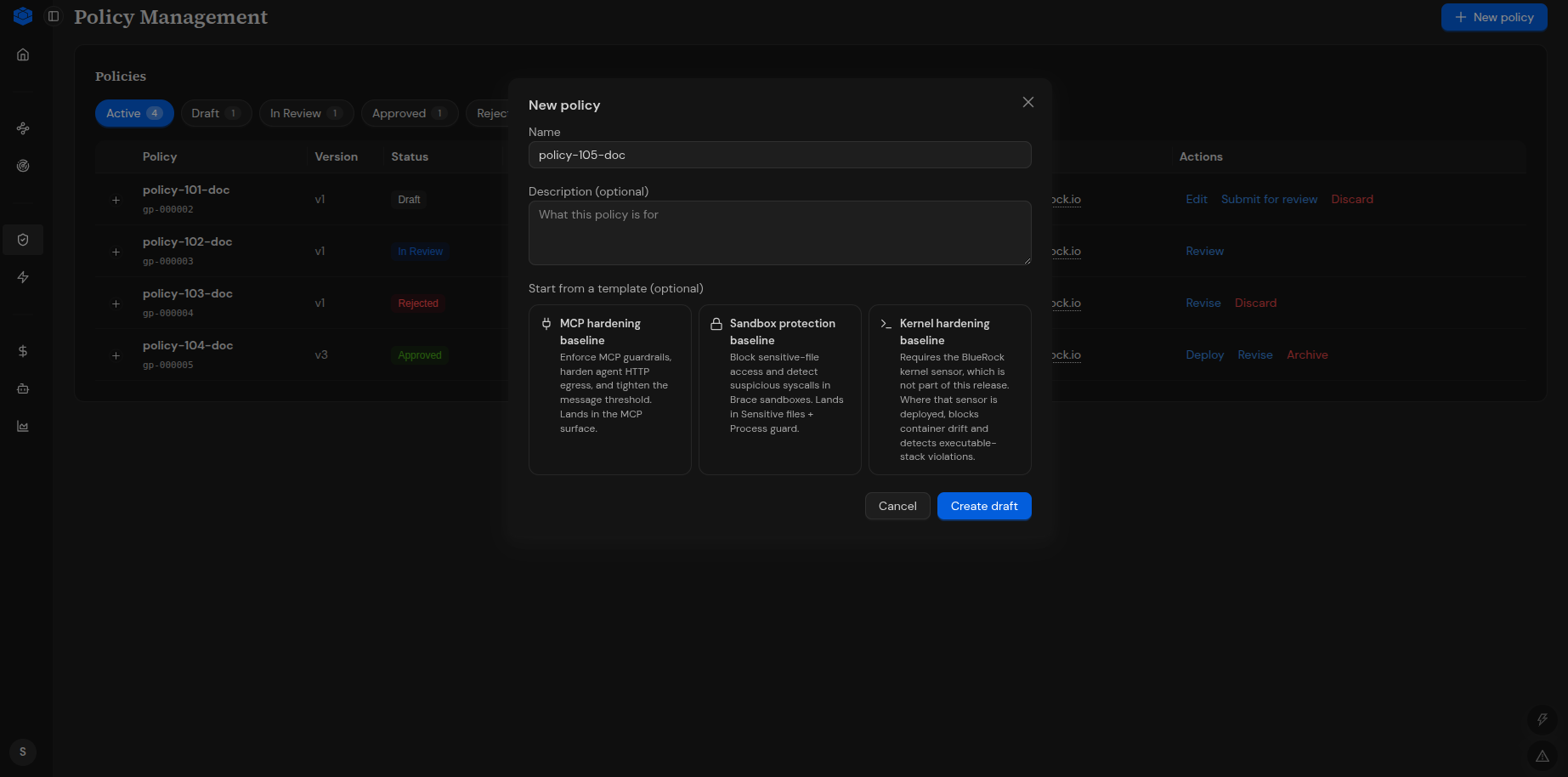
The **New policy** dialog opens.
#### Enter Policy Information
In the **New policy** dialog:
1. Enter a name in the **Name** field.
2. Optionally enter a description in the **Description (optional)** field.
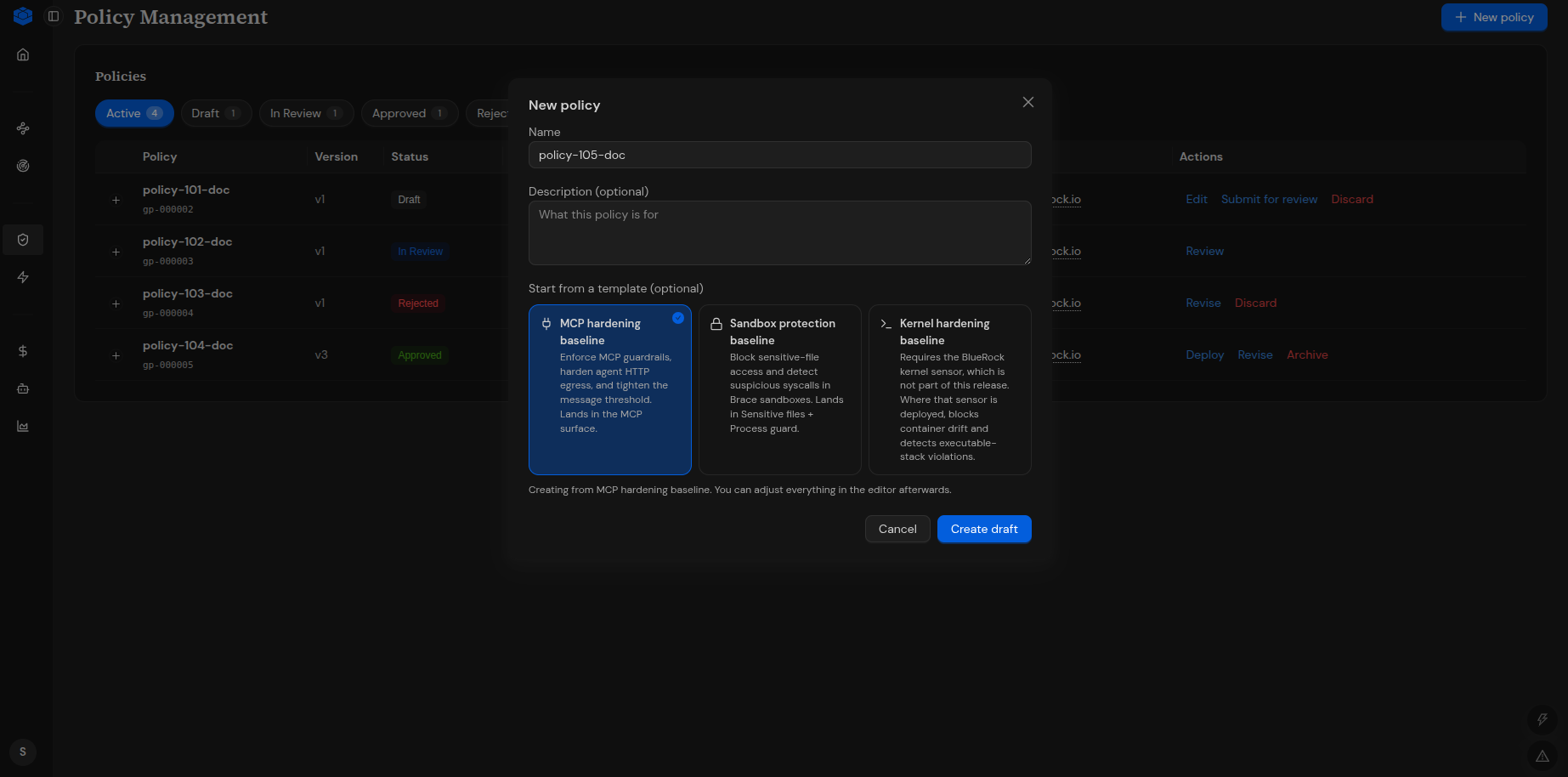
3. Optionally select a template under **Start from a template (optional)**.
4. Select **Create draft**.
The **Create draft** button becomes available after a policy name is entered.
After the draft is created, BlueRock opens the **Edit Policy** page.
#### Start from a Policy Template
You can create a policy from a predefined template.
The **New policy** dialog provides the following templates:
**MCP hardening baseline**
Provides the following baseline controls:
* MCP guardrails
* Agent HTTP egress hardening
* Message threshold configuration
**Sandbox protection baseline**
Provides controls to:
* Block sensitive-file access
* Detect suspicious system calls in Brace sandboxes
**Kernel hardening baseline**
Provides controls for kernel-level protection.
> **Note:** Kernel sensor configuration is not supported through Policy Management.
To start a policy from a template:
1. Open the **New policy** dialog.
2. Enter a policy name.
3. Select the required template.
4. Select **Create draft**.
The selected template is used as the starting configuration for the policy.
***
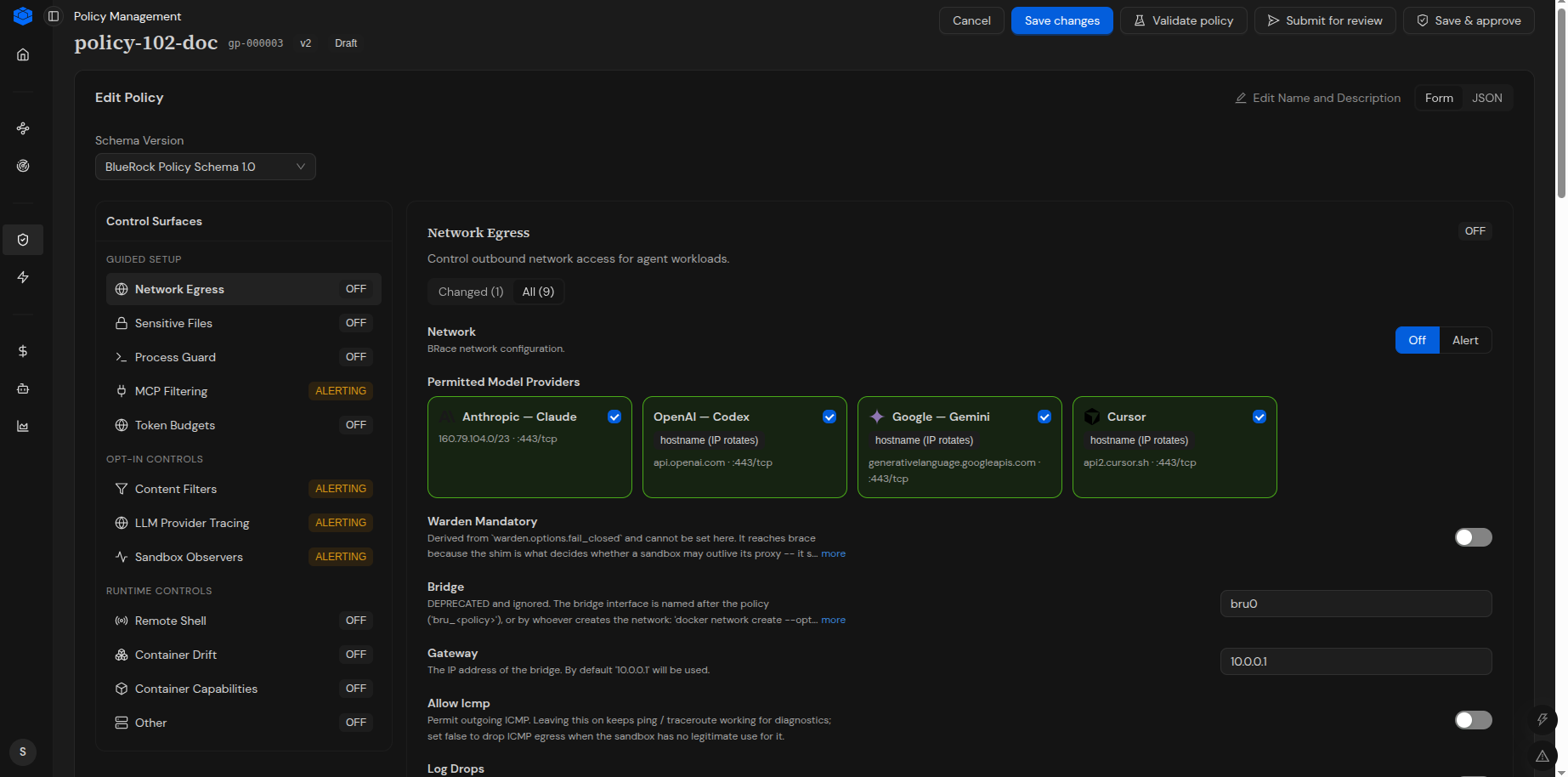
### Edit a Policy
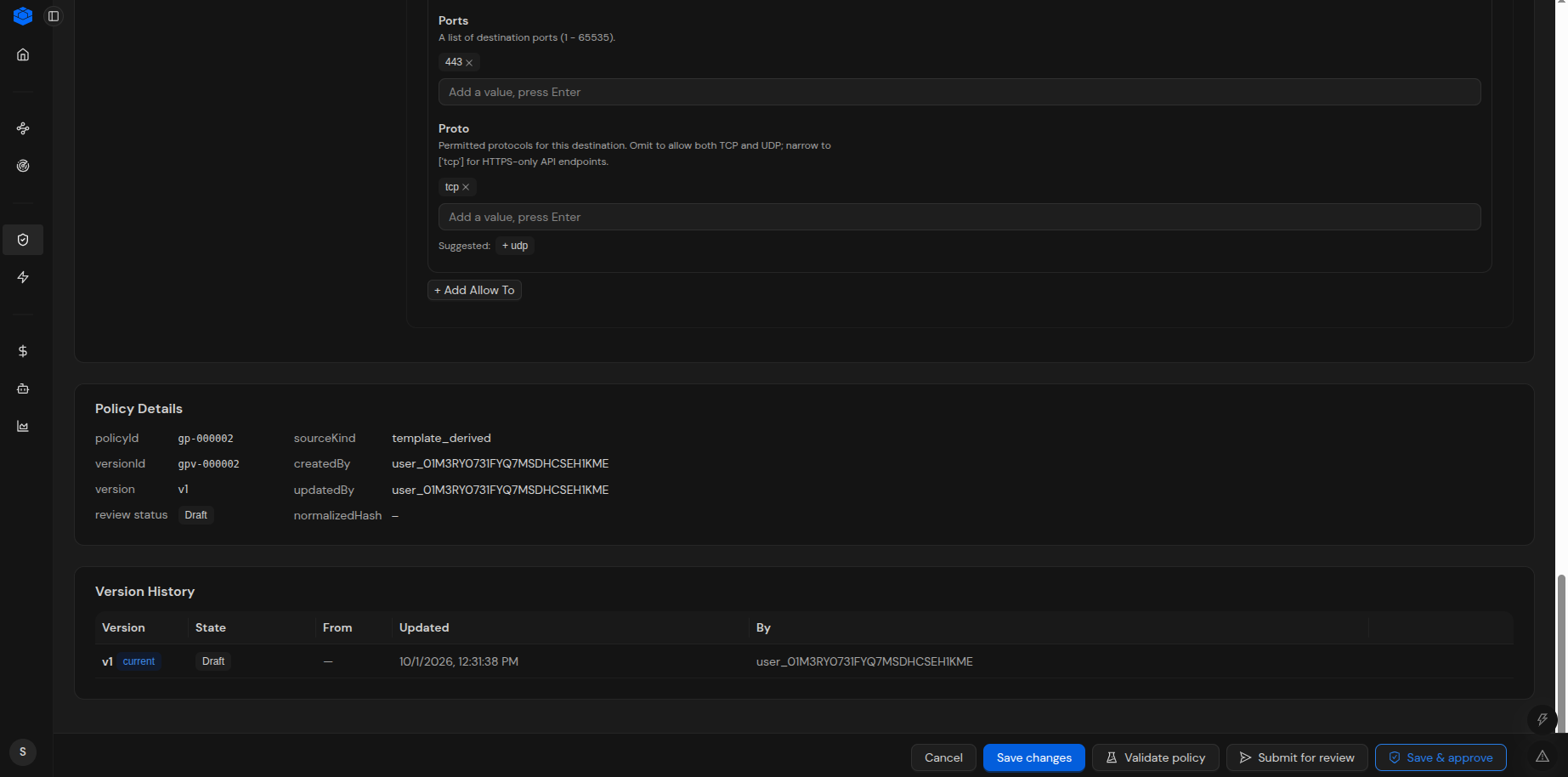
After a policy draft is created, BlueRock opens the **Edit Policy** page.
The page displays the:
* Policy name
* Policy ID
* Policy version
* Policy status
* Policy description
* Schema version
* Policy configuration
The Edit Policy page provides **Form** and **JSON** views.
The **Form** view allows you to configure policy controls through the UI.
The page also provides **Edit Name and Description** for updating the policy name or description.
**Policy Schema Version**
The Edit Policy page displays the policy schema version.
For example:
**BlueRock Policy Schema 1.0**
***
### Configure Policy Controls
The **Form** view provides a guided interface for configuring the controls included in a BlueRock policy.
Policy controls are grouped into **Guided Setup, Opt-in Controls and Runtime Controls.**
#### Available Policy Controls
| **Category** | **Control** | **Purpose** |
| ----------------------------------------------------------------------------------------------------------------------------------- | -------------------------- | ------------------------------------------------------------------------------------------------------- |
|
Guided Setup
Core security and policy controls for configuring the container environment.
| **Network Egress** | Controls outbound network access from agent workloads. |
| | **Sensitive Files** | Controls access to sensitive files and paths inside the container. |
| | **Process Guard** | Controls which processes or executables are permitted or denied inside the container. |
| | **MCP Filtering** | Controls MCP tool-call behavior and filtering rules. |
| | **Token Budgets** | Controls token usage and limits for LLM requests. |
|
Opt-in Controls
Additional controls that can be enabled when specific functionality is required.
| **Content Filters** | Filters MCP tool arguments, tool descriptions, and tool responses based on configured patterns or tags. |
| | **LLM Provider Tracing** | Enables request and response tracing for supported LLM providers. |
| | **Sandbox Observers** | Provides syscall observation controls for sandbox activity. |
|
Runtime Controls
Controls for managing runtime behavior and capabilities of containerized workloads.
| **Remote Shell** | Controls remote shell access to the environment. |
| | **Container Drift** | Controls detection of changes to the expected state or configuration of the container. |
| | **Container Capabilities** | Controls the capabilities available to processes running inside the container. |
| | **Other** | Provides additional runtime and kernel-level controls available through the policy configuration. |
Select a control from the **Control Surfaces** panel to view and configure its settings.
Each control can be configured using the enforcement or operating options provided by the UI. Depending on the control, additional settings may be available for defining paths, patterns, providers, limits, exceptions, or other configuration values.
{% hint style="info" %}
**Note:** The available controls and their configuration options may change as the BlueRock policy schema evolves.
{% endhint %}
***
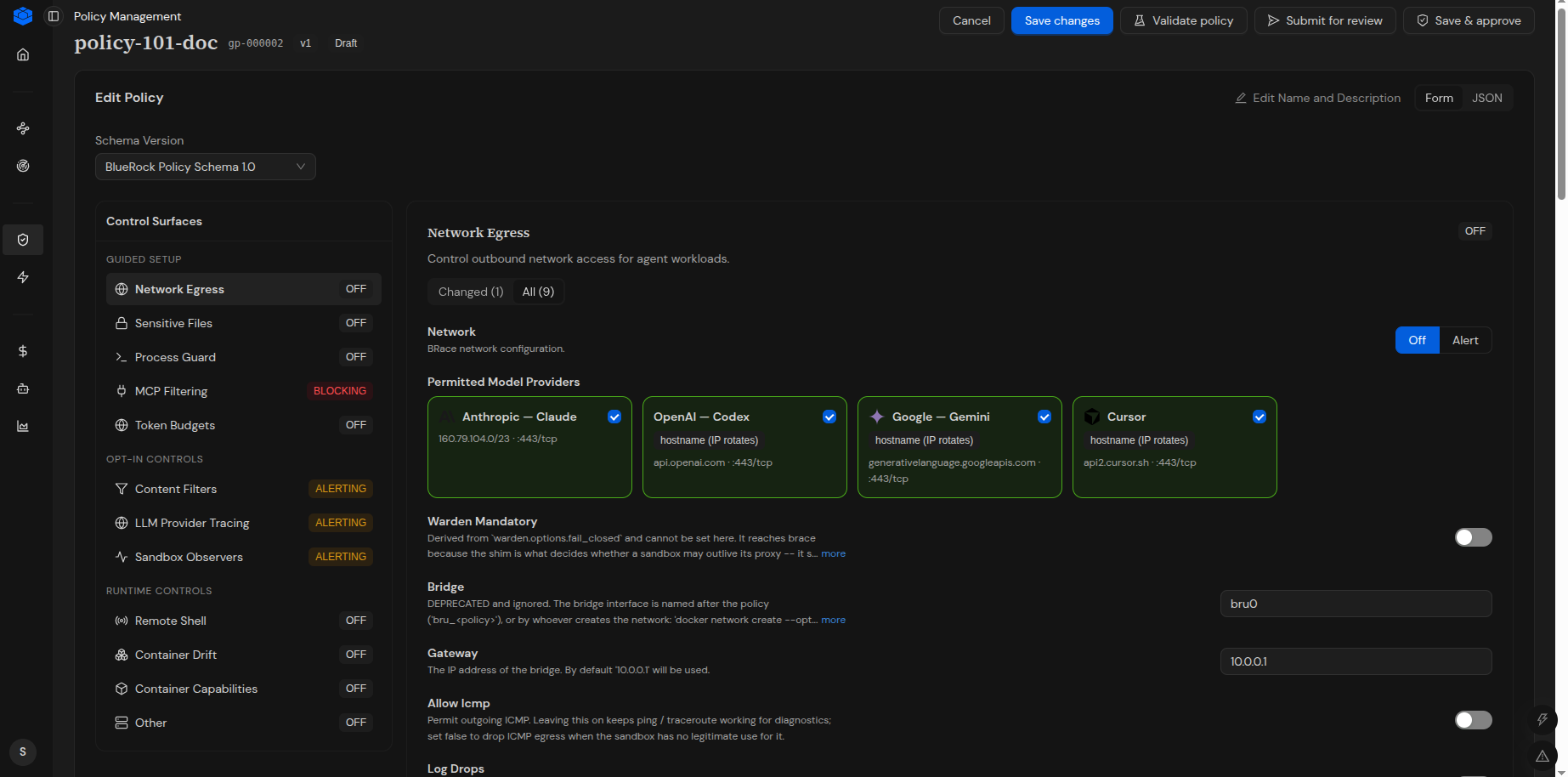
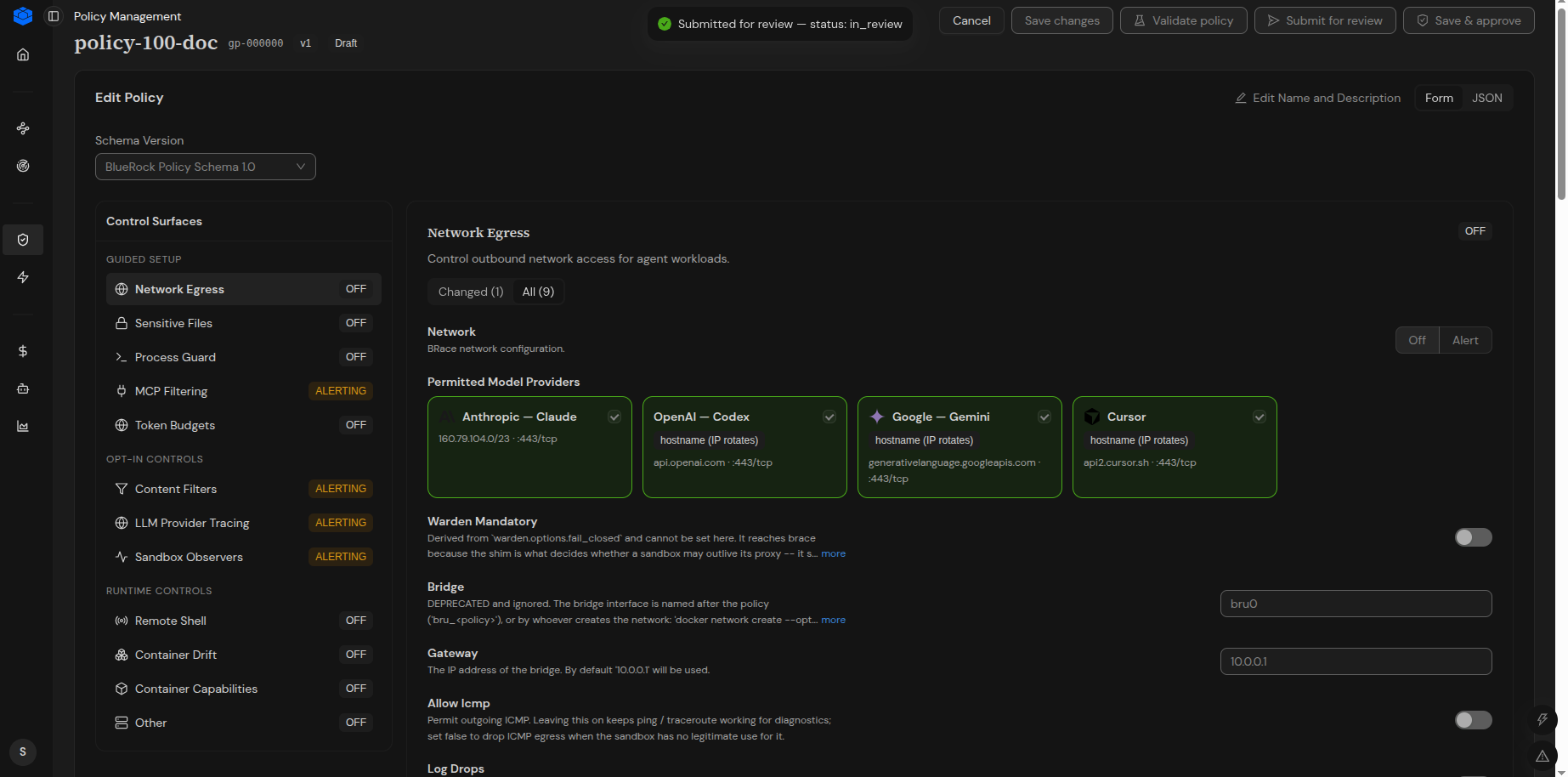
#### Configure Network Egress
**Network Egress** controls outbound network access from agent workloads.
Depending on the configuration, you can define:
| Setting | Description |
| ----------------------------- | --------------------------------------------------------------------------------------- |
| **Network** | Specifies the network enforcement mode, such as Off or Alert. |
| **Permitted Model Providers** | Specifies the model providers permitted for network access. |
| **Bridge** | Specifies the network bridge interface used by the configuration. |
| **Gateway** | Specifies the gateway address for the configured network. |
| **Allow ICMP** | Controls whether ICMP traffic is permitted. |
| **Log Drops** | Controls logging of packets dropped by the network policy. |
| **Allow From** | Defines permitted source addresses or networks. |
| **Allow To** | Defines permitted destination addresses or networks and associated ports and protocols. |
| **Published Ports** | Defines ports exposed or published to the host network. |
Configure the required network settings according to the intended policy.
***
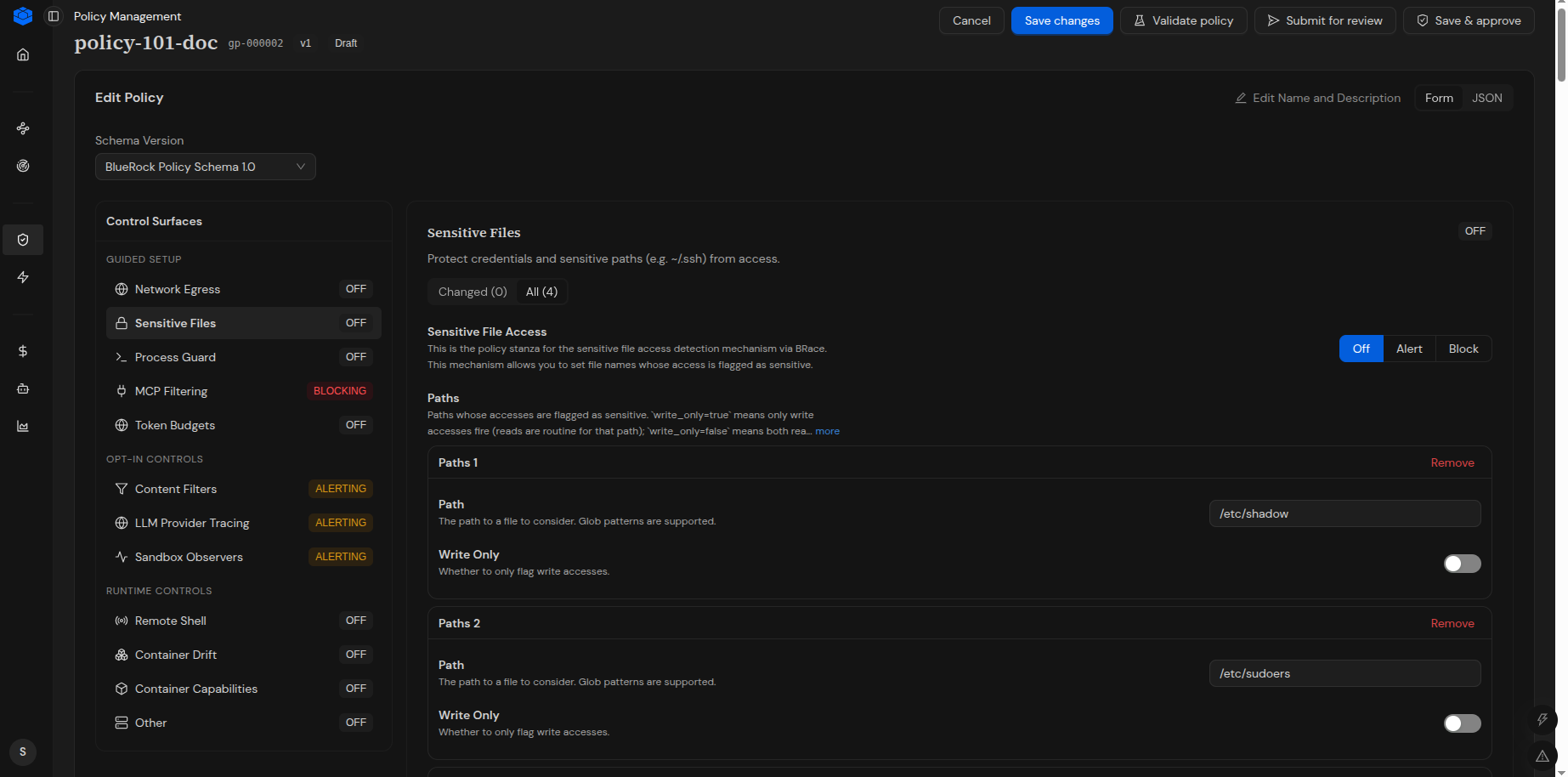
#### Configure Sensitive Files
**Sensitive Files** controls access to files and paths that should be treated as sensitive.
The control provides settings for defining sensitive paths and specifying how access to those paths is handled.
| Setting | Description |
| ------------------------- | ------------------------------------------------------------------------------ |
| **Sensitive File Access** | Specifies the enforcement mode for sensitive file access. |
| **Paths** | Defines file paths or path patterns to be treated as sensitive. |
| **Write Only** | Specifies whether the rule applies only to write access for a configured path. |
You can add multiple sensitive file paths and configure the access behavior for each path.
***
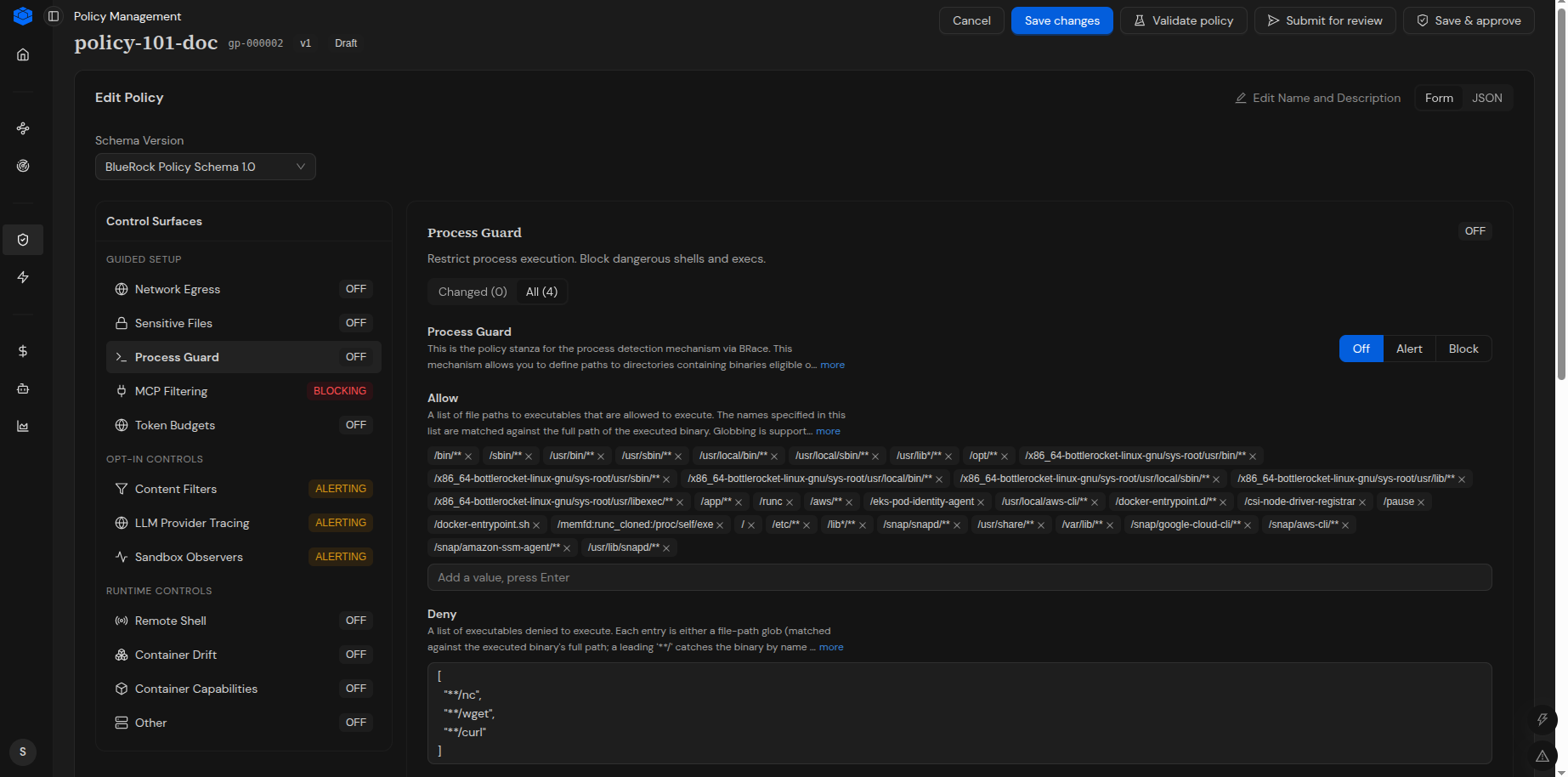
#### Configure Process Guard
**Process Guard** controls process execution by defining which executable paths are permitted or denied.
The control provides settings for:
| Setting | Description |
| ------------------- | ----------------------------------------------------------------------- |
| **Process Guard** | Specifies the enforcement mode for process execution. |
| **Allow** | Defines executable paths that are eligible for execution. |
| **Deny** | Defines executable paths that are explicitly denied. |
| **Deny Exceptions** | Defines exceptions for executable paths that would otherwise be denied. |
Path patterns can be used where supported by the configuration.
***
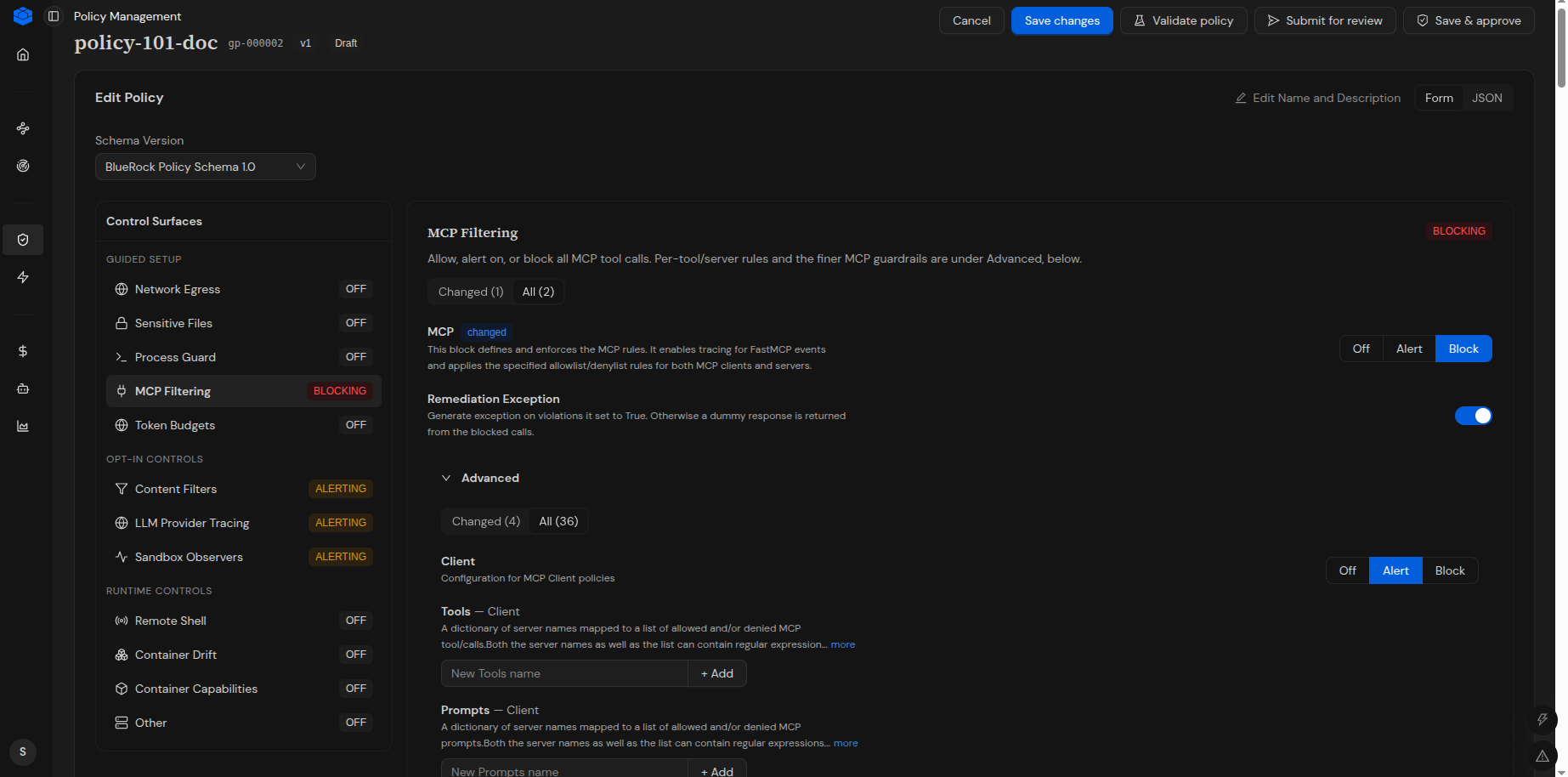
#### Configure MCP Filtering
**MCP Filtering** controls MCP tool-call behavior.
The control supports configuring the enforcement mode and additional MCP filtering behavior.
The available configuration includes:
| Setting | Description |
| ------------------------- | ----------------------------------------------------------------------------------- |
| **MCP** | Specifies the enforcement mode for MCP activity. |
| **Remediation Exception** | Controls whether an exception response is generated when a policy violation occurs. |
| **Advanced** | Provides additional MCP-specific configuration options. |
The **Advanced** section can be expanded when additional MCP filtering configuration is required.
***
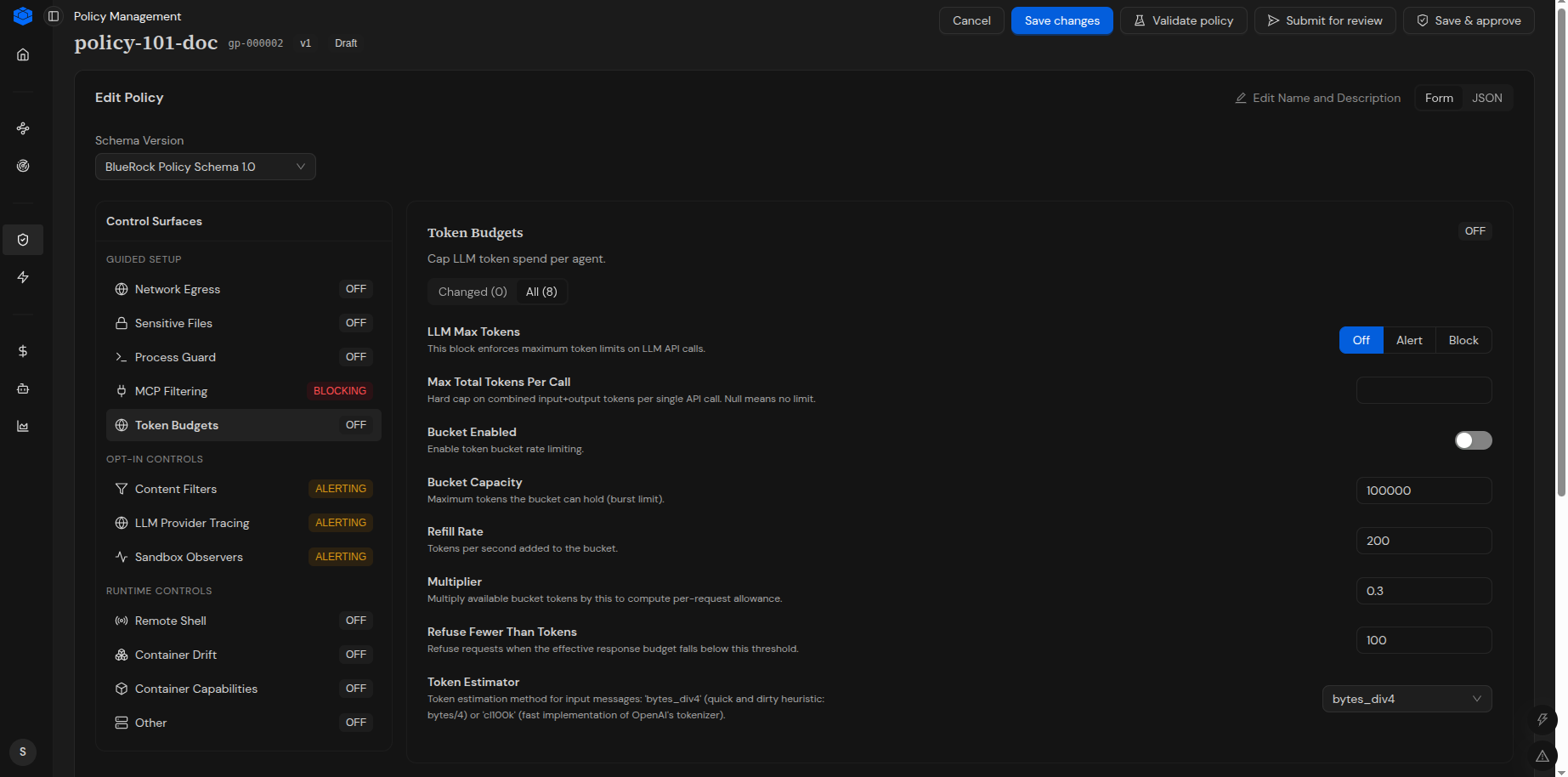
#### Configure Token Budgets
**Token Budgets** controls token usage for LLM requests.
The control provides settings for defining token limits and bucket-based token management.
| Setting | Description |
| ----------------------------- | ------------------------------------------------------------------------------------------------ |
| **LLM Max Tokens** | Specifies the enforcement mode for maximum token limits. |
| **Max Total Tokens Per Call** | Defines the maximum combined input and output tokens permitted for an LLM API call. |
| **Bucket Enabled** | Enables bucket-based token rate limiting. |
| **Bucket Capacity** | Defines the maximum number of tokens the bucket can hold. |
| **Refill Rate** | Defines the rate at which tokens are added to the bucket. |
| **Multiplier** | Specifies the multiplier used to calculate the per-request token allowance. |
| **Refuse Fewer Than Tokens** | Defines a threshold below which a request can be refused based on the effective response budget. |
| **Token Estimator** | Specifies the method used to estimate token usage. |
Configure the token limits and rate-limiting settings according to the required usage policy.
***
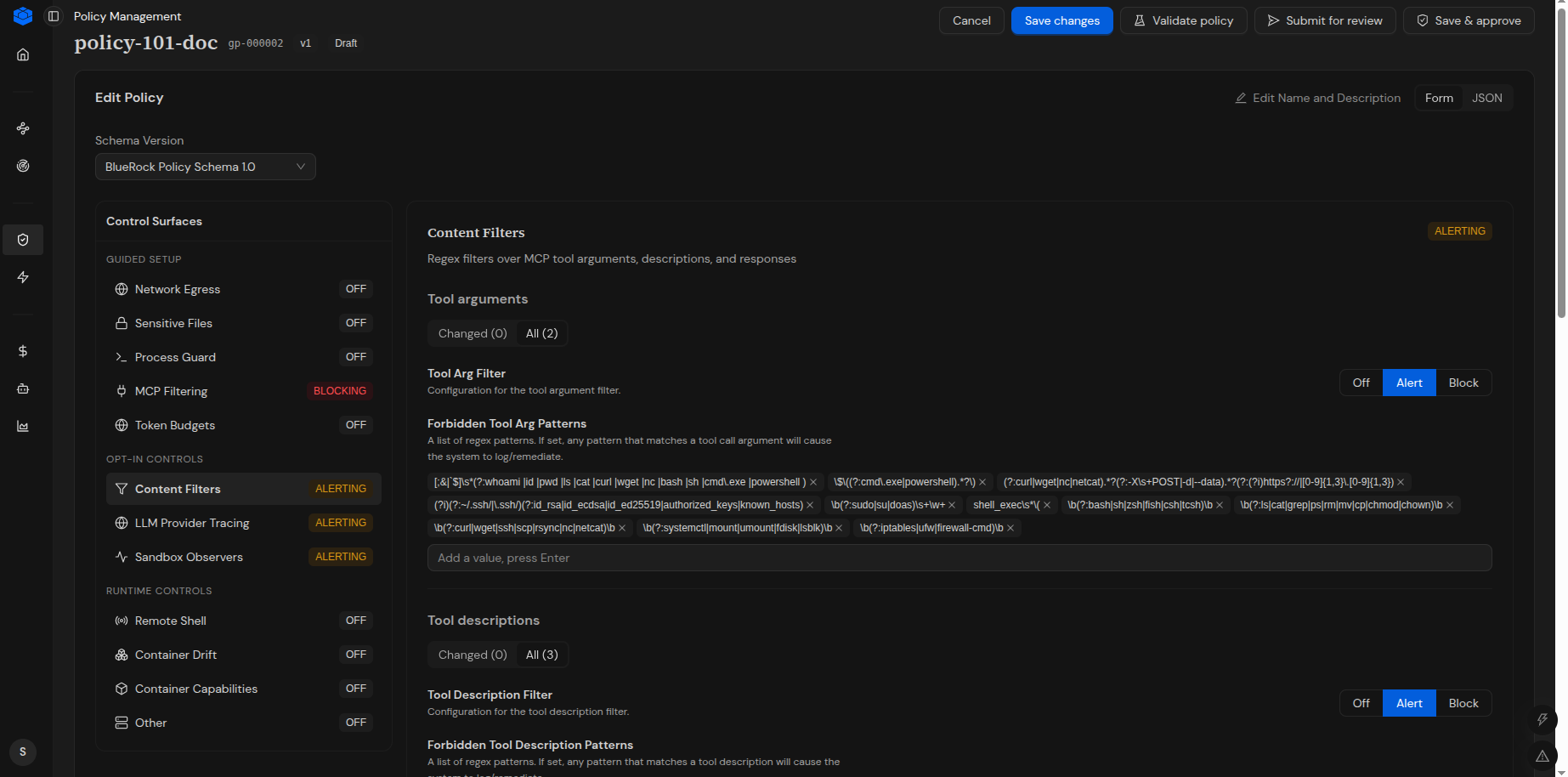
#### Configure Content Filters
**Content Filters** applies filtering to MCP tool arguments, tool descriptions, and tool responses.
The control provides separate filtering areas for:
* **Tool arguments**
* **Tool descriptions**
* **Tool responses**
Each filtering area can be configured with an enforcement mode and matching criteria.
| Setting | Description |
| ---------------------- | ------------------------------------------------------- |
| **Filter** | Specifies how matching content is handled. |
| **Forbidden Patterns** | Defines patterns used to identify prohibited content. |
| **Forbidden Tags** | Defines tags used for content matching where supported. |
Patterns can be added individually through the UI.
***
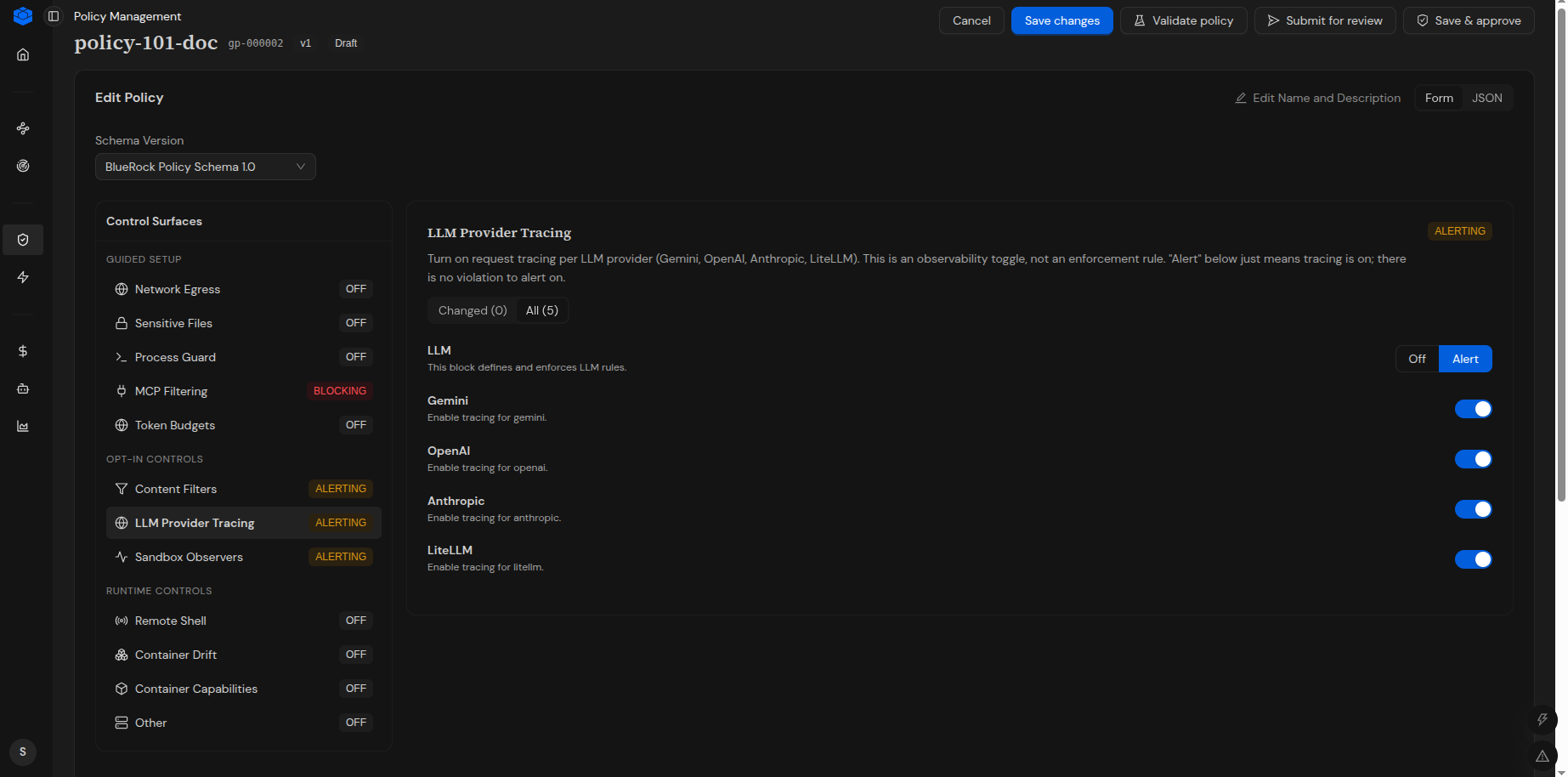
#### Configure LLM Provider Tracing
**LLM Provider Tracing** enables request tracing for supported LLM providers.
The control provides a tracing mode and provider-specific options.
Supported providers displayed in the current UI include:
* Gemini
* OpenAI
* Anthropic
* LiteLLM
Enable tracing for the providers that should be monitored.
{% hint style="info" %}
**Note:** LLM Provider Tracing is an observability setting. It does not define an enforcement rule.
{% endhint %}
***
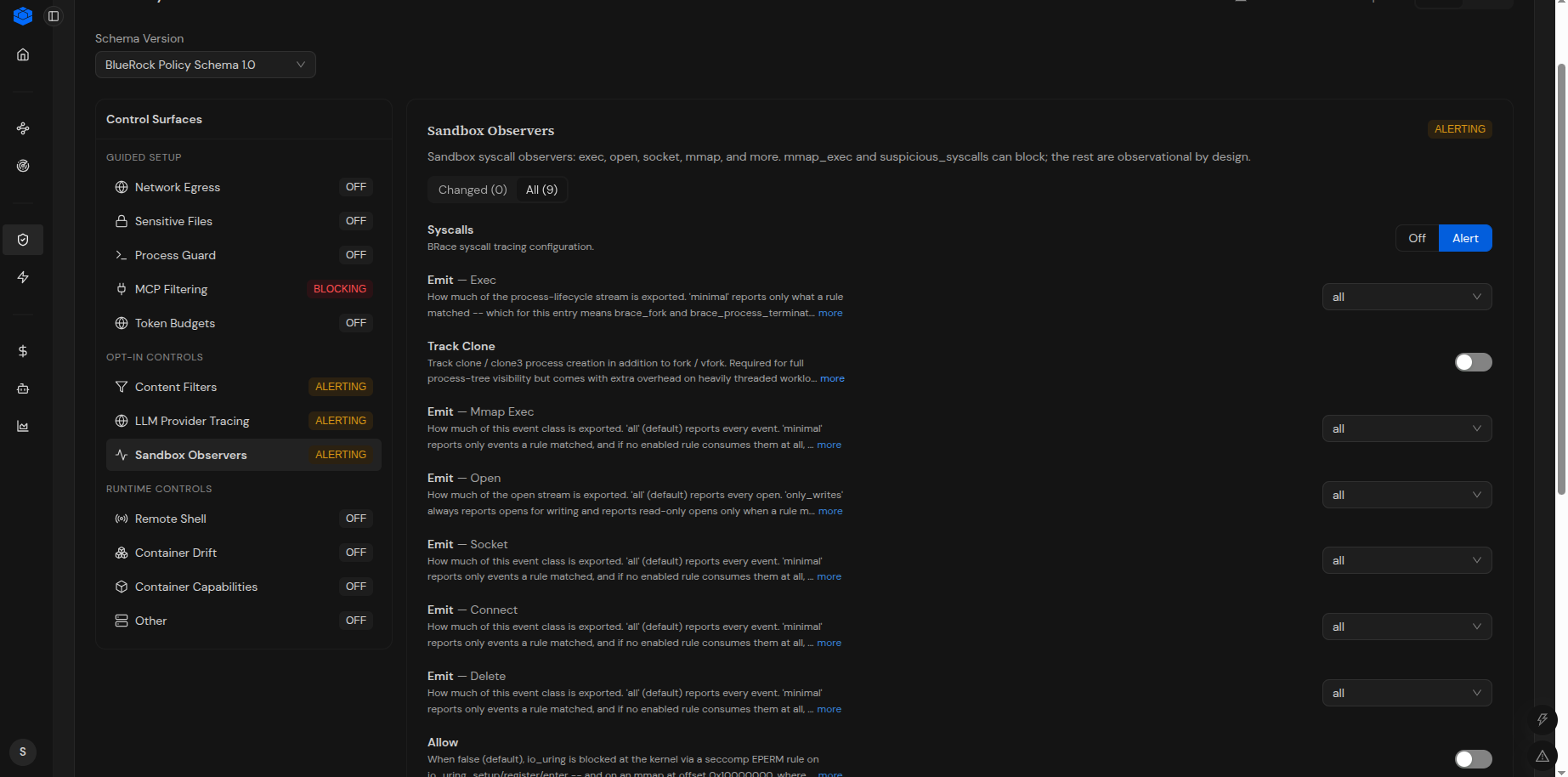
#### Configure Sandbox Observers
**Sandbox Observers** provides syscall observation controls for sandbox activity. It supports observation of syscalls such as `exec`, `open`, `socket`, `mmap`, and others. `mmap_exec` and suspicious syscalls can be configured to block; the remaining observers are observational by design.
The available settings are:
| Setting | Description | Options |
| -------------------- | ------------------------------------------------------------------------------------- | -------------------------------------- |
| **Syscalls** | Specifies the enforcement mode for syscall tracing. | **Off**, **Alert** |
| **Emit — Exec** | Controls how much process-lifecycle `exec` event information is exported. | **all**, **minimal** |
| **Track Clone** | Controls tracking of `clone`/`clone3` process creation in addition to `fork`/`vfork`. | **On**, **Off** |
| **Emit — Mmap Exec** | Controls how much `mmap_exec` event information is exported. | **all**, **minimal** |
| **Emit — Open** | Controls how much `open` event information is exported. | **all**, **only\_writes**, **minimal** |
| **Emit — Socket** | Controls how much socket event information is exported. | **all**, **minimal** |
| **Emit — Connect** | Controls how much connect event information is exported. | **all**, **minimal** |
| **Emit — Delete** | Controls how much delete event information is exported. | **all**, **minimal** |
| **Allow** | Controls whether I/O operations are permitted or blocked at the kernel level. | **On**, **Off** |
#### Configure Sandbox Observers
To configure Sandbox Observers:
1. Select **Sandbox Observers** from the **Control Surfaces** panel.
2. Configure **Syscalls** using the required enforcement mode.
3. Configure the **Emit** settings to control the level of event information exported.
4. Enable **Track Clone** if clone/clone3 process creation should also be tracked.
5. Configure **Allow** according to the required I/O behavior.
6. Save the policy changes.
***
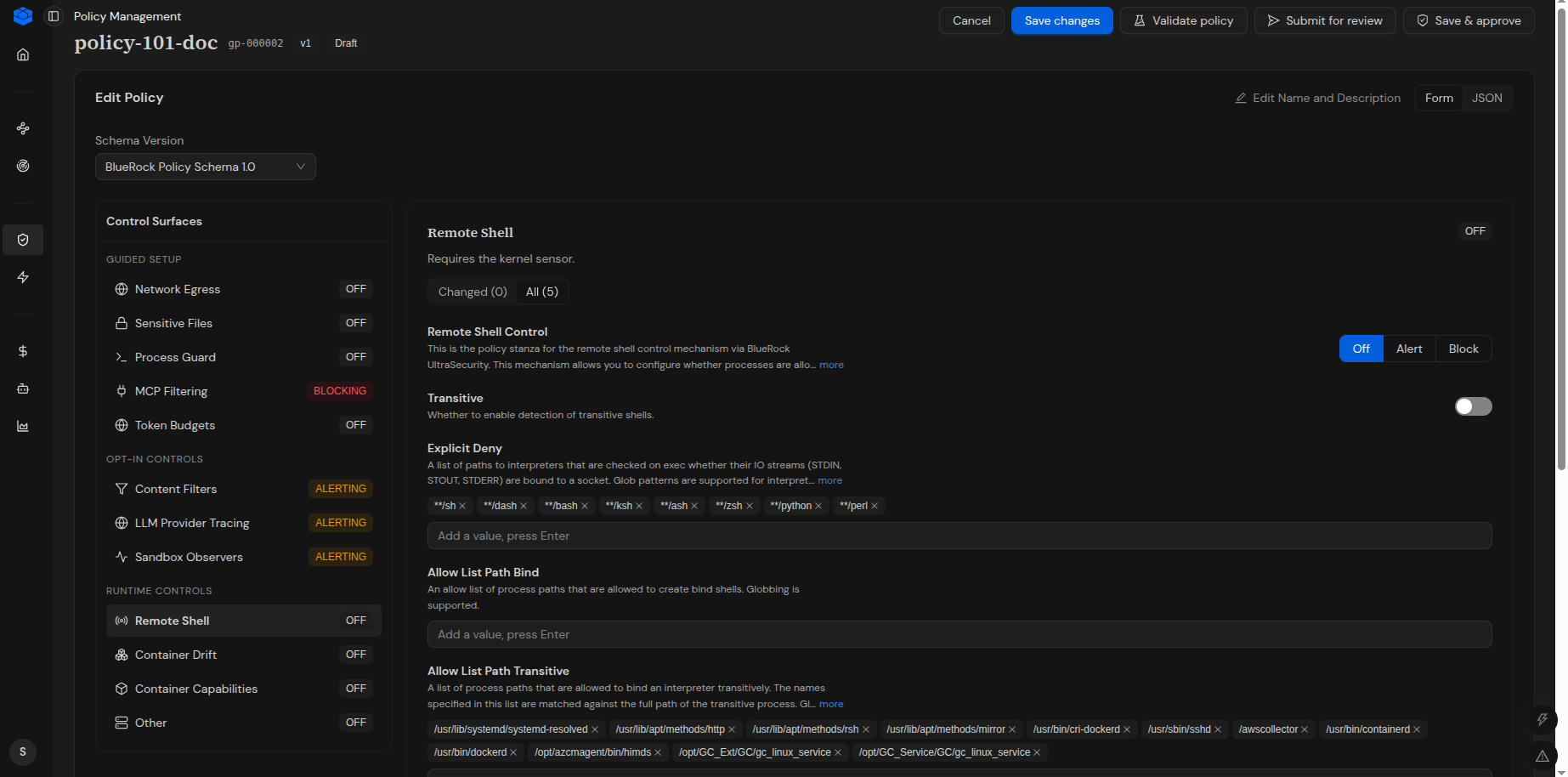
### Configure Remote Shell
**Remote Shell** provides controls for configuring remote shell access to the environment.
The available configuration options depend on the selected policy schema.
To configure Remote Shell:
1. Select **Remote Shell** from the **Control Surfaces** panel.
2. Configure the required remote shell settings.
3. Review the configured settings.
4. Select **Save changes**.
***
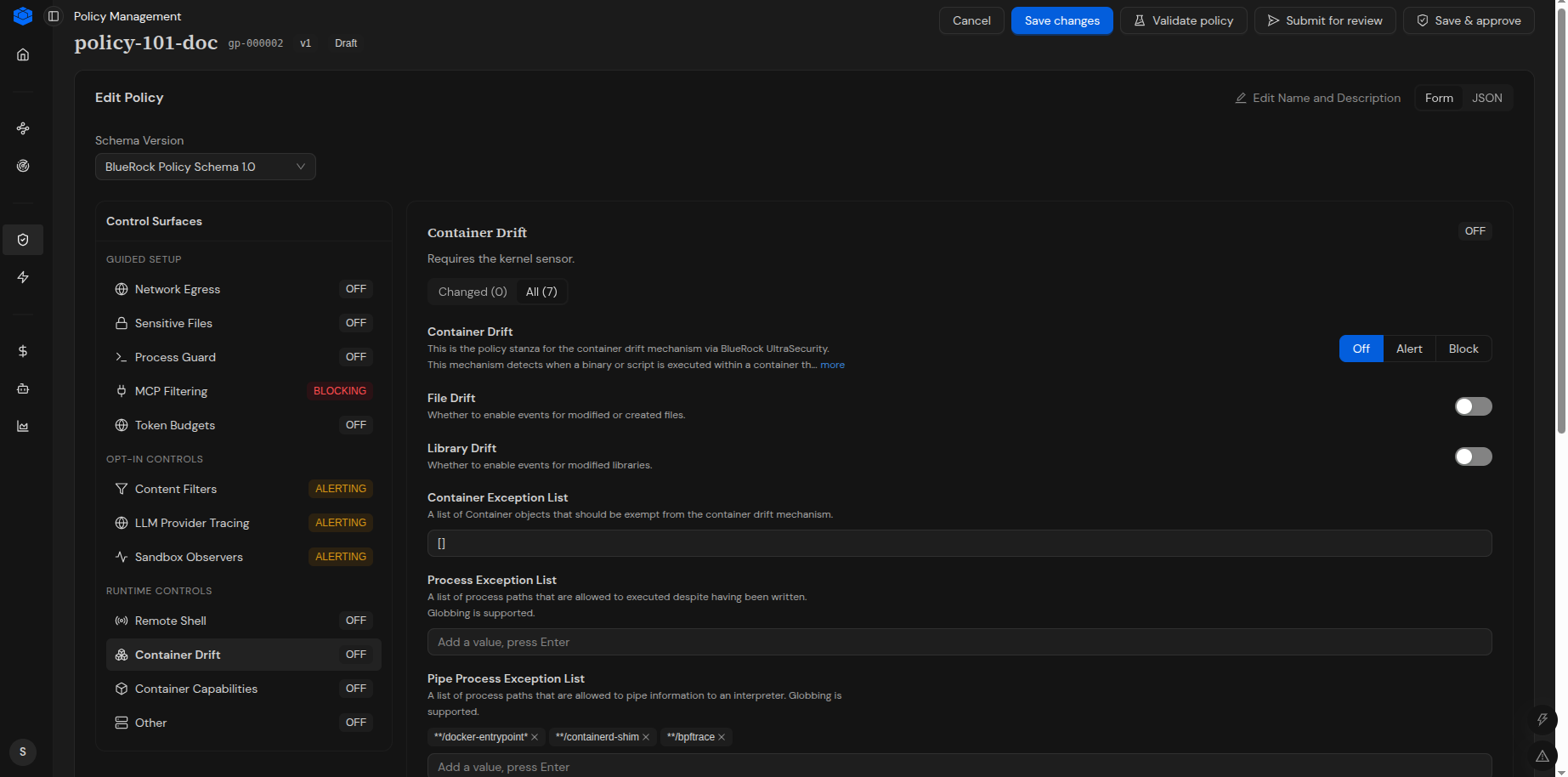
### Configure Container Drift
**Container Drift** provides controls for configuring container drift behavior.
The available configuration options depend on the selected policy schema.
To configure Container Drift:
1. Select **Container Drift** from the **Control Surfaces** panel.
2. Configure the required drift detection settings.
3. Review the configured settings.
4. Select **Save changes**.
***
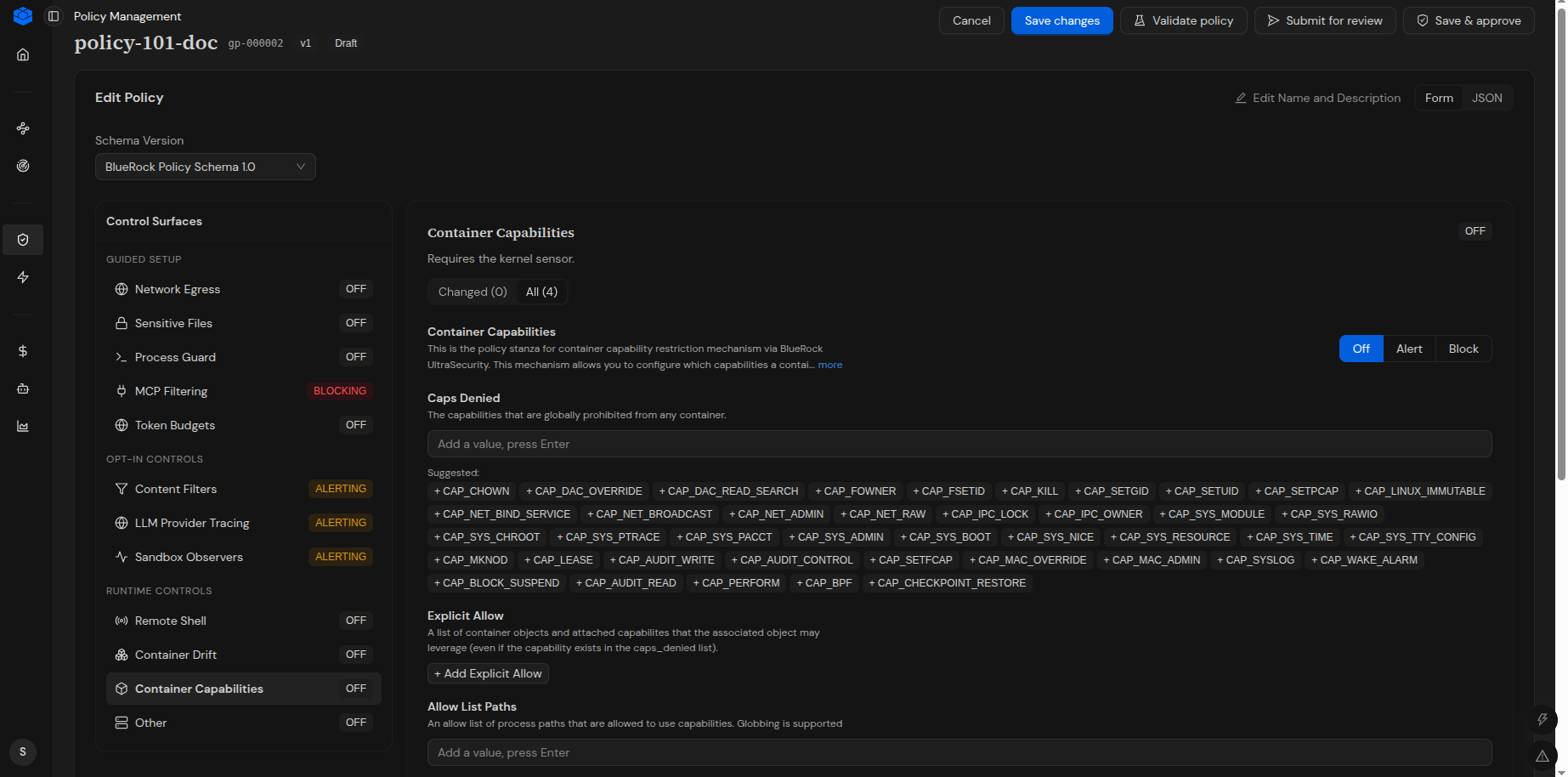
### Configure Container Capabilities
**Container Capabilities** provides controls for configuring the capabilities available to the container.
The available configuration options depend on the selected policy schema.
To configure Container Capabilities:
1. Select **Container Capabilities** from the **Control Surfaces** panel.
2. Configure the required container capability settings.
3. Review the configured settings.
4. Select **Save changes**.
***
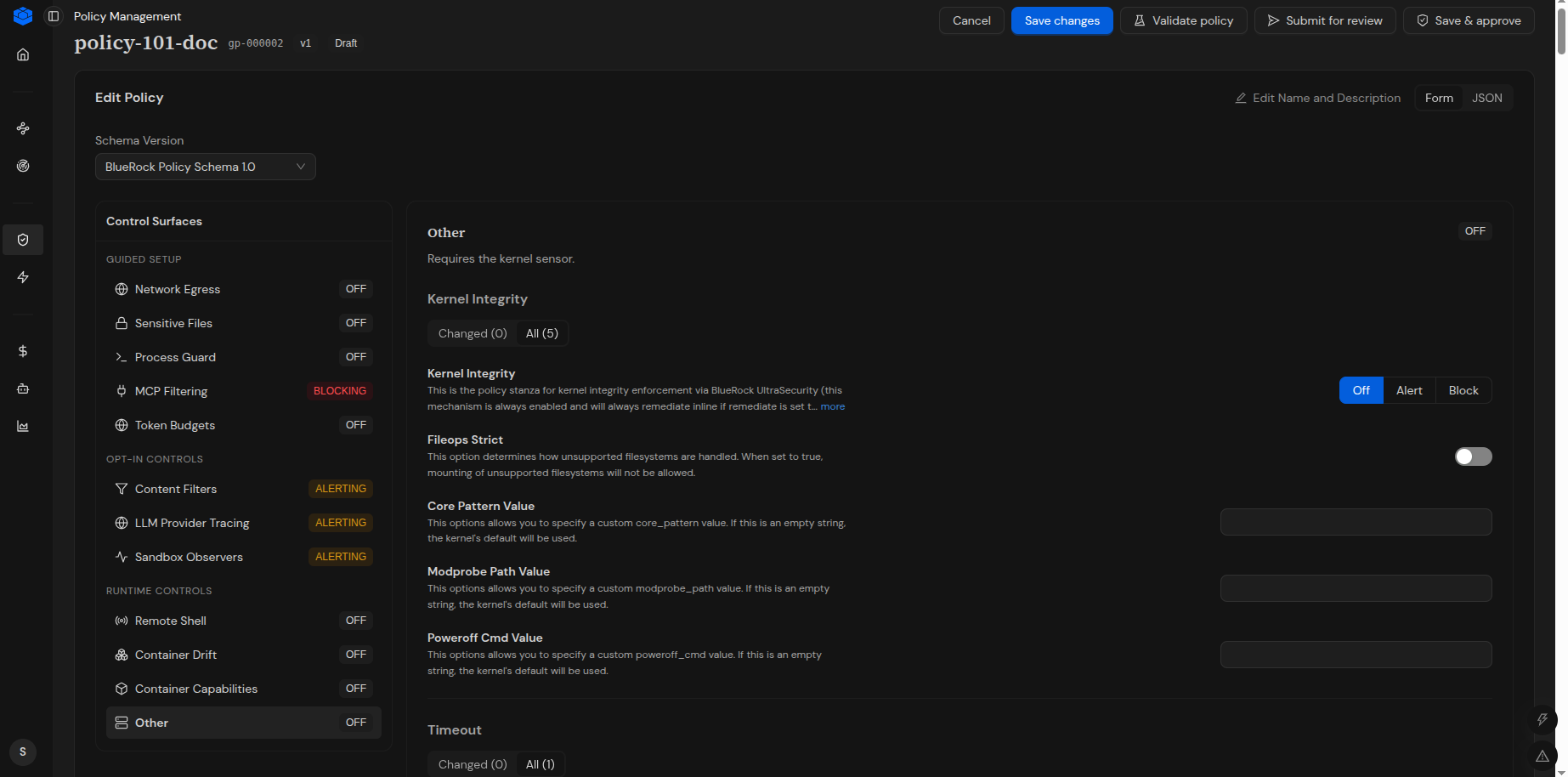
### Configure Other
**Other** provides additional runtime and kernel-level controls available through the policy configuration.
The control requires the kernel sensor and provides configuration options for kernel-related behavior.
The available settings include:
| Setting | Description |
| ----------------------- | ------------------------------------------------------------------------------------------------------------------ |
| **Kernel Integrity** | Controls the policy stanza for kernel integrity enforcement via BlueRock UltraSecurity. |
| **Fileops Strict** | Determines how unsupported filesystems are handled. When enabled, mounting unsupported filesystems is not allowed. |
| **Core Pattern Value** | Allows you to specify a custom `core_pattern` value. If left empty, the kernel default is used. |
| **Modprobe Path Value** | Allows you to specify a custom `modprobe_path` value. If left empty, the kernel default is used. |
| **Poweroff Cmd Value** | Allows you to specify a custom `poweroff_cmd` value. If left empty, the kernel default is used. |
| **Timeout** | Provides timeout configuration for the applicable kernel control. |
To configure Other:
1. Select **Other** from the **Control Surfaces** panel.
2. Configure **Kernel Integrity** using the required enforcement mode.
3. Configure **Fileops Strict** according to the required filesystem behavior.
4. Enter custom values for **Core Pattern Value**, **Modprobe Path Value**, or **Poweroff Cmd Value** when required.
5. Configure the applicable **Timeout** setting.
6. Review the configured settings.
7. Select **Save changes**.
***
#### Save Policy Control Changes
After configuring the required policy controls:
1. Review the configured settings.
2. Select **Save changes**.
3. Verify the confirmation displayed by BlueRock.
4. Validate the policy before submitting it for review.
{% hint style="info" %}
**Note:** Only configure the controls required for the intended policy. The available controls and settings depend on the selected policy schema version.
{% endhint %}
***
### Submit a Policy for Review
After configuring and validating a policy draft, submit it for review.
To submit a policy for review:
1. Open the policy draft.
2. Select **Submit for review**.
3. Confirm the action if prompted.
4. Verify that the policy status changes to **In Review**.
After submission, the policy can be reviewed by an authorized reviewer.
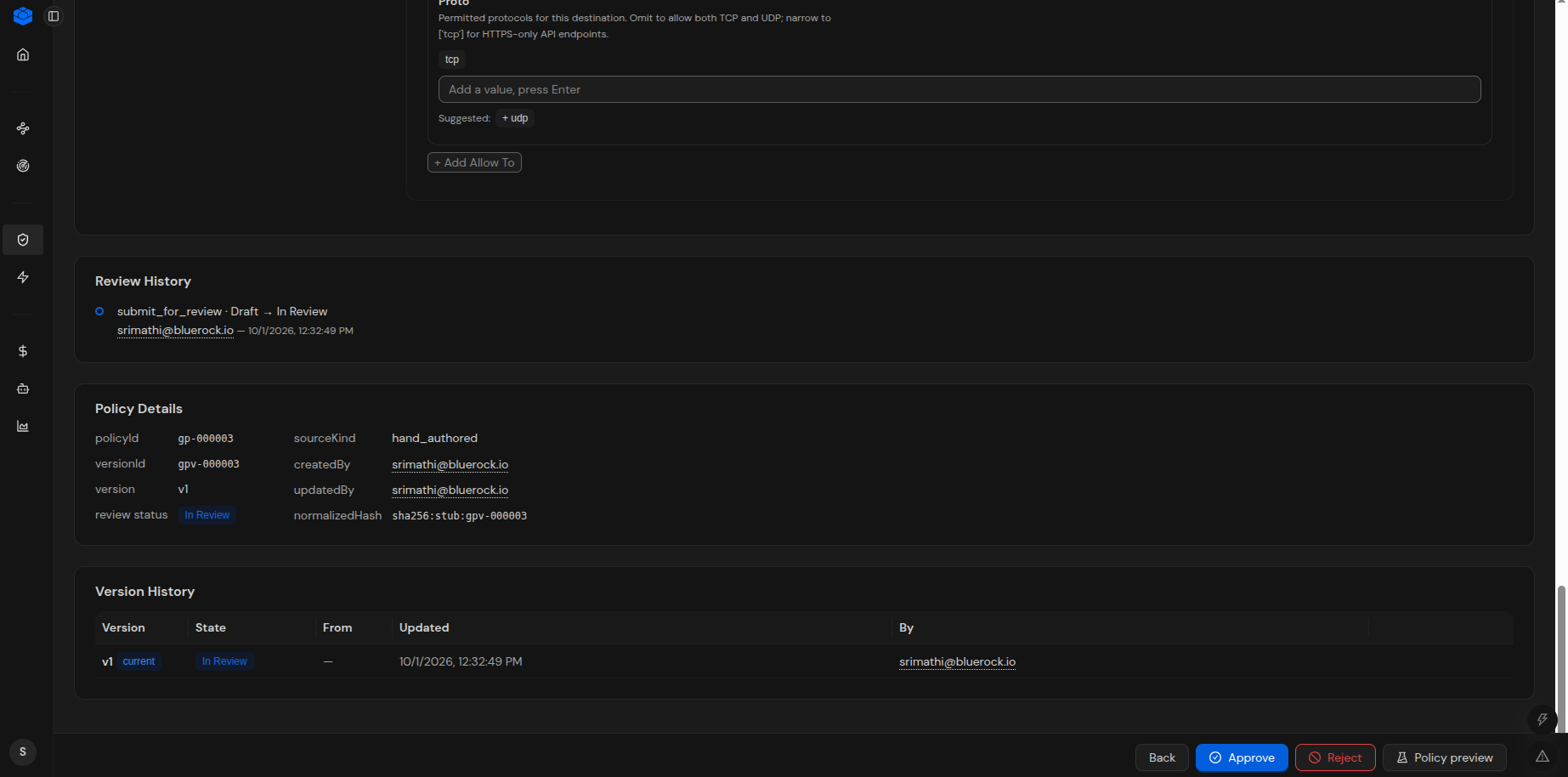
The **Review History** section records the policy state transition from **Draft** to **In Review**.
***
### Review a Policy
Use the policy details page to review a policy that is in the **In Review** state.
To review a submitted policy:
1. Open **Policy Management**.
2. Locate the policy with an **In Review** status.
3. Open the policy.
4. Review the policy configuration and policy details.
5. Review the **Review History** and **Version History** sections.
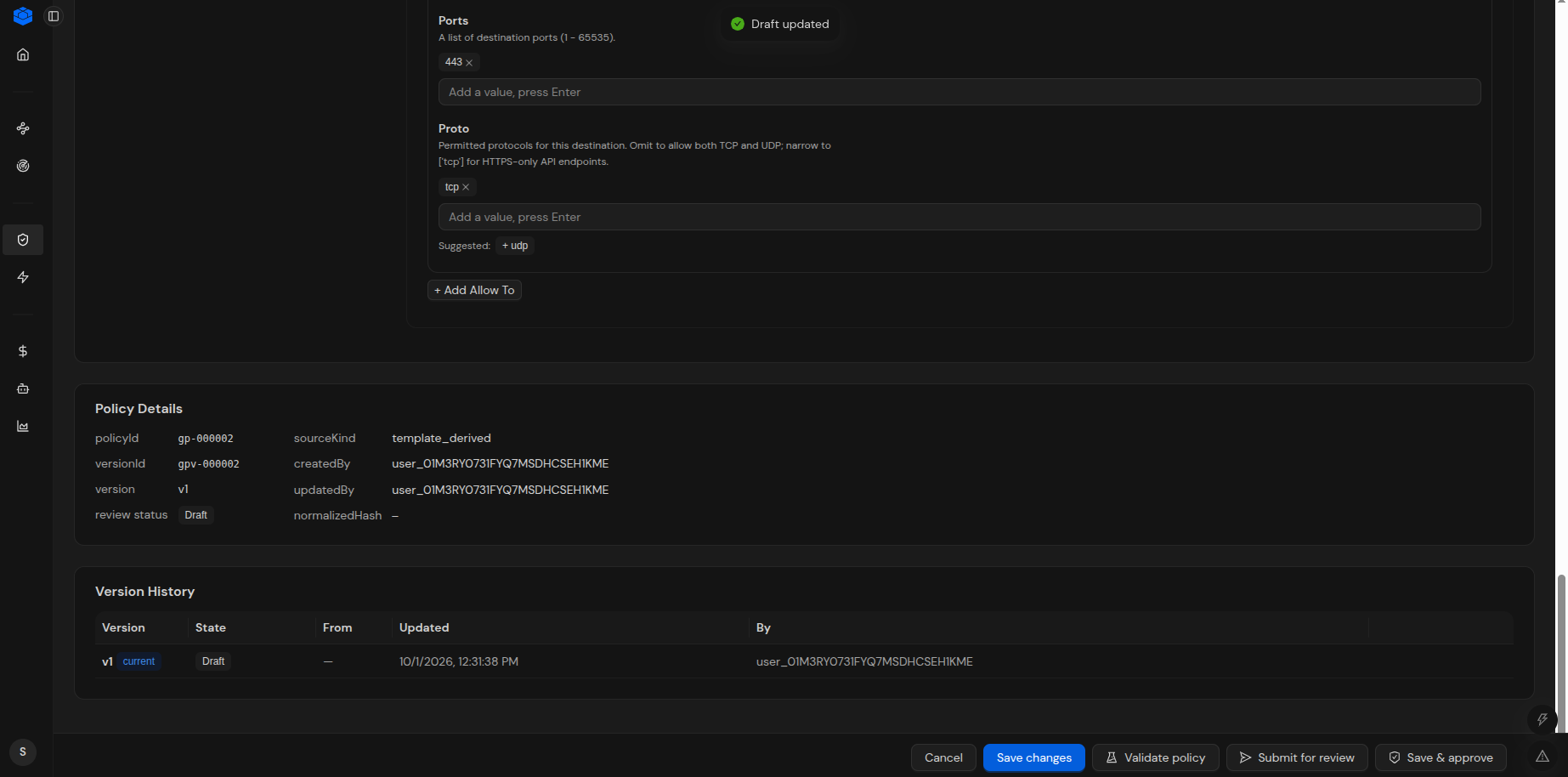
The policy details page provides information such as:
* **Policy ID**
* **Version ID**
* **Version**
* **Status**
* **Source kind**
* **Created by**
* **Updated by**
* **Normalized hash**
The **Review History** section records policy state transitions.
The **Version History** section displays the versions associated with the policy.
The following example shows Policy *`policy-102-doc`* in **Review** status.
***
### Approve or Reject a Policy
A policy in the **In Review** state can be approved or rejected from the policy details page.
#### Approve a Policy
To approve a policy:
1. Open the policy in the **In Review** state.
2. Review the policy configuration and details.
3. Select **Approve**.
4. Confirm the action if prompted.
5. Verify the resulting policy status.
#### Reject a Policy
To reject a policy:
1. Open the policy in the **In Review** state.
2. Review the policy configuration and details.
3. Select **Reject**.
4. Confirm the action if prompted.
5. Verify the resulting policy status.
The policy details page provides **Approve** and **Reject** actions for a policy that is in review.
The policy state transition is recorded in **Review History**.
{% hint style="info" %}
**Note:** The Edit Policy page may also display **Save & approve**. For a policy that is already in the **In Review** state, use **Approve** or **Reject** from the policy review workflow.
{% endhint %}
***
#### Save & Approve
The **Save & approve** action is available from the Edit Policy page.
Use **Save & approve** to save the current policy changes and proceed with the approval workflow when the action is available for the current policy state and user permissions.
> **Note:** The available actions depend on the current policy state and user permissions.
***
### Policy Versions and Revisions
Policy Management maintains version information for each policy.
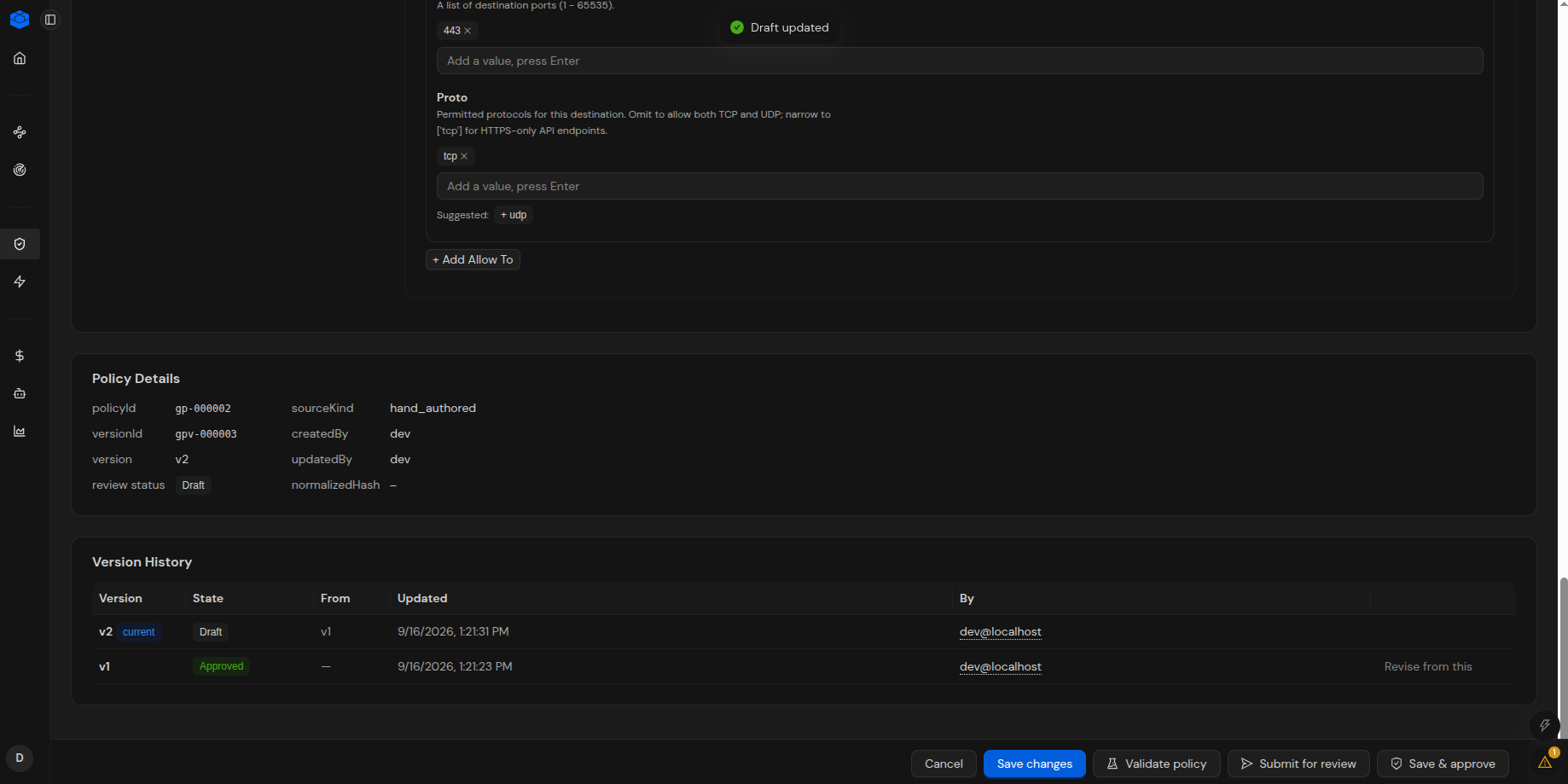
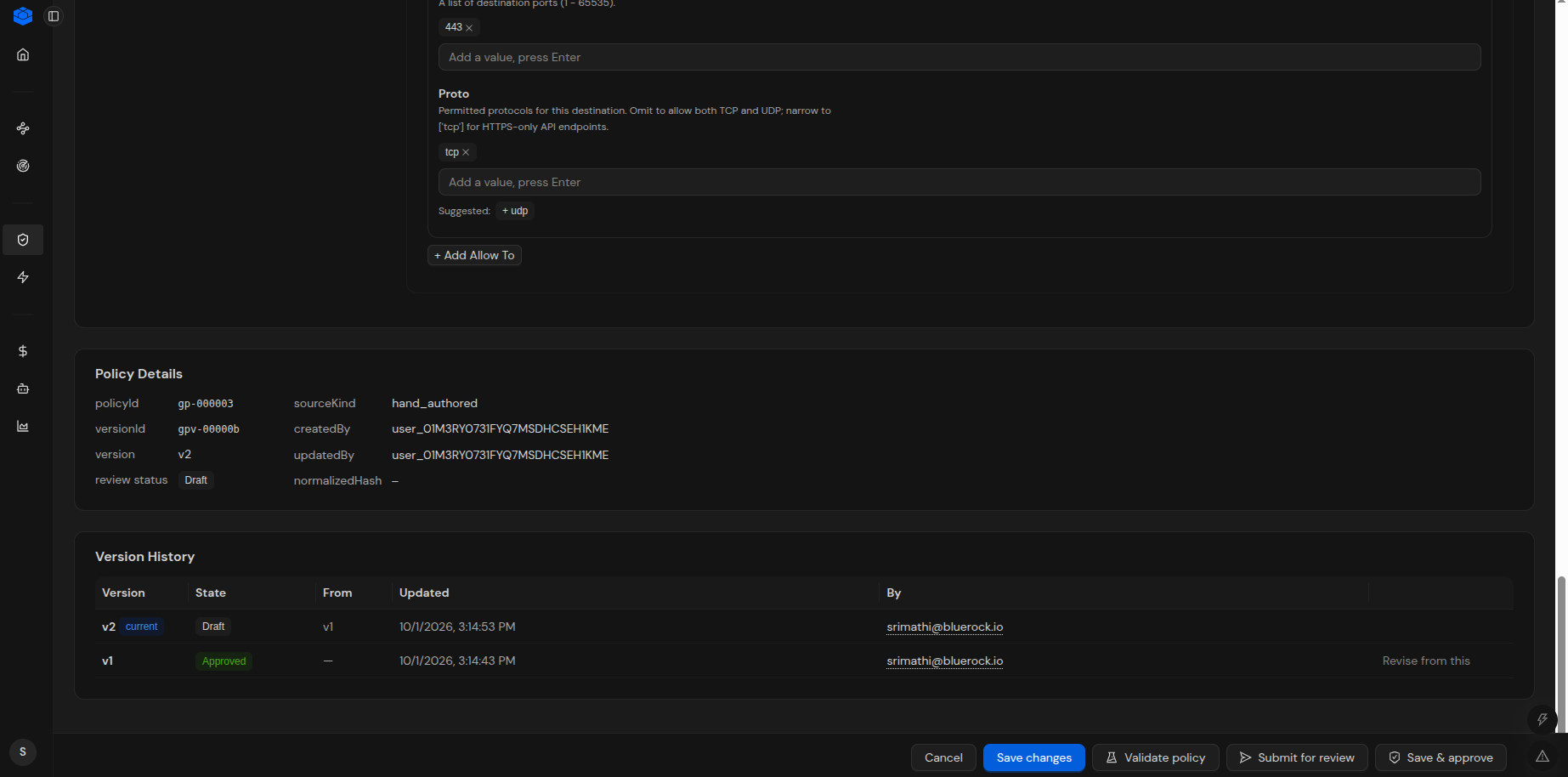
The policy details page displays the current version and a **Version History** section.
The **Version History** section displays information such as:
* **Version**
* **State**
* **From**
* **Updated**
* **By**
A revision creates a new policy version based on an existing version. The new version is initially created as a **Draft**.
For example, when an approved policy is revised:
1. The existing version remains **Approved**.
2. A new version is created from the existing version.
3. The new version becomes the current version with a **Draft** status.
4. The new version can be modified and validated.
5. The new version can then be submitted for review.
6. The previous version remains available in **Version History**.
Use **Revise from this** to create a new draft version from an existing policy version.
To revise an approved policy:
1. Open the approved policy.
2. Open the **Version History** section.
3. Locate the version from which you want to create a revision.
4. Select **Revise from this**.
5. Modify the new draft version as required.
6. Select **Save changes**.
7. Select **Validate policy**.
8. Submit the revised version for review.
The revised version follows the same validation and review workflow as a newly created draft.
***
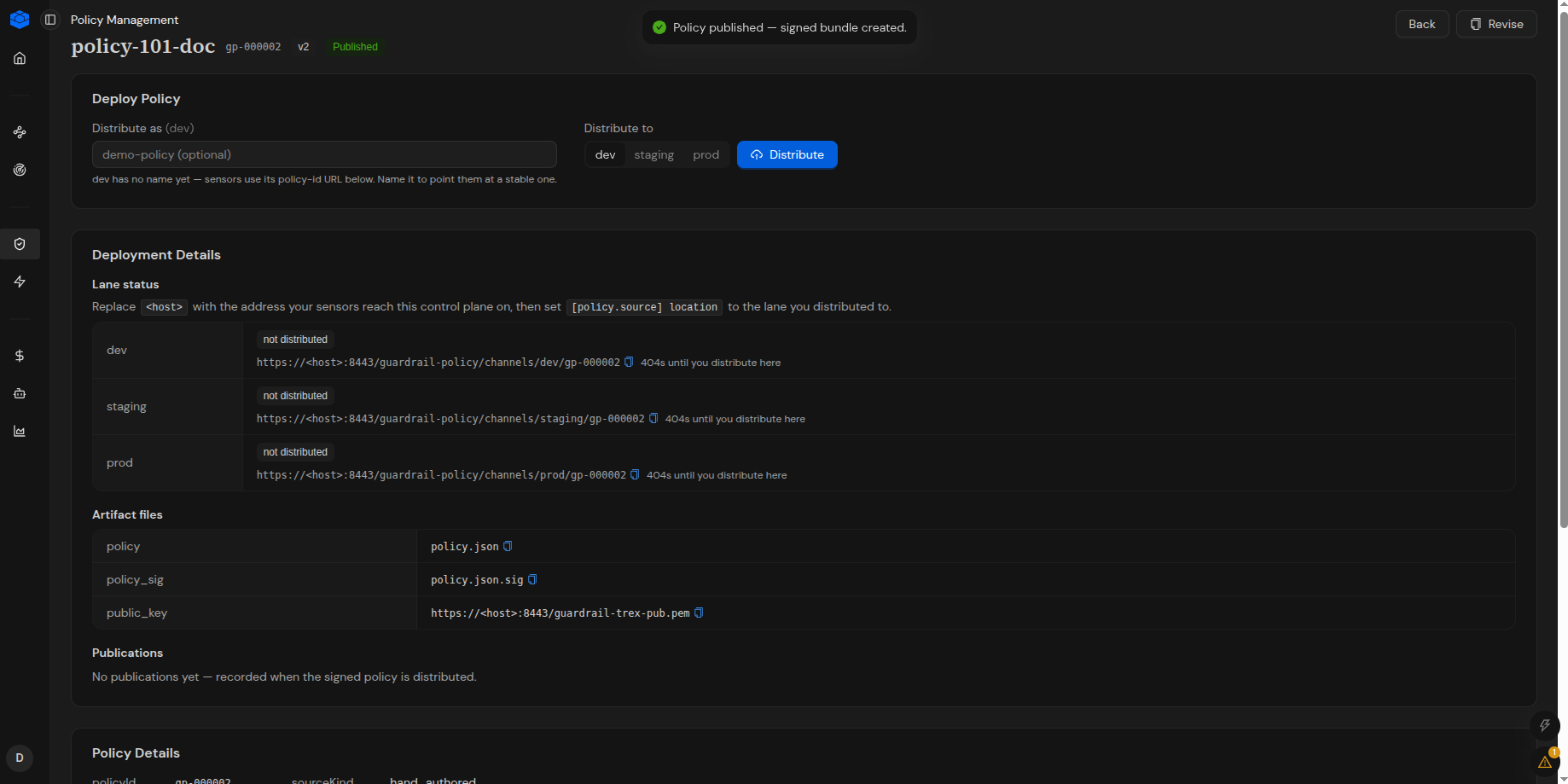
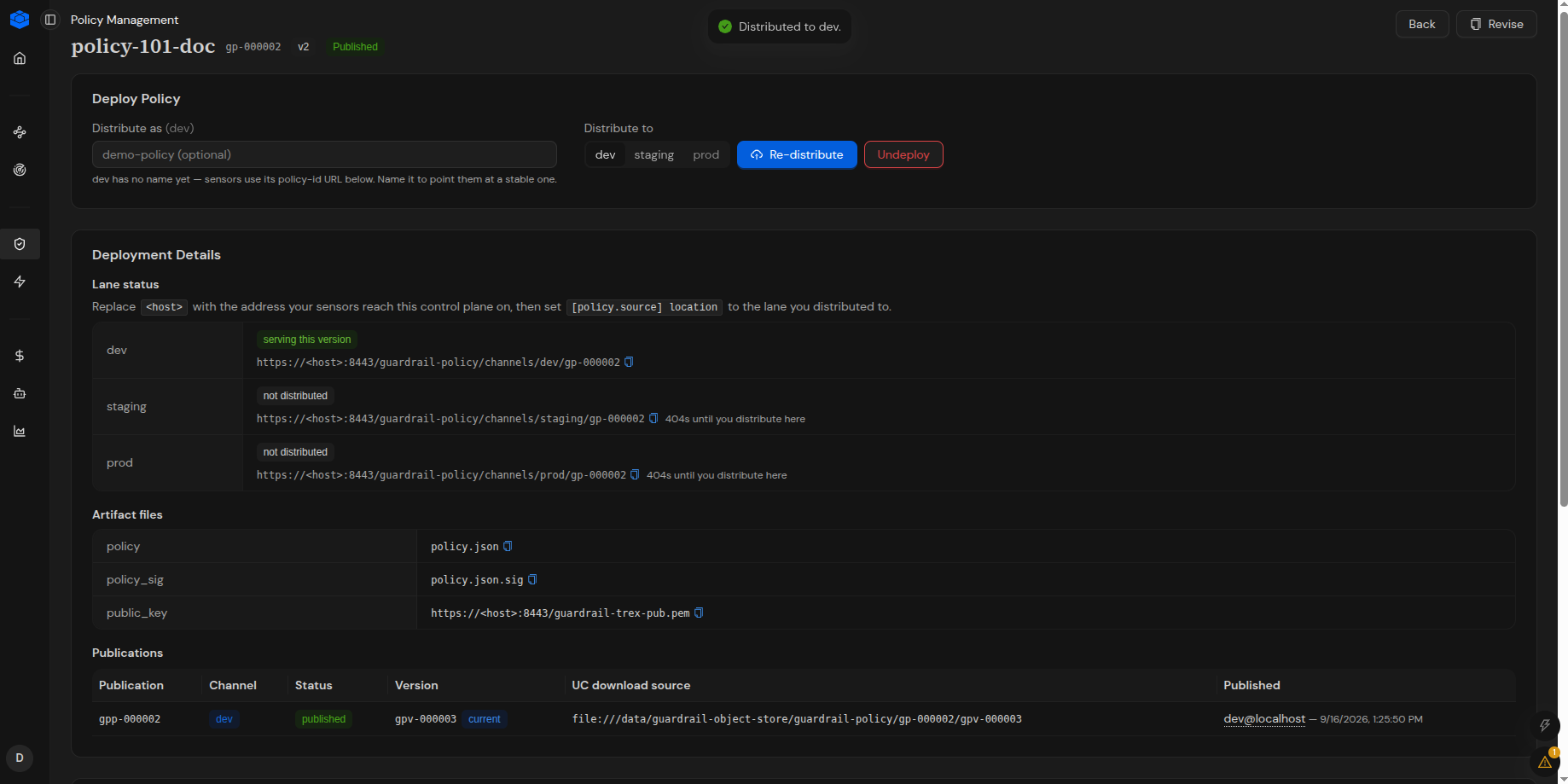
### Deploy a Policy
After a policy has been approved, it can be deployed through the available deployment workflow.
To deploy an approved policy:
1. Open **Policy Management**.
2. Locate the approved policy.
3. Open the policy details.
4. Select the available deployment action.
5. Select the required release lane.
6. Verify the deployment state.
#### Release Lanes
BlueRock provides the following release lanes for policy deployment:
**`dev`**
The `dev` lane is used to distribute an approved policy version to development environments.
Use this lane when the policy needs to be deployed to development environments for validation or testing.
**`staging`**
The `staging` lane is used to distribute an approved policy version to staging environments.
Use this lane to deploy the policy to a staging environment before it is released to production.
**`prod`**
The `prod` lane is used to distribute an approved policy version to production environments.
Use this lane when the approved policy is ready for deployment to production.
A policy version can be promoted through the available release lanes according to the organization's deployment process.
***
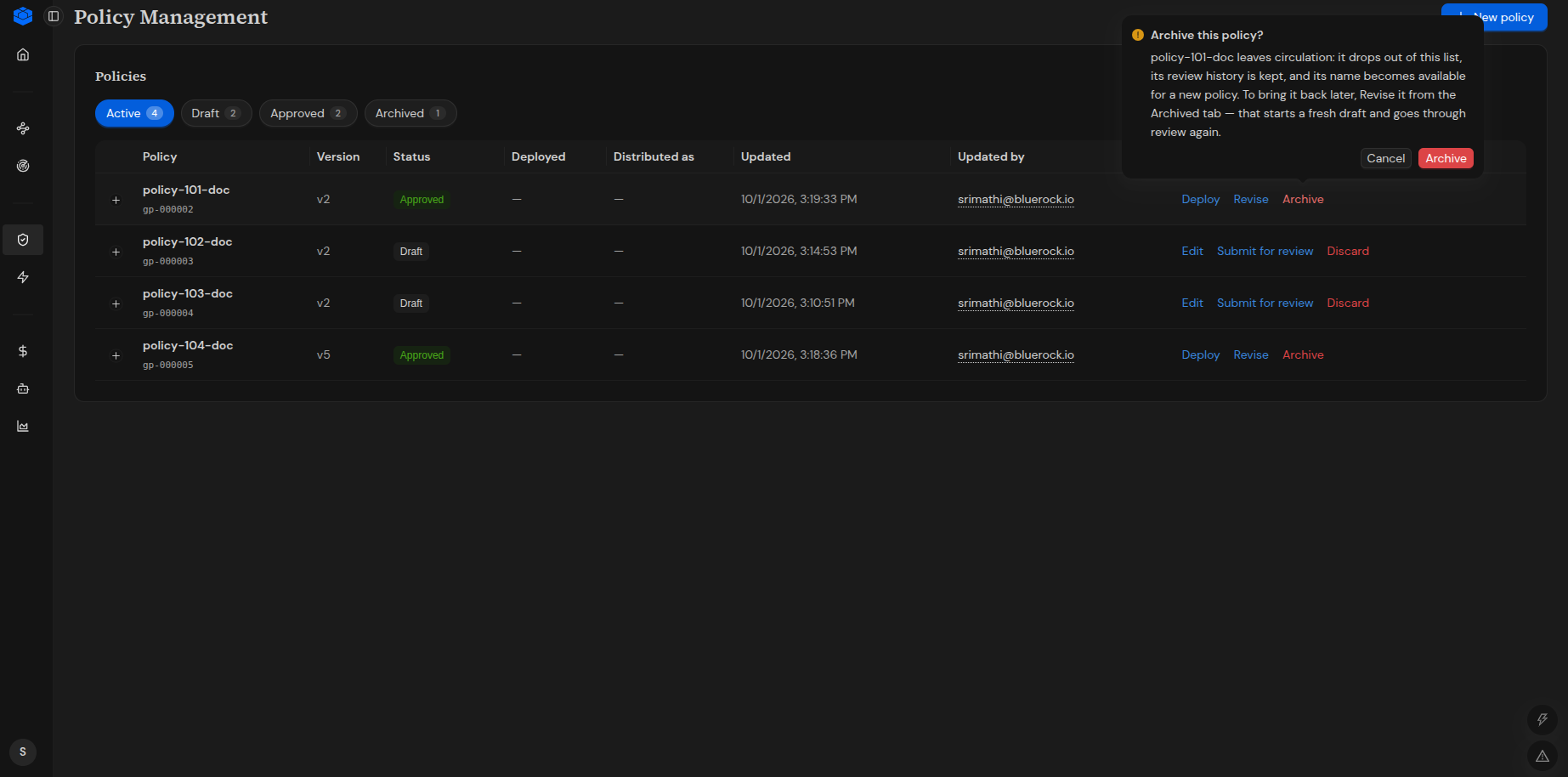
#### Archive a Policy
You can archive an approved policy that is no longer required.
{% hint style="warning" %}
**Important:** A policy must be undeployed before it can be archived. A policy that is still deployed to a release lane cannot be archived.
{% endhint %}
To archive a policy:
1. Open **Policy Management**.
2. Locate the policy you want to archive.
3. In the **Actions** column, select **Archive**.
4. Review the **Archive this policy?** confirmation dialog.
5. Select **Archive** to confirm.
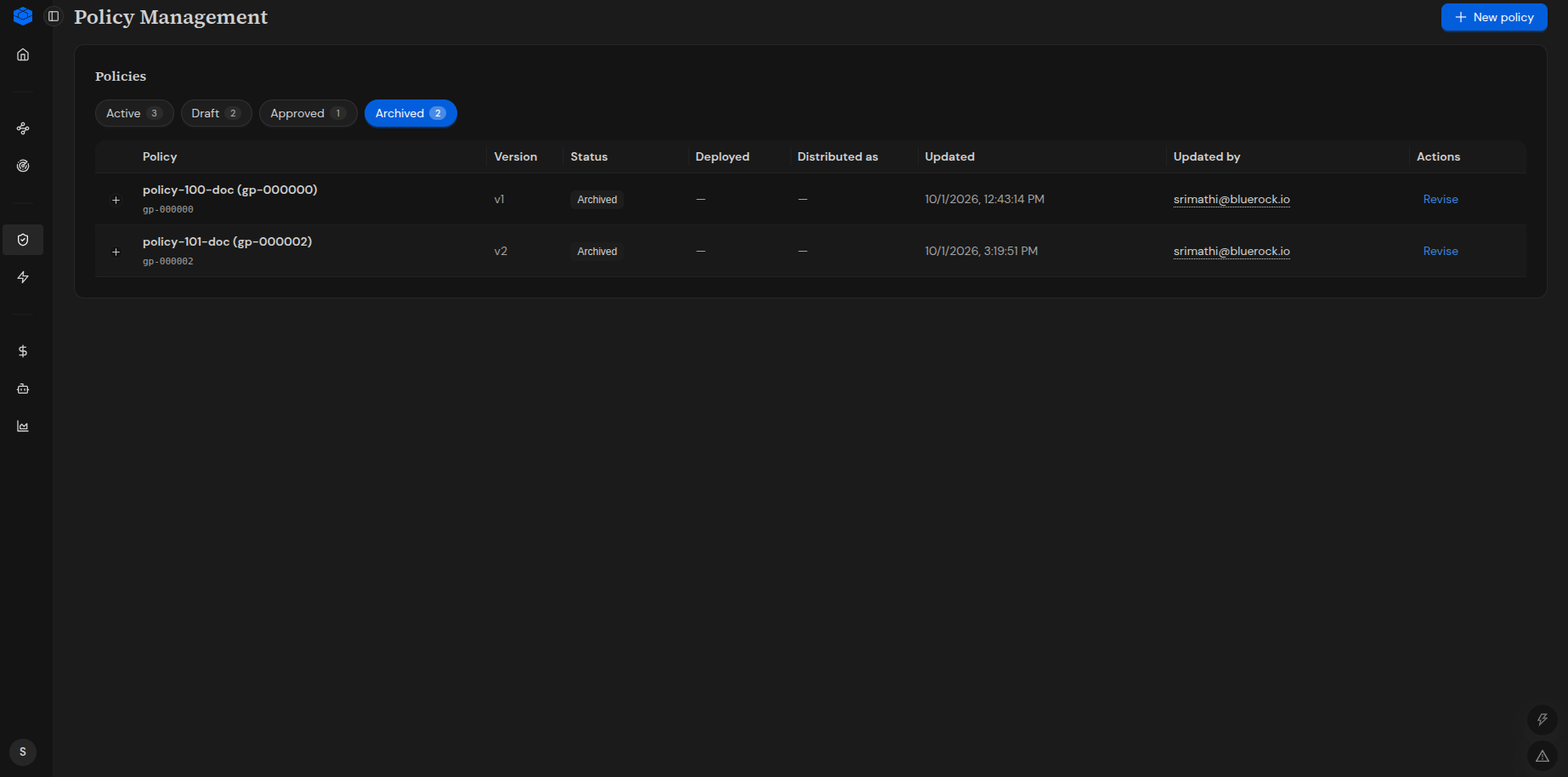
When a policy is archived:
* The policy is removed from active circulation.
* The policy's review history is retained.
* The policy name becomes available for use by a new policy.
* An archived policy can be brought back by revising it from the **Archived** tab. This creates a new draft that goes through the review workflow again.
***
### Policy Status and Available Actions
The available actions for a policy depend on its current state.
| Policy State | Available Actions |
| ------------- | ---------------------------------------------------------------------------------- |
| **Draft** | Edit, save changes, validate, submit for review |
| **In Review** | Review, approve, reject |
| **Approved** | Deploy, revise, archive |
| **Rejected** | Review the rejection state and use the available revision workflow when applicable |
| **Archived** | View the archived policy and revise it when the revision action is available |
The exact actions displayed in the UI depend on the current policy state and user permissions.
***
### Troubleshooting
#### Policy validation warning
The **Policy Preview** panel can display diagnostics even when the policy status is `valid`.
Review the diagnostic messages displayed in the **Policy Preview** panel and address any applicable warnings before submitting the policy for review.
#### **Policy Submission or Approval Fails**
If an action fails, review the notification displayed by the UI and verify that the policy is in the expected state for the selected action.
Also verify that you have the required permissions for the action.
#### Revision Conflict
A policy cannot have another version created while an in-flight Draft version already exists.
If you attempt to create a revision while an in-flight Draft exists, BlueRock displays an error similar to:
*`conflict: guardrail policy gp-00000h already has an in-flight Draft version; edit that draft or finish its review before creating another version`*
To resolve the conflict:
1. Open the existing Draft version.
2. Edit the Draft as required, or complete its review.
3. After the Draft is no longer in flight, create the required revision.
***
### Related Topics
* [**Policy Structure**](/bluerock-documentation-2.7.0-beta/policy-configuration/policy-structure.md)
* [**Policy Builder**](/bluerock-documentation-2.7.0-beta/policy-configuration/policy-builder.md)
* [**Policy Life Cycle**](#policy-lifecycle)
---
# Agent Instructions
This documentation is published with GitBook. GitBook is the documentation platform designed so that both humans and AI agents can read, navigate, and reason over technical content effectively. Learn more at gitbook.com.
## Querying This Documentation
If you need additional information that is not directly available in this page, you can query the documentation by asking a question.
Perform an HTTP GET request on the following URL with the `ask` and `goal` query parameters:
```
GET https://docs.bluerock.io/bluerock-documentation-2.7.0-beta/bluerock-dashboard/policy-management.md?ask=&goal=
```
`ask` is the immediate question: it should be specific, self-contained, and written in natural language.
`goal` is what the user is ultimately trying to achieve, the reason they need the answer. Sharing it helps GitBook give you a better, more relevant answer. A goal is most helpful when it describes the outcome the user wants rather than restating the question. For example, with `ask=how do I create an API token`, a goal like `automate deployments from our CI pipeline` lets GitBook tailor the answer to that use case.
The response will contain a direct answer to the question and relevant excerpts and sources from the documentation.
Use this mechanism when the answer is not explicitly present in the current page, you need clarification or additional context, or you want to retrieve related documentation sections.