> For the complete documentation index, see [llms.txt](https://docs.bluerock.io/llms.txt). Markdown versions of documentation pages are available by appending `.md` to page URLs; this page is available as [Markdown](https://docs.bluerock.io/bluerock-documentation-2.7.0-beta/bluerock-dashboard/reactive-rules.md).
# Reactive Rules
### Overview
Reactive Rules allow you to continuously monitor metrics and automatically execute configured actions when specified conditions are met.
A reactive rule evaluates data in the background against a defined condition. When the condition is satisfied, BlueRock performs the configured action, such as generating an in-app alert or creating an operational log entry.
Reactive Rules support fixed thresholds and adaptive statistical models. Fixed thresholds use explicit limits, while statistical models help identify changes or anomalies relative to observed activity.
For example, you can create a rule that triggers when LLM spend exceeds $50 per hour.
{% hint style="info" %}
**Note:** Advisor and AI analysis are disabled in this release.
{% endhint %}
***
### Detection Methods
Reactive Rules support the following detection methods:
| Detection method | Description |
| ----------------------------- | --------------------------------------------------------------------------------- |
| **Fixed thresholds** | Trigger when a metric crosses a specified value. |
| **Z-score anomaly detection** | Identify values that differ significantly from an established baseline. |
| **Top-K shifts** | Detect changes in the entities appearing among the top-ranked results. |
| **CUSUM changepoints** | Detect sustained changes in the behavior of a metric. |
| **Predictive forecasting** | Identify conditions based on forecasted values and established activity patterns. |
Statistical models use observed activity to adapt detection to normal operating patterns.
***
### Create a Reactive Rule
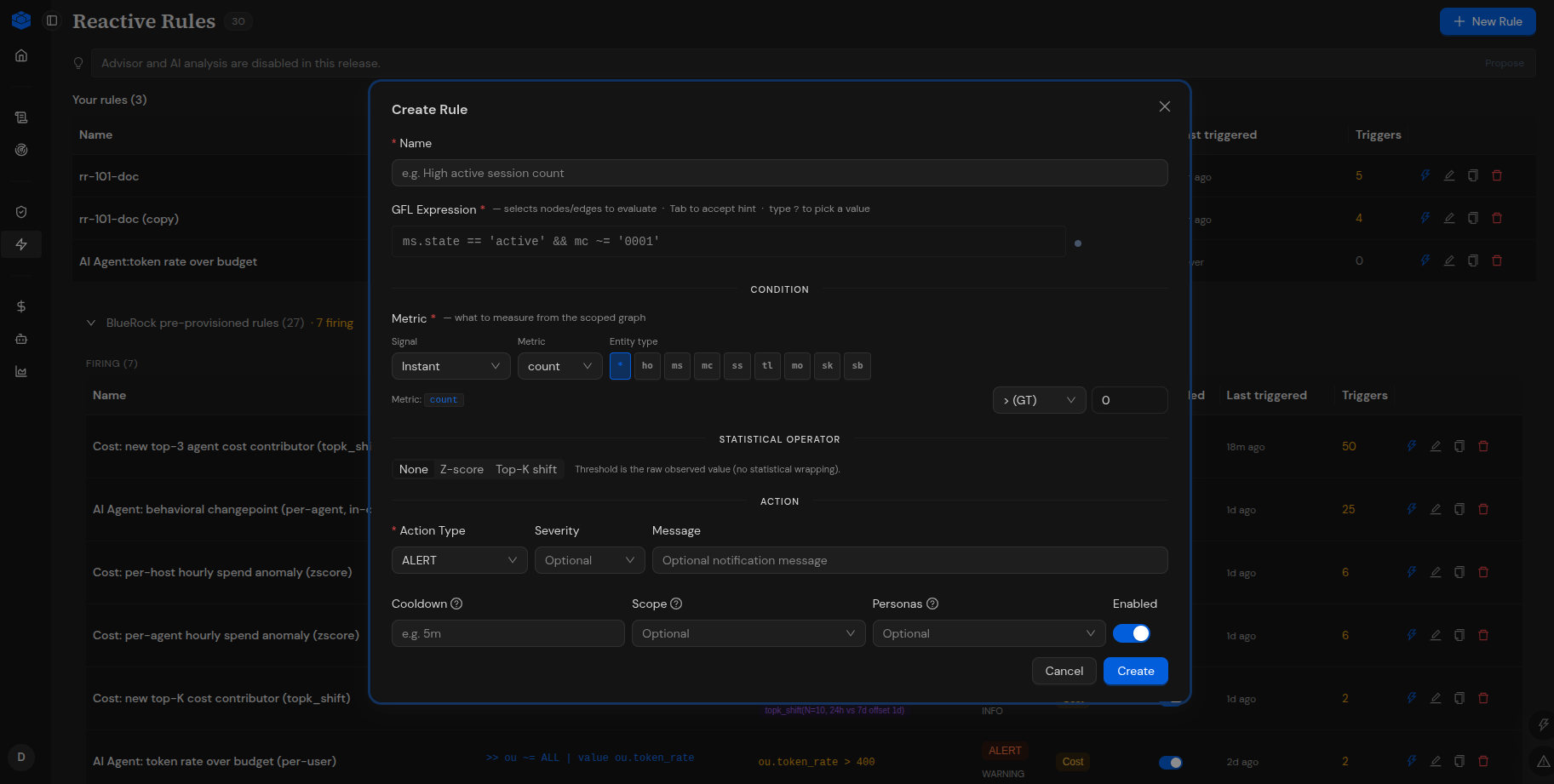
You can create a reactive rule by defining the scope, selecting a metric and condition, and configuring the action to execute when the condition is met.
#### Procedure
1. In the left navigation sidebar, select **Reactive Rules**.
2. Select **+ New Rule** in the upper-right corner.
3. Configure the rule using the settings described in the following sections.
***
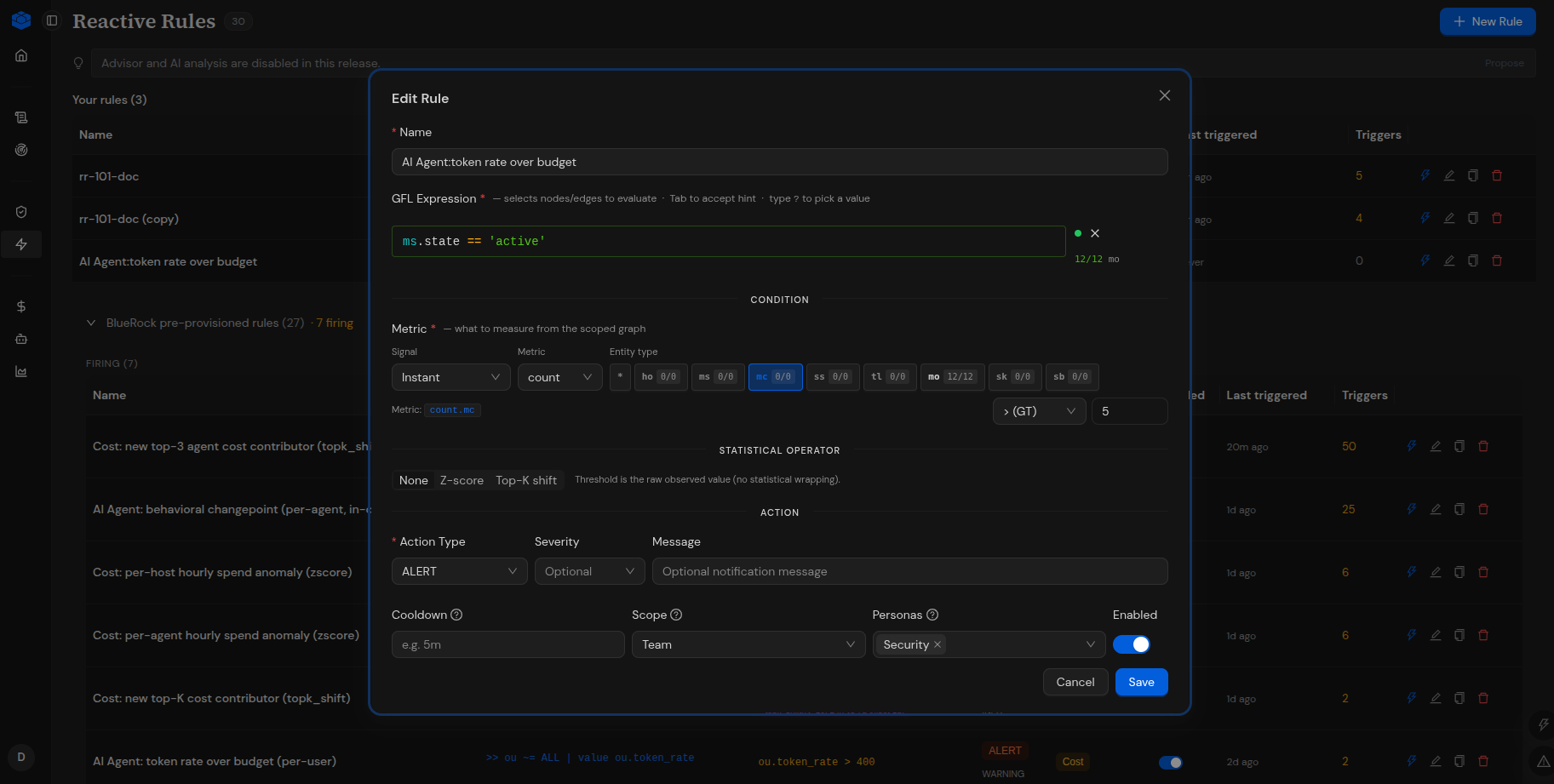
### Configure the Rule
**1. Name**
Enter a descriptive name for the rule.
For example:
`High active session count`
**2. GFL Expression**
Define the rule scope using a **Graph Filter Language (GFL) expression**. The expression specifies the nodes or edges to evaluate.
For example:
`ms.state == 'active'`
The expression must be valid for the rule to be created.
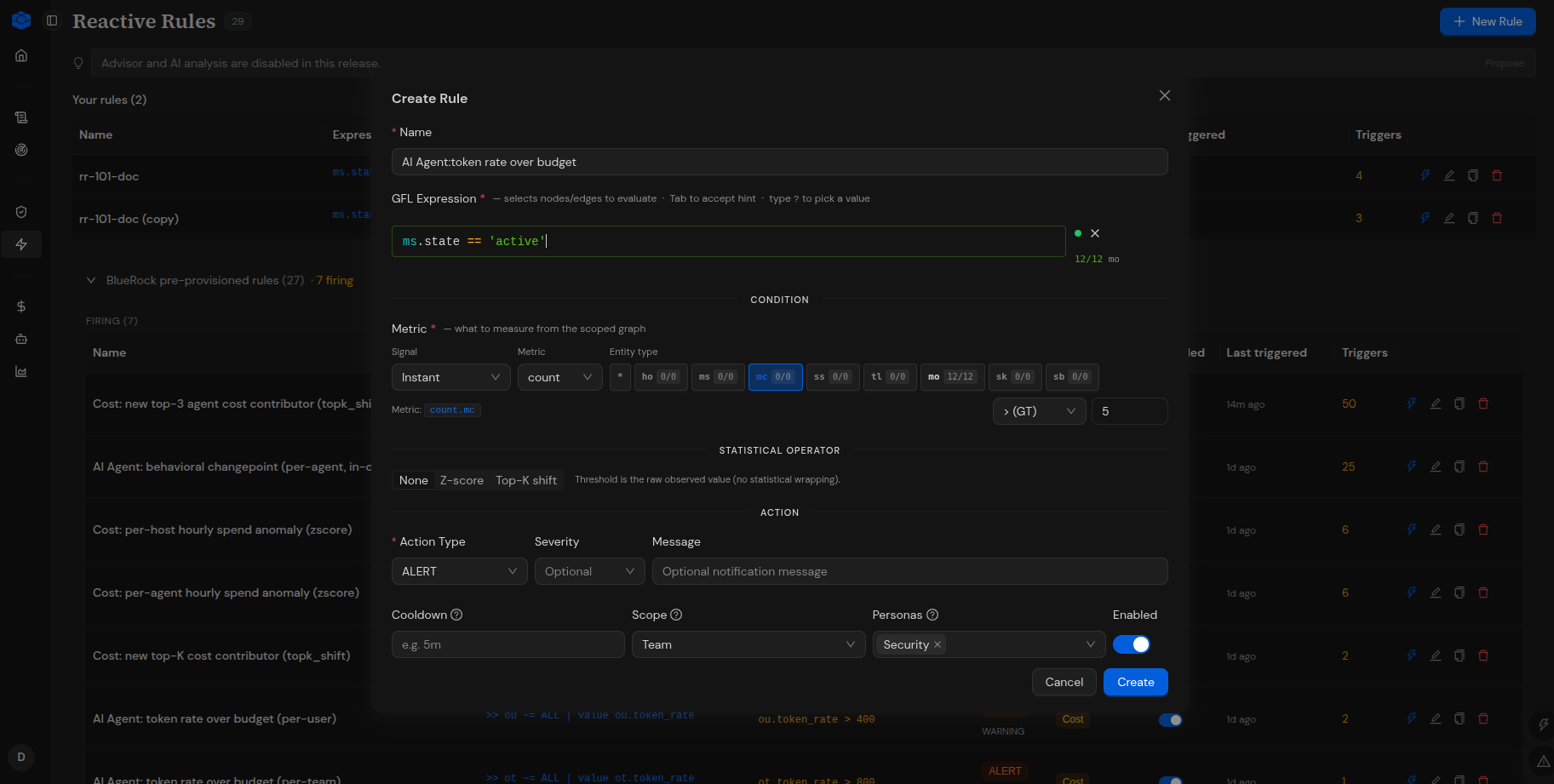
**3. Configure the Condition**
Specify the metric and condition that BlueRock evaluates.
| Setting | Description |
| ----------------------- | ----------------------------------------------------------------------------- |
| **Signal** | Select the signal used for evaluation, such as **Instant**. |
| **Metric** | Select the metric to measure, such as `count`. |
| **Entity type** | Select the entity type to include in the evaluation. |
| **Comparison operator** | Select the operator used to compare the observed value against the threshold. |
| **Threshold** | Enter the value against which the observed metric is compared. |
The available comparison operators shown in the configuration include:
* `>`
* `>=`
* `<`
* `<=`
* `=`
For example, a condition can use `count > 0`.
**4. Statistical Model (Optional)**
Select a statistical model if you want to apply adaptive detection to the condition.
Available options shown in the UI include:
* **None**
* **Z-score**
* **Top-K shift**
**5. Configure the Action**
Specify what BlueRock should do when the condition is met.
| Setting | Description |
| --------------- | ----------------------------------------------------------------------------------------------- |
| **Action Type** | Select the action to execute, such as `ALERT` or `LOG`. |
| **Severity** | Select the severity when applicable. The source content identifies Info, Warning, and Critical. |
| **Message** | Enter an optional notification or log summary. |
**6. Configure Cooldown**
Specify the minimum time that must elapse before the rule can trigger again.
For example:
* `5m`
* `1h`
A cooldown helps prevent repeated triggers while the underlying condition remains active.
**7. Configure Scope and Personas**
Configure the rule's visibility and optional classification.
| Setting | Description |
| ------------ | -------------------------------------------------------------------------- |
| **Scope** | Specify the rule's visibility, such as User, Team, or Org. |
| **Personas** | Optionally assign categories such as `cost`, `security`, or `reliability`. |
| **Enabled** | Enable or disable the rule. |
8. **Review the configuration and select Create.**
BlueRock saves the rule. When enabled, the rule can evaluate its configured condition and execute the specified action when the condition is met.
***
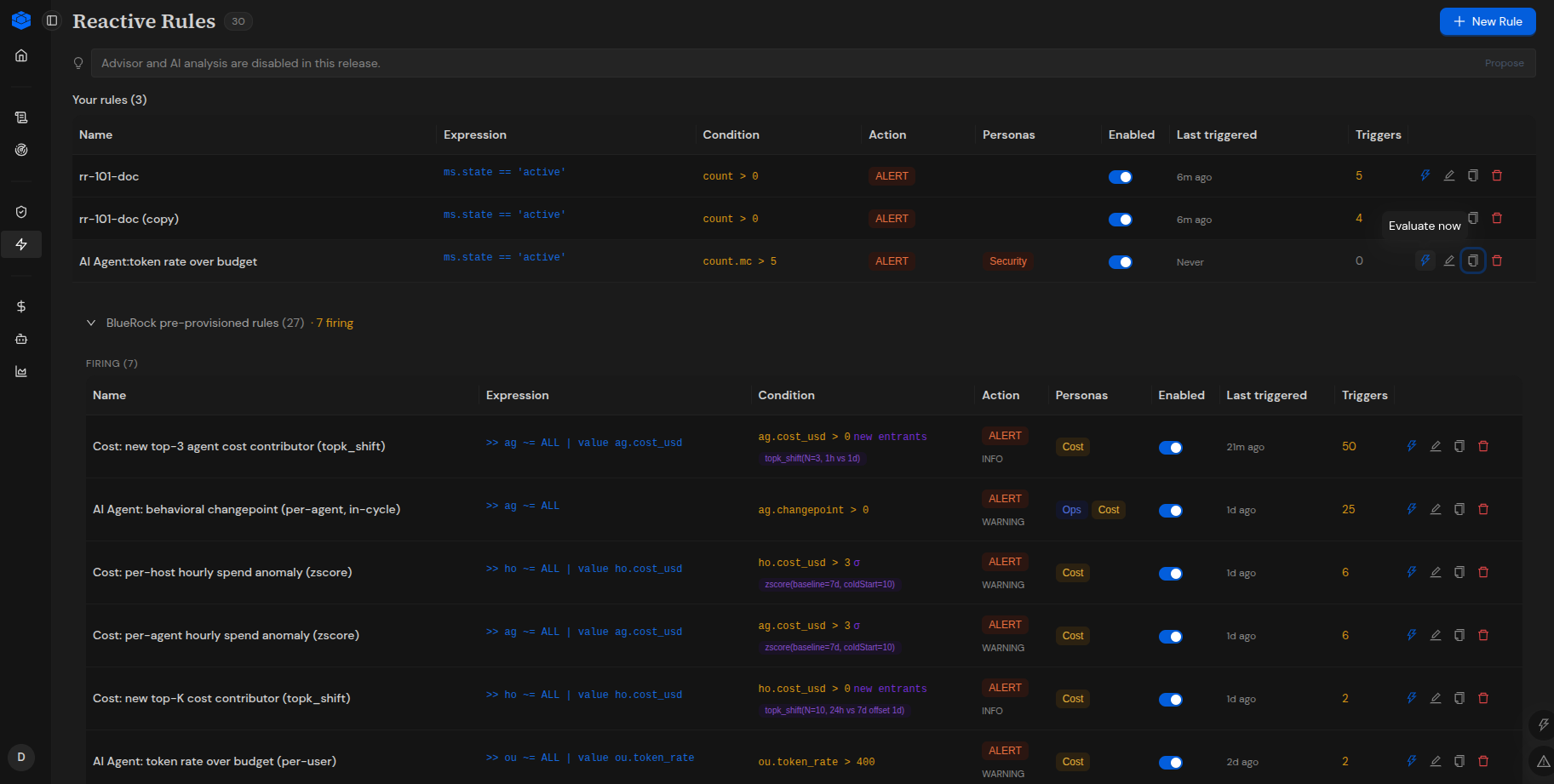
### View Reactive Rules
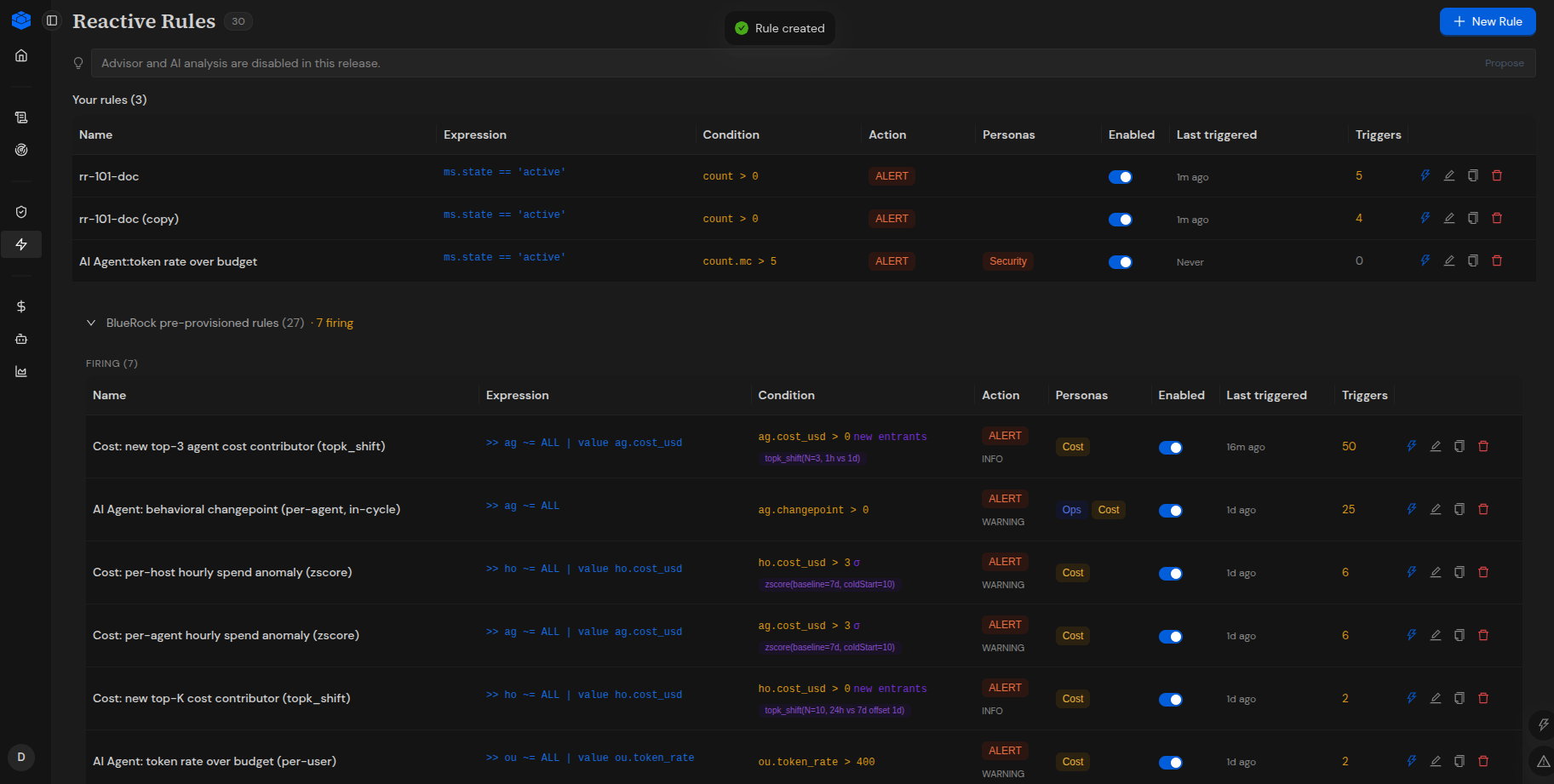
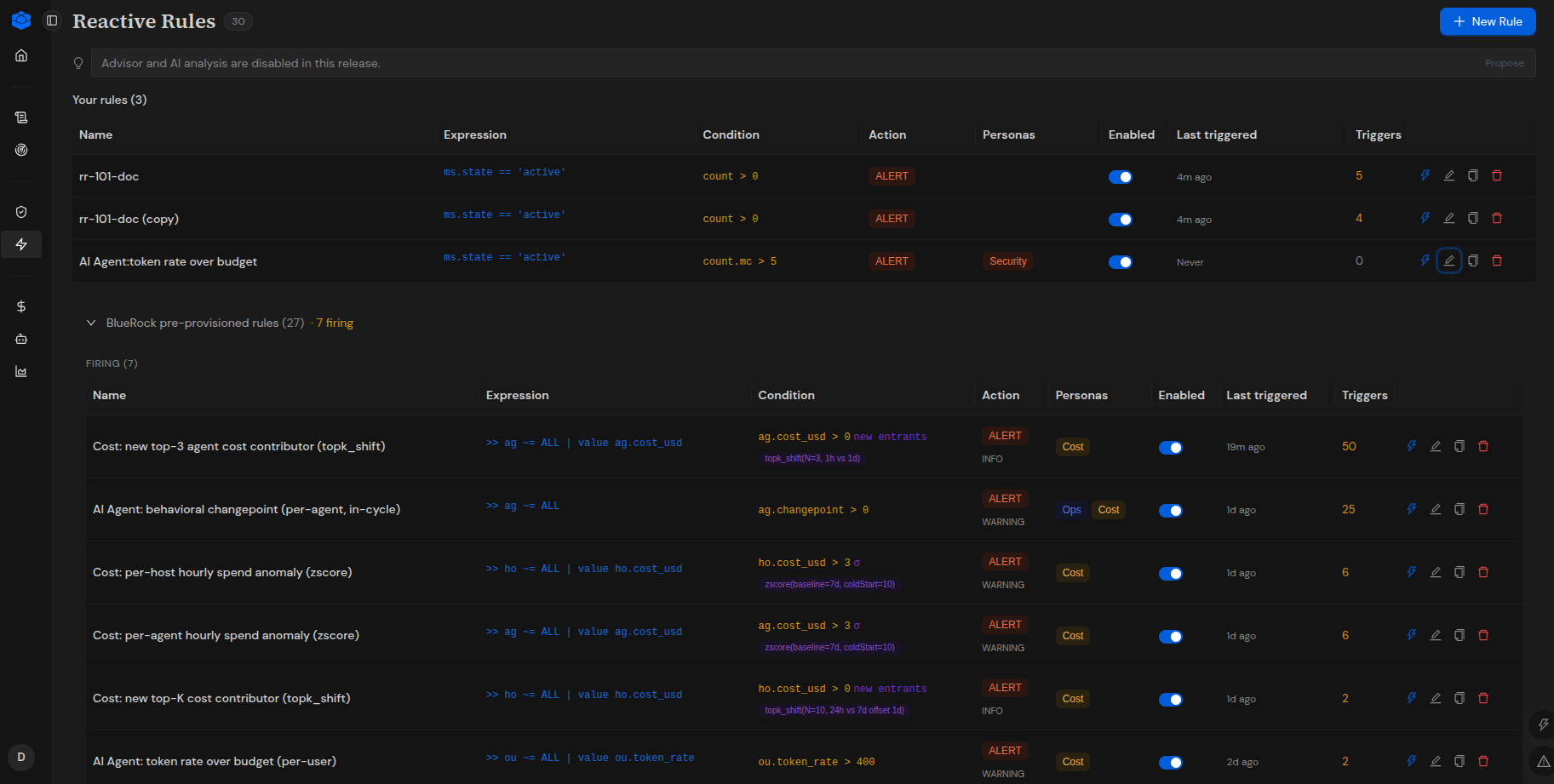
The Reactive Rules page displays the rules configured by the user and BlueRock pre-provisioned rules.
The rules table includes the following information:
| Column | Description |
| ------------------ | ----------------------------------------- |
| **Name** | Name of the rule. |
| **Expression** | GFL expression configured for the rule. |
| **Condition** | Metric condition and threshold. |
| **Action** | Configured action, such as `ALERT`. |
| **Personas** | Personas assigned to the rule, if any. |
| **Enabled** | Indicates whether the rule is enabled. |
| **Last triggered** | Time when the rule last triggered. |
| **Triggers** | Number of triggers recorded for the rule. |
The page also provides access to BlueRock pre-provisioned rules.
***
### Edit a Reactive Rule
You can update the configuration of an existing reactive rule.
1. Locate the rule in the rules table.
2. Select the **Edit** icon in the row.
3. Update the required settings.
4. Select **Save** to apply the changes.
***
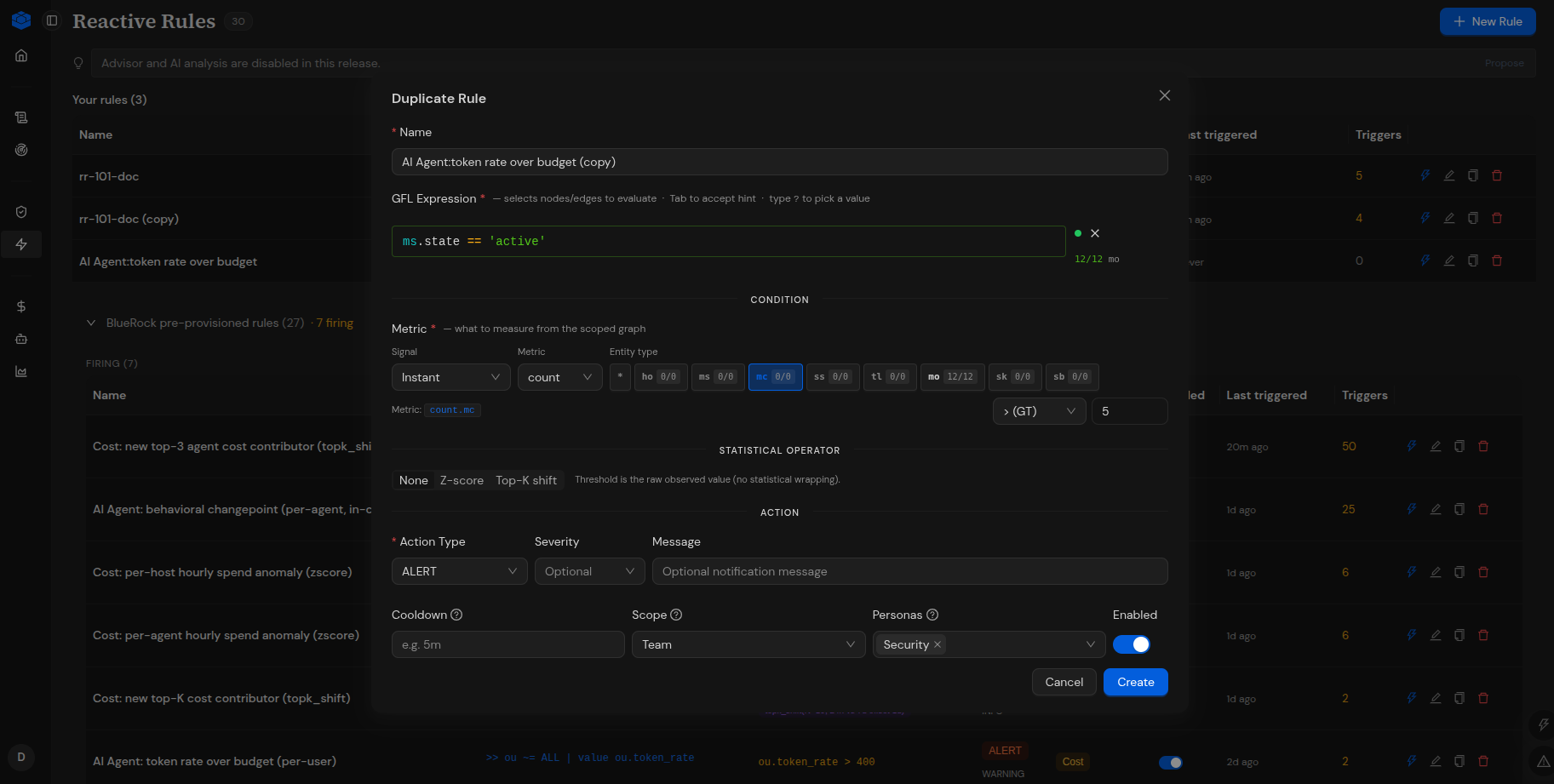
### Duplicate a Reactive Rule
You can create a copy of an existing rule and use it as the starting point for another configuration.
1. Locate the rule in the rules table.
2. Select the **Duplicate** icon in the row.
3. In the **Duplicate Rule** dialog, enter a name for the new rule.
4. Review and update the expression, condition, action, and other settings as required.
5. Select **Create**.
***
### Evaluate a Reactive Rule
You can evaluate a reactive rule against current data to check its condition.
1. Locate the rule in the rules table.
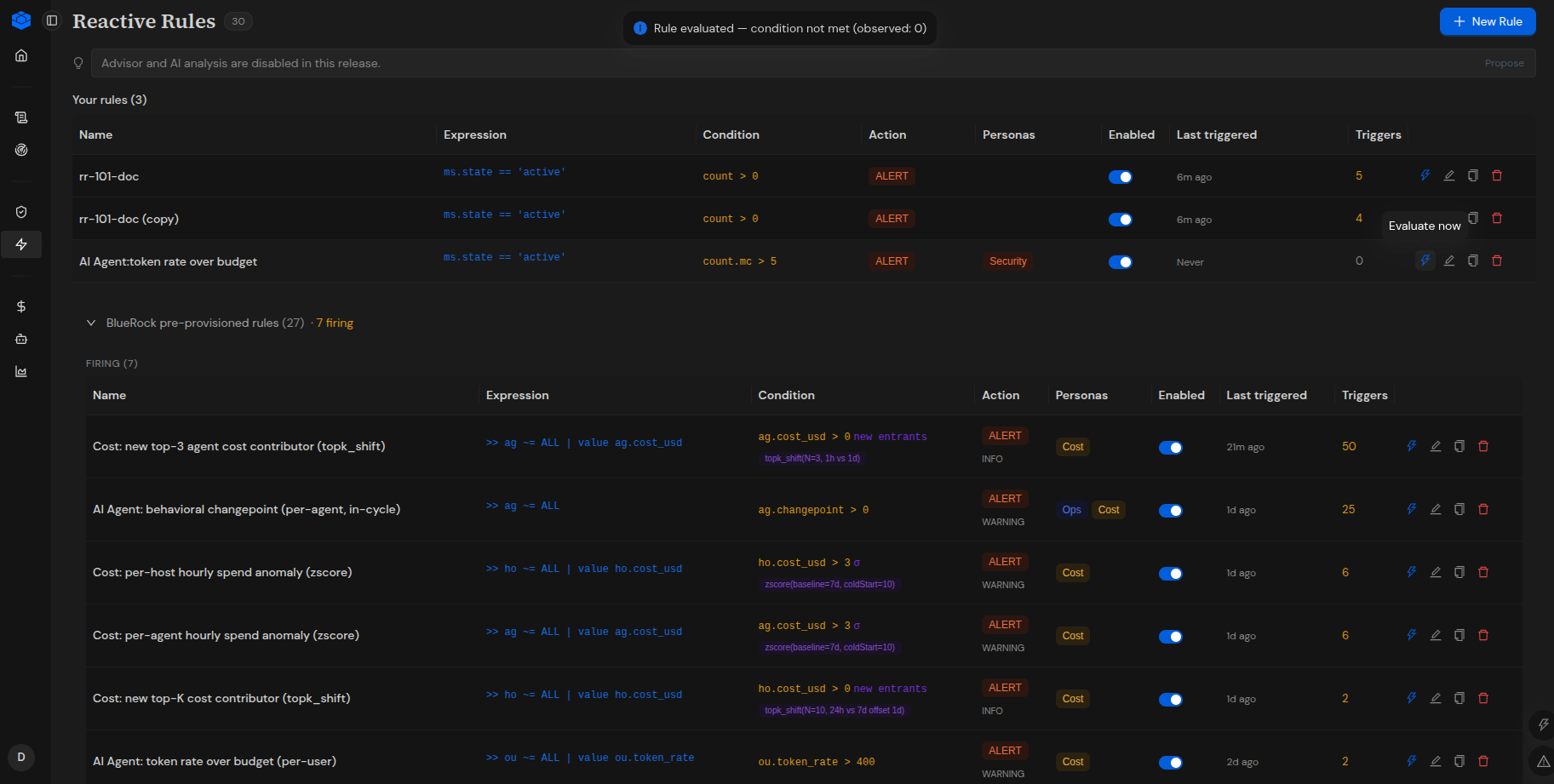
2. Select **Evaluate now** using the rule's action icon.
3. Review the evaluation result.
The UI displays an evaluation message indicating whether the condition was met and the observed value. For example, it may report that the condition was not met and show an observed value of `0`.
An evaluation checks the rule against current data. It does not replace the rule's ongoing monitoring behavior.
***
### How Reactive Rules Work
The reactive rule workflow is:
**Define scope → Select metric → Define condition → Configure action → Set cooldown → Enable rule**
Once enabled, BlueRock evaluates the configured condition. When the condition is met, the configured action executes.
***
---
# Agent Instructions
This documentation is published with GitBook. GitBook is the documentation platform designed so that both humans and AI agents can read, navigate, and reason over technical content effectively. Learn more at gitbook.com.
## Querying This Documentation
If you need additional information that is not directly available in this page, you can query the documentation by asking a question.
Perform an HTTP GET request on the following URL with the `ask` and `goal` query parameters:
```
GET https://docs.bluerock.io/bluerock-documentation-2.7.0-beta/bluerock-dashboard/reactive-rules.md?ask=&goal=
```
`ask` is the immediate question: it should be specific, self-contained, and written in natural language.
`goal` is what the user is ultimately trying to achieve, the reason they need the answer. Sharing it helps GitBook give you a better, more relevant answer. A goal is most helpful when it describes the outcome the user wants rather than restating the question. For example, with `ask=how do I create an API token`, a goal like `automate deployments from our CI pipeline` lets GitBook tailor the answer to that use case.
The response will contain a direct answer to the question and relevant excerpts and sources from the documentation.
Use this mechanism when the answer is not explicitly present in the current page, you need clarification or additional context, or you want to retrieve related documentation sections.